Reference-To-Image
Upload a reference, set a few options, and generate multiple alternatives you can immediately upscale, face-swap, or publish.
Written By Arina
Last updated About 2 hours ago
What the tool does
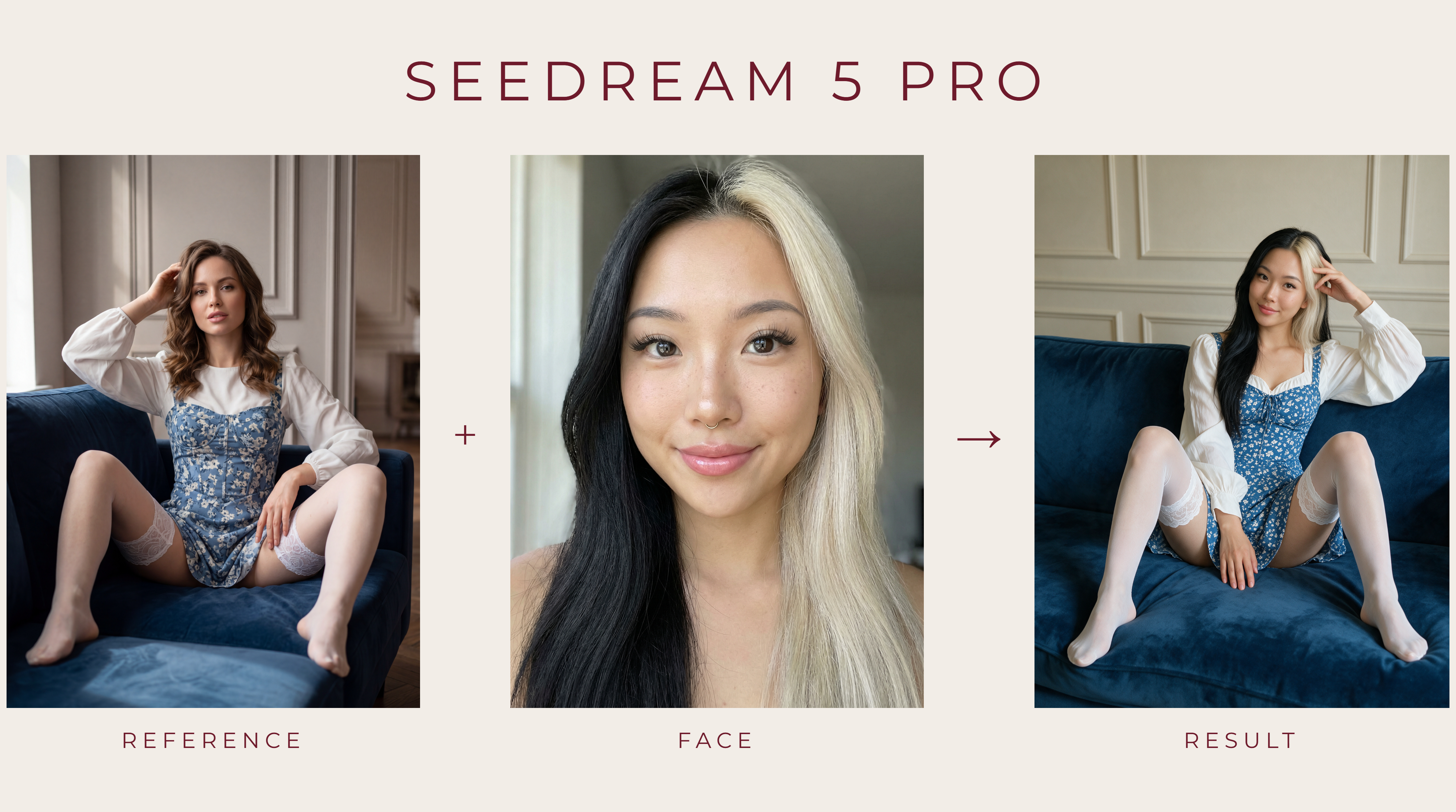
Reference-To-Image analyzes your image (subject, pose, camera angle, lighting, color grade, environment) and produces similar, not identical photos. It keeps the feel of the reference — location, pose family, styling — while exploring natural variations so you can pick the strongest frame.
Great for: recreating a look in different takes, matching a feed's aesthetic, building sets for Variations, and preparing shots for Head & Face Swap to lock identity.
🎬 Results
A look at what Reference-To-Image can produce.
Don't want to set everything up yourself?
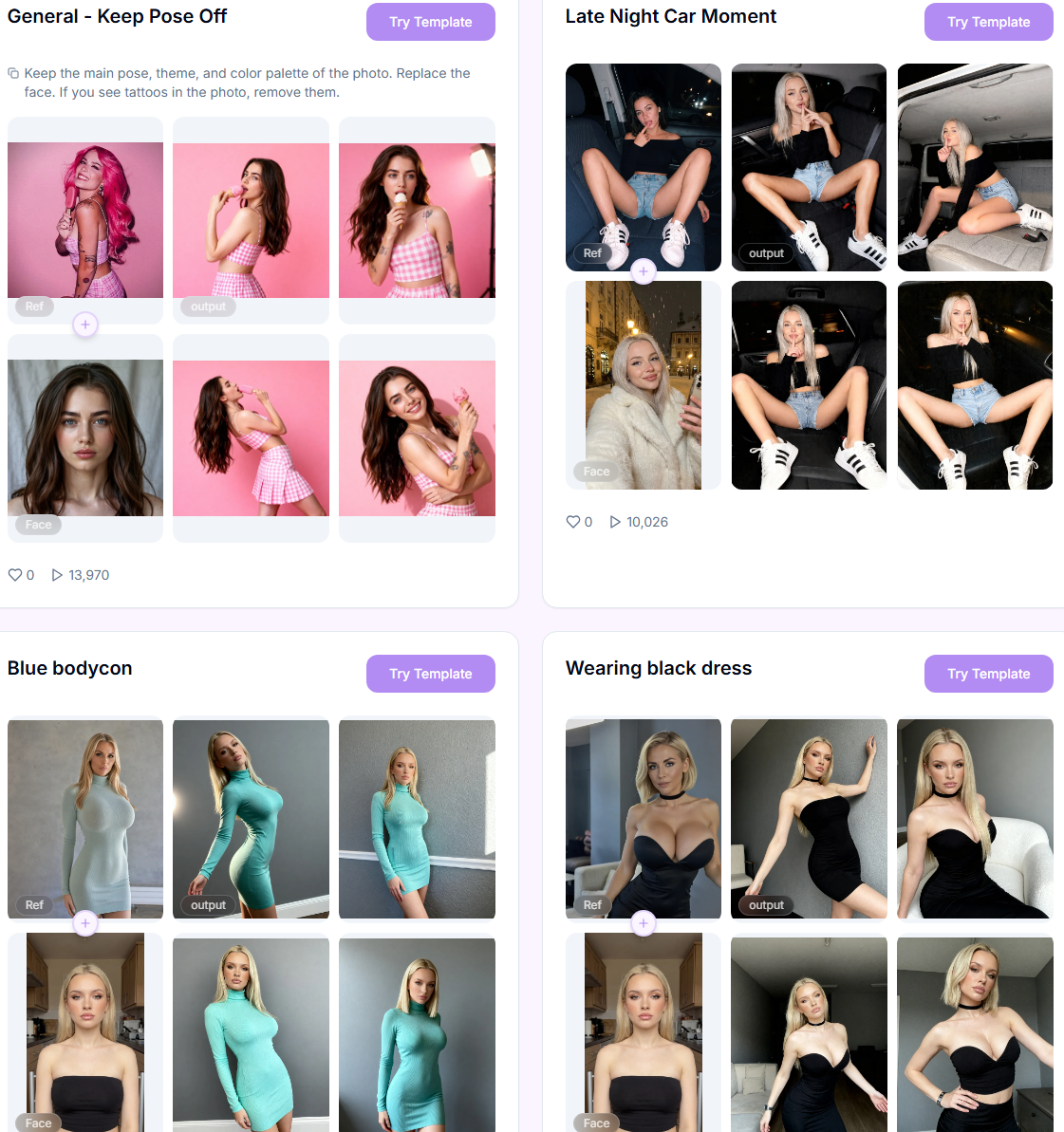
Skip the setup — pick a ready-made style from the Templates library and drop in your reference. Templates can be filtered by tags or searched by name.
Your step-by-step guide
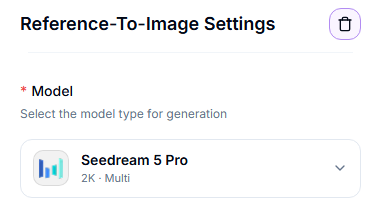
Step 1. Model — select the model type for generation. Tap one below to see what it's best at.
Step 2. Resolution (Krea 2) — output resolution tier. 2K produces larger, more detailed images; 1K is faster and cheaper.
Step 3. Redraw Strength (Krea 2) — Light, Medium, or Strong. Medium is the default and balances change against likeness.
Step 4. Aspect Ratio (Krea 2) — defaults to the aspect ratio closest to your uploaded reference. Upload the reference image(s) to redraw.
Seedream 5 Pro
Seedream 5 Pro
Built for realistic, high-fidelity results and works in two modes: Scene takes the identity from a face photo and places it into a reference scene, while Character swap takes 1–4 character photos and swaps them into a source scene, blending lighting and framing so the result looks like one consistent shot.
Supports Character swap mode — blends 1–4 character photos into a source scene with consistent lighting and framing
Supports Scene mode — places the identity from a face photo into a reference scene
Reproduces realistic lighting, materials, and skin texture
2K / 1K resolution tiers, with up to 1,000 source scene files per batch
Produces natural-looking, photorealistic images with high overall image quality
Recommended when: you want the most realistic result, need to combine several people into one scene, or want high-fidelity output without writing a prompt.
Krea 2
Krea 2
Fast, photorealistic model that reworks your reference using its own built-in style LoRA. The prompt is optional — leave it empty and the tool will describe the reference automatically and generate from that description.
Redraw strength has three presets: Light keeps most of the reference, Medium (default) balances change and likeness, Strong redraws nearly everything.
Trained with a custom style LoRA for realistic adult content; the LoRA can't be swapped or disabled.
Two quality tiers: 1K or 2K — same style, only resolution and price differ.
Aspect ratio defaults to the closest match to your reference.
Recommended when: you want a fast, photorealistic redraw of a single reference without setting up a face or character swap.
Quick pick:
Need to combine several people into one scene (Character swap) → Seedream 5 Pro
Need to place a face into a reference scene (Scene mode) → Seedream 5 Pro
Need the most realistic lighting and texture → Seedream 5 Pro
Need a fast, photorealistic redraw of a single reference image → Krea 2
Step 5. Mode (Seedream 5 Pro) — Scene: the identity from a face photo is placed into the reference. Character swap: replace the characters in a source scene with your own.
Step 6. Resolution (Seedream 5 Pro) — output resolution tier. 2K produces larger, more detailed images; 1K is faster and cheaper.
Step 7. Aspect Ratio (Seedream 5 Pro) — defaults to Auto (from reference), matching the aspect ratio of your uploaded reference.
In Scene mode:
Keep Pose — when on, the reference is sent to Seedream with a fixed prompt: pose, composition, outfit, body, and background all come from the reference, and only the identity changes. Aspect ratio always matches the reference in this case.
Reference — upload reference image(s) for pose, composition, or style. Up to 1,000 files.
Face — required. The face photo of the character to place into the reference scene. Single file.
Body — optional. A body photo used to guide the character's body. Single file.
In Character swap mode:
Source Scene — required. Upload the source scene(s) to edit — characters are swapped into these. Up to 1,000 files.
Characters — required. Upload 1–4 characters to swap into the source scene.
Step 8. Start Generation — launch the batch. The per-image credit cost appears next to the button.
Working with results
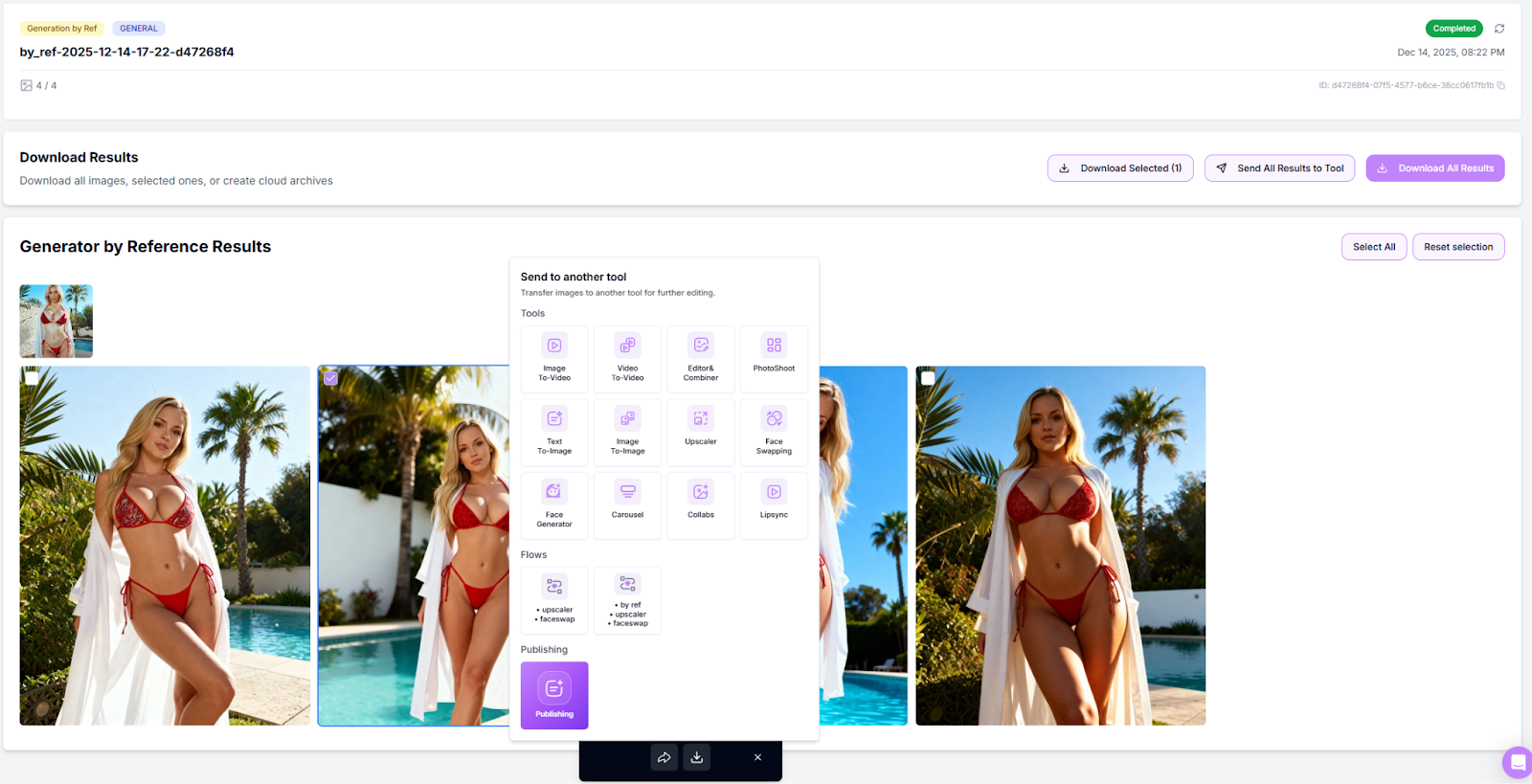
Use the checkboxes on thumbnails to Select/Deselect.
Download Selected / Download All to export a ZIP.
Send to another tool to continue the pipeline (Image Upscaler, Head & Face Swap, Image to Video, Variations).
Retry Failed appears automatically if any frames mis-rendered.
Pro tips
Quality in → quality out. Choose references with sharp faces, simple backgrounds, and consistent light.
Batch for choice. Generate 8–10 variations per reference to find a hero frame.
FAQ
What if the face isn't the one I need?
What if the face isn't the one I need?
Run Head & Face Swap as the final step to lock in the identity you want.
Is the license commercial?
Is the license commercial?
Yes — outputs are royalty-free for commercial use.
Troubleshooting
You're working with AI — occasional mistakes or artifacts are normal, and a 100% correct result isn't guaranteed.
Want to make visible edits to the photo (change clothing, background, pose, etc.)? We recommend using Image Editor instead.
Need help choosing the right flow for your shoot? Ping the chat bubble or email [email protected].
What's next
Image Upscaler — sharpen and enlarge your result
Head & Face Swap — lock in a consistent face
Image to Video — animate the final image
Was this helpful?
Still need help? Ask the team