Text to Image
Write a prompt and generate a batch you can immediately upscale, face-swap, or publish.
Written By Arina
Last updated About 2 hours ago
What the tool does
Text to Image creates images directly from text. You control subject, setting, lighting, composition, and style. Choose a model to match the look and content restrictions you need. Results are commercially licensed and can be sent downstream to any ZenCreator tool.
🎬 Results
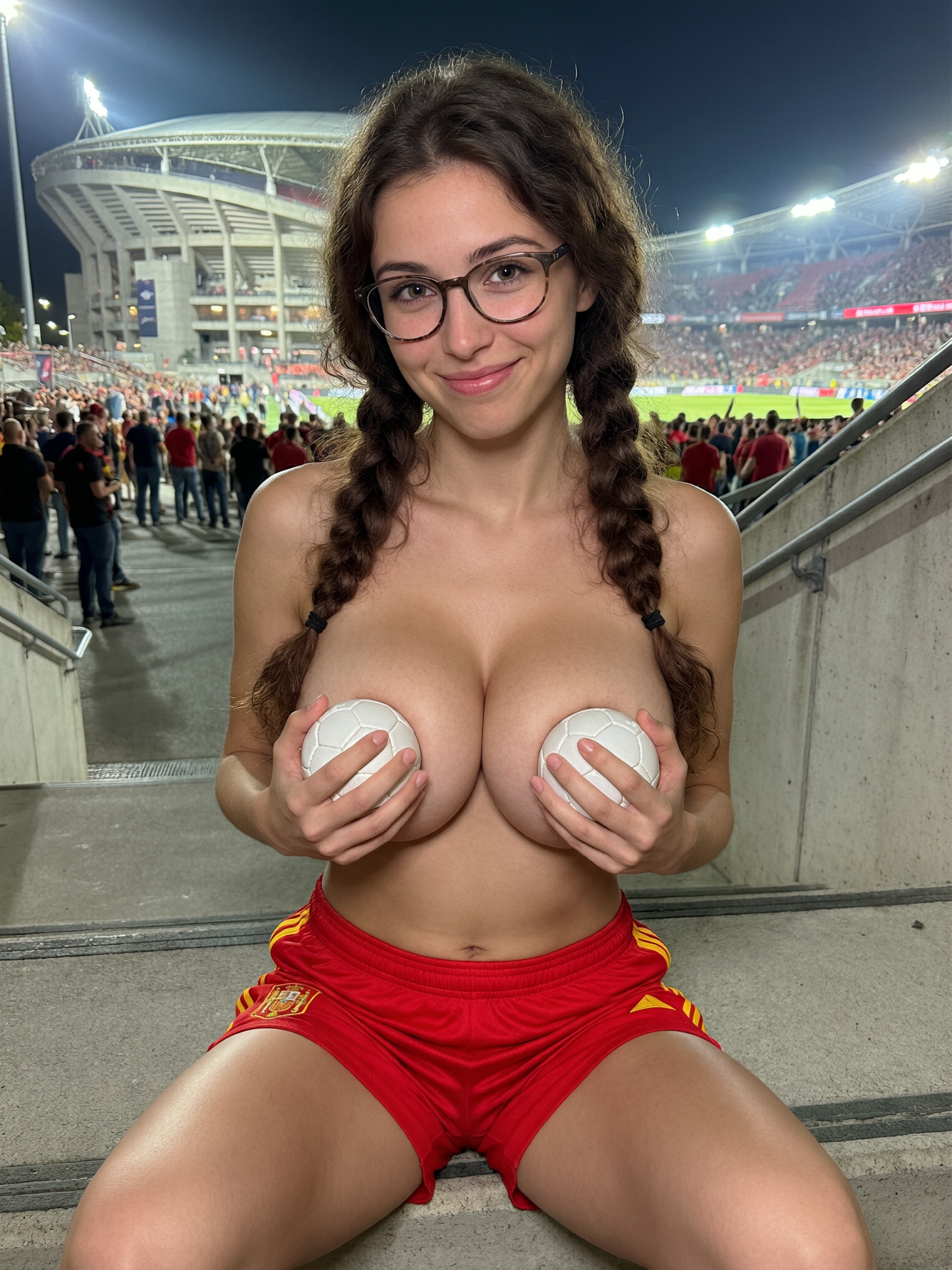
A look at what Text to Image can produce from a prompt alone.
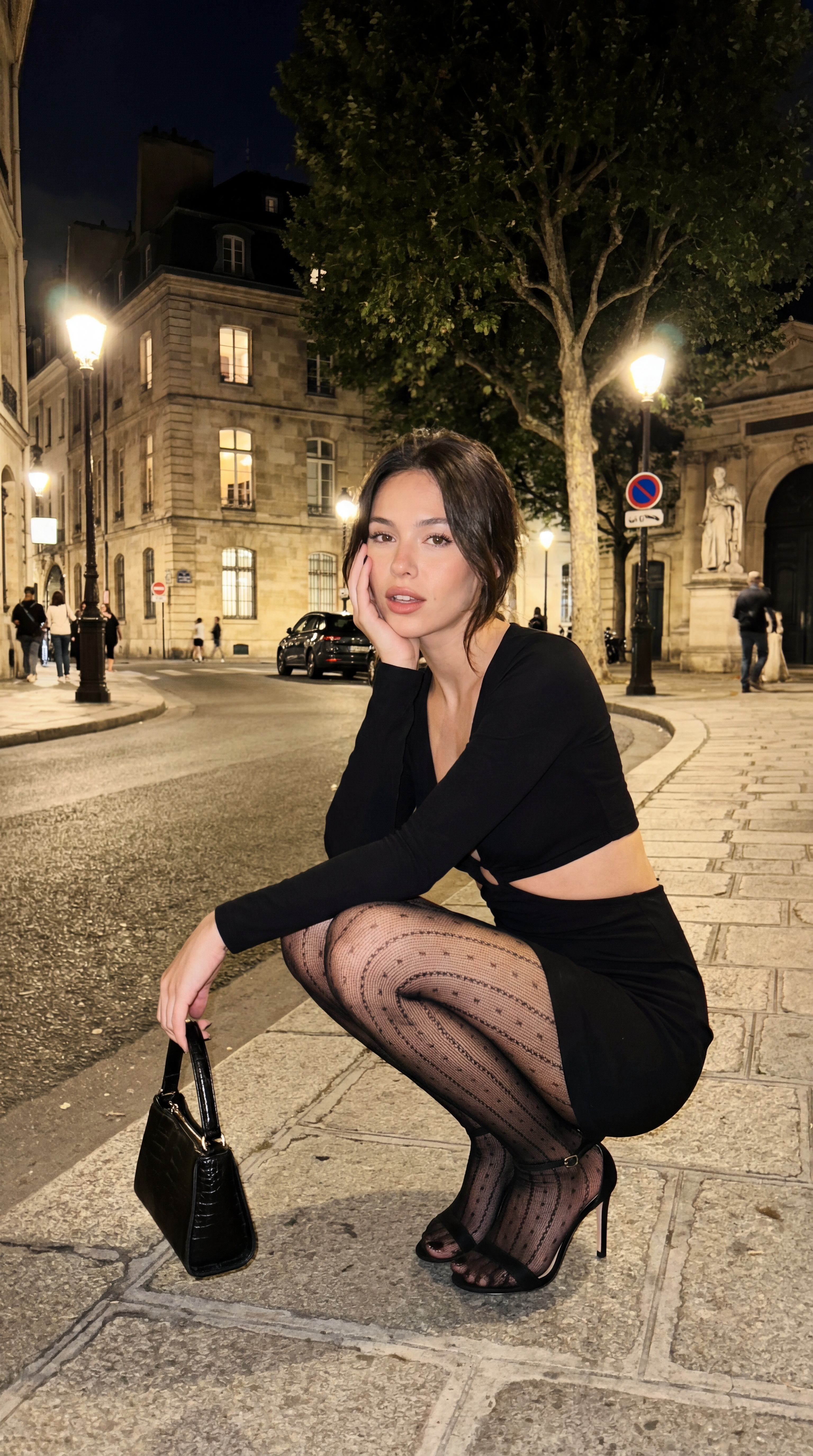
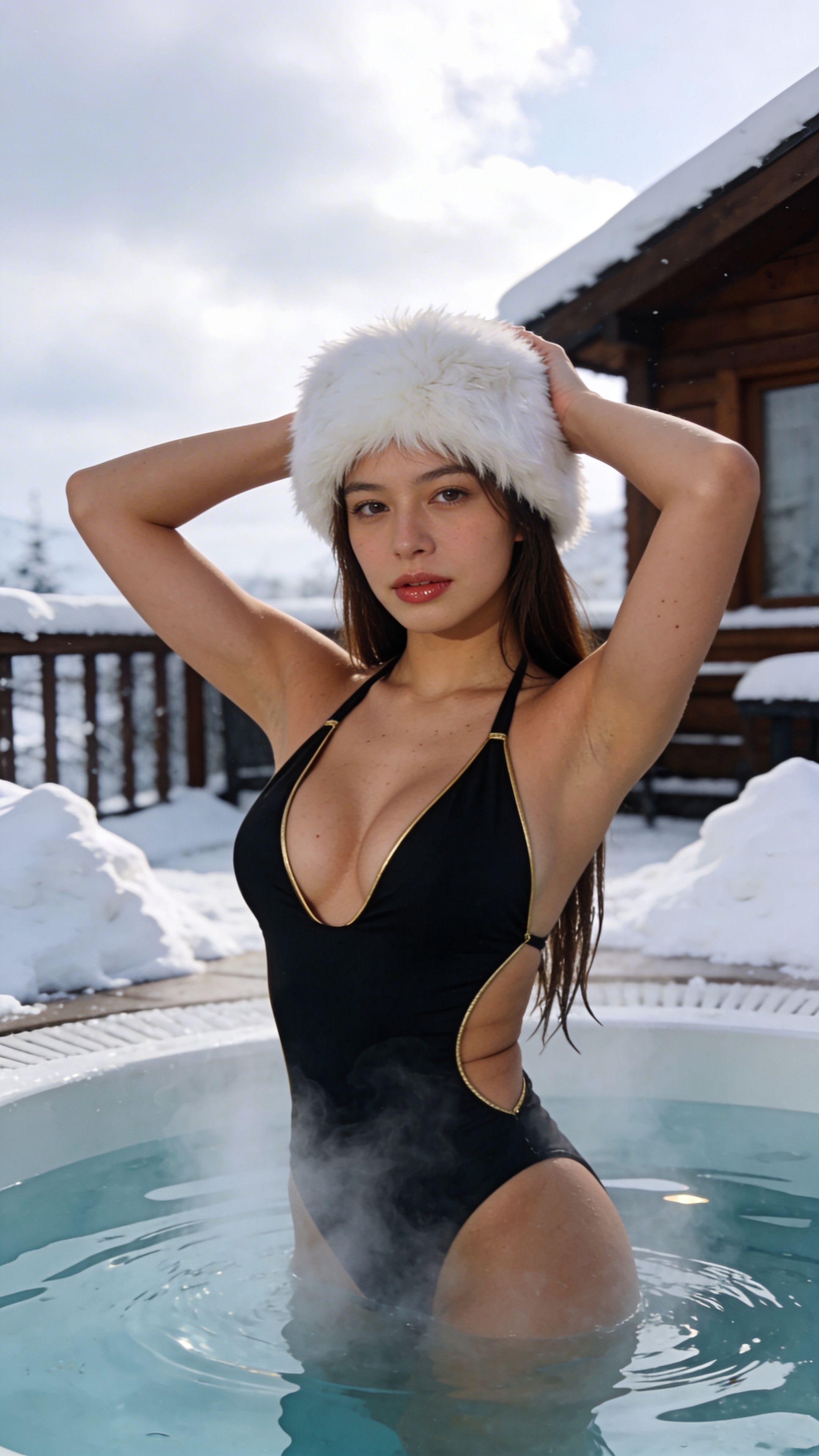
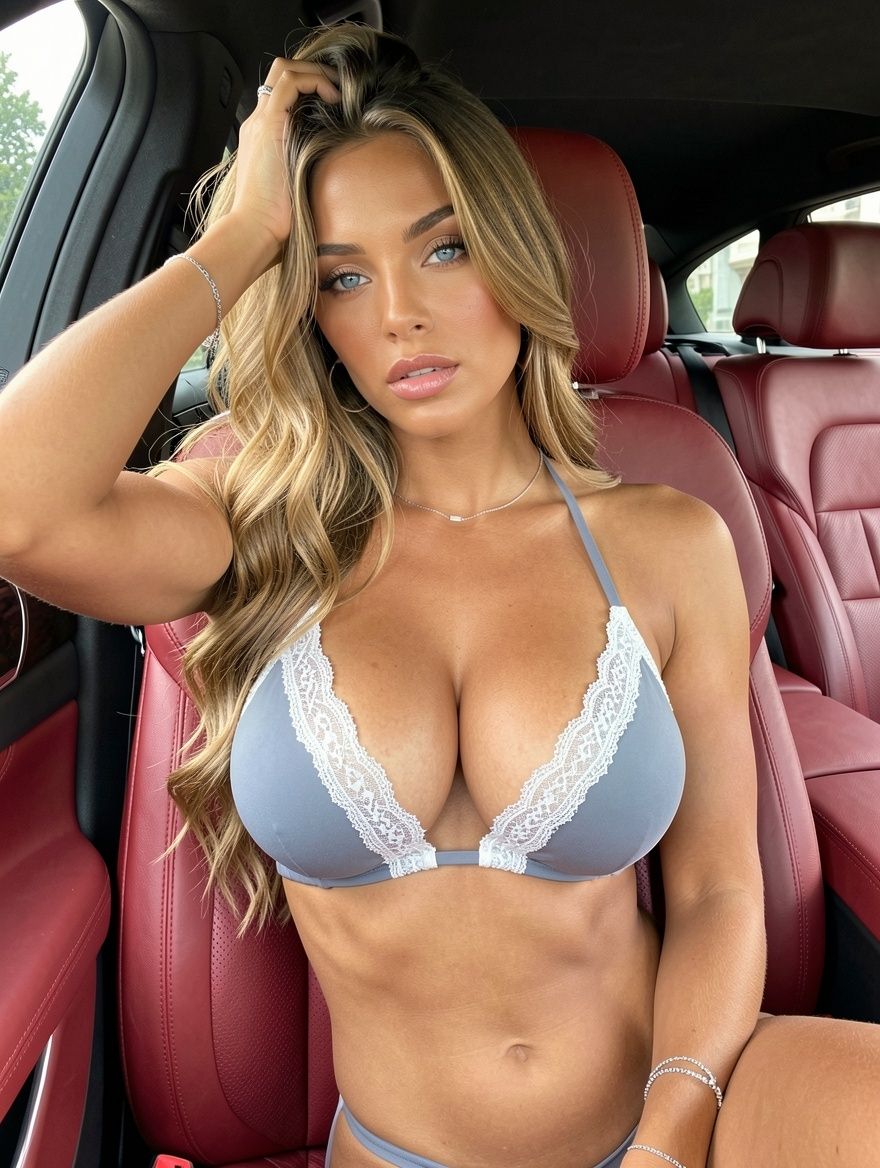
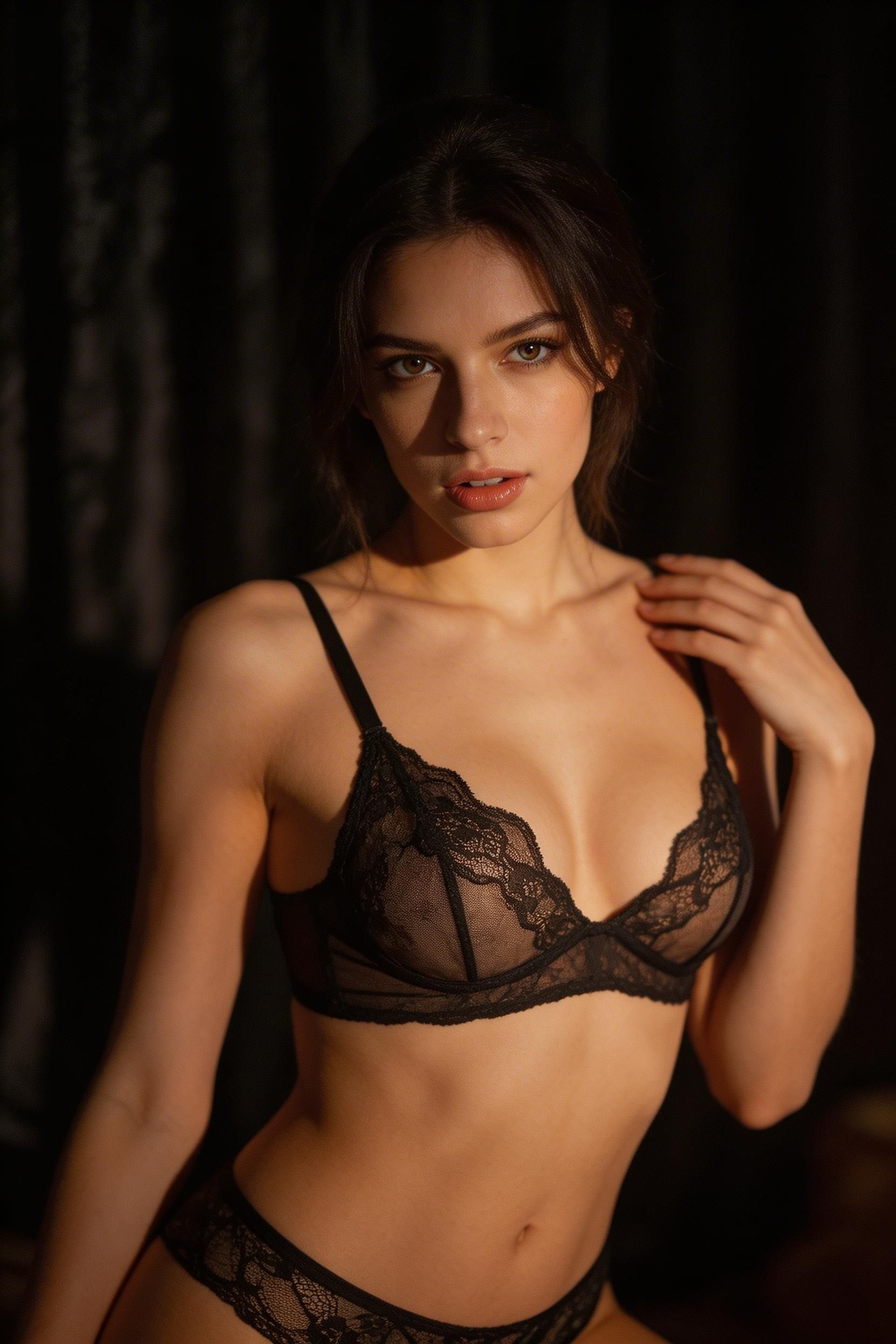
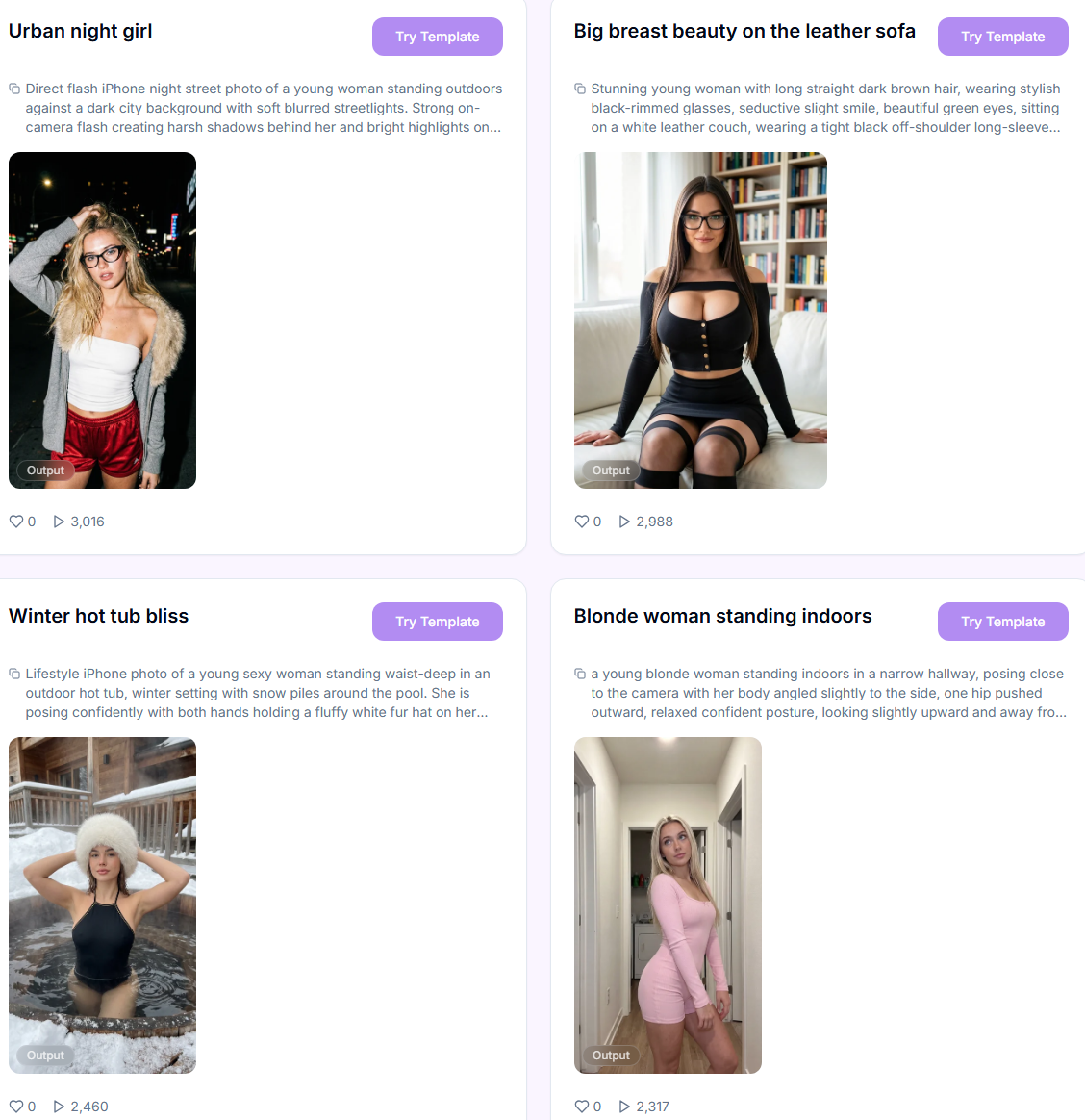
Don't want to set everything up yourself?
Skip the setup — pick a ready-made style from the Templates library and just add your prompt.
Your step-by-step guide
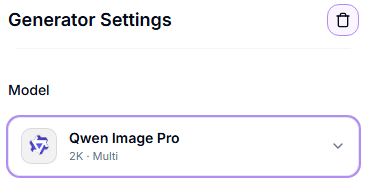
Step 1. Model — select the image generation model from the drop-down list. Tap one below to see what it's best at.
WAN 2.7 Image
WAN 2.7 Image
Overview
Next-generation WAN model designed for more flexible and expressive generation.
Key points
Adapts well to a wide range of prompts and scenarios.
Works with minimal Safety Filters (supports both SFW and NSFW content).
Provides consistent results with more variation in outputs.
Suitable for diverse and less constrained generations.
Seedream 5
Seedream 5
Overview
Next-generation AI image model focused on intelligent generation, controllable editing, and improved reasoning.
Key points
Combines image generation with logical reasoning and instruction following.
Designed for more complex compositions and structured prompts.
Best suited for high-quality outputs and more advanced, controlled generation tasks.
Qwen Image
Qwen Image
Overview
General-purpose model from the Qwen family, focused on structured and predictable generation.
Key points
Produces stable and consistent results across prompts.
Works with minimal Safety Filters (supports both SFW and NSFW content).
Handles a wide range of styles without strong prompt tuning.
Suitable for everyday image generation.
Nano Banana 2
Nano Banana 2
Overview
High-quality SFW model optimized for clean, commercial visuals.
Key points
Generates images up to 2K resolution.
Works with Safety Filters enabled (supports SFW content only).
Clean anatomy, stable faces, polished look.
Well-suited for fashion, lifestyle, and brand content.
Seedream 5 Pro
Seedream 5 Pro
Overview
The newest Seedream flagship, built for top prompt understanding and realism.
Key points
Supports all 15 aspect ratios, more than any other model in this tool.
Resolution tier switch: 1K (2 credits) or 2K (3 credits).
Works with minimal Safety Filters (supports both SFW and NSFW content).
Best suited for the highest-fidelity, most controlled outputs.
General
General
Overview
Universal high-resolution model optimized for maximum output quality.
Key points
Generates images in native 4K.
Works with minimal Safety Filters (supports both SFW and NSFW content).
Balanced realism, anatomy, and lighting without extra tuning.
Best choice when you want final, publication-ready images.
Flux Klein Spicy
Flux Klein Spicy
Overview
Fast generation model with fewer content restrictions and support for flexible creative workflows.
Key points
Speed-optimized architecture built for rapid iteration.
Allows more flexible content generation due to minimal filtering.
Supports iterative workflows and rapid experimentation.
Best suited for fast generation where flexibility is required.
Qwen Image Pro
Qwen Image Pro
Overview
Enhanced version of Qwen Image with more refined output quality.
Key points
Produces cleaner and more detailed results compared to the base model.
Maintains consistent outputs across different prompts.
Works with minimal Safety Filters (supports both SFW and NSFW content).
Better suited for final images.
WAN 2.7 Pro
WAN 2.7 Pro
Overview
Advanced WAN model with higher detail and more expressive outputs.
Key points
Produces more detailed results compared to WAN 2.7 Image.
Better handles complex scenes and compositions.
Works with minimal Safety Filters (supports both SFW and NSFW content).
Recommended for high-quality final images.
Krea 2
Krea 2
Overview
Fast, photorealistic model that always applies our built-in style LoRA — no custom LoRA selection needed.
Key points
Trained with a custom style LoRA for realistic adult content; the LoRA can't be swapped or disabled.
Two quality tiers: 1K (1 credit) or 2K (2 credits) — same style and composition, only resolution and price differ.
Ignores manual width/height, negative prompt, and LoRA selection; size is set by aspect ratio + tier alone.
Z-Image Spicy
Z-Image Spicy
Overview
Uncensored photorealistic model, text-to-image only — doesn't accept reference images.
Key points
Trained further on explicit content and draws well from text alone.
Two modes: Standard (1 credit, faster) or Pro (2 credits, more fine detail).
The provider automatically rewrites and expands your prompt before generating — short, specific prompts (40–120 words, one paragraph) tend to work better than long, detailed ones.
Ignores manual width/height, negative prompt, and LoRA; size is set by aspect ratio alone.
Quick pick:
Fastest and cheapest, just testing an idea → Qwen Image.
Specific pose or detailed scene, uncensored → WAN 2.7 Image.
Cinematic, magazine-style color → Seedream 5 (or Pro for the sharpest version, any resolution/ratio).
Clean SFW photos ready to animate → Nano Banana 2.
Same face across a character series, highest quality → General.
Realistic nude photos → Flux Klein Spicy.
Sharpest, most detailed nudes (worth the wait) → Qwen Image Pro or WAN 2.7 Pro.
Fastest way to sharp, realistic images with our built-in style → Krea 2.
Explicit content from text alone, precise short prompts → Z-Image Spicy.
Step 2. Prompt — describe what you want to see in the image. Be specific about the subject, clothing, pose, lighting, camera angle, mood, and environment. Use Magic Prompt to automatically expand a short idea into a detailed prompt — works with every model. Not happy with the result? Click Revert to go back to what you typed.
Step 3. Negative Prompt (optional) — list what the model should avoid (bad anatomy, extra fingers, blur, watermark, text, artifacts). Availability depends on the selected model.
Step 4. Aspect Ratio — choose the desired aspect ratio for the generated images (e.g. 1:1, 3:4, 9:16). This defines the width-to-height ratio of all outputs.
Step 5. Resize (W / H) — manually set the output resolution in pixels. Maximum resolution depends on the selected model (up to 4K).
Step 6. Number of Images — select how many variations to generate in this run (up to 10).
Step 7. Start Generation — launches the job. The total credit cost is shown below the button before generation starts.
Actioning results
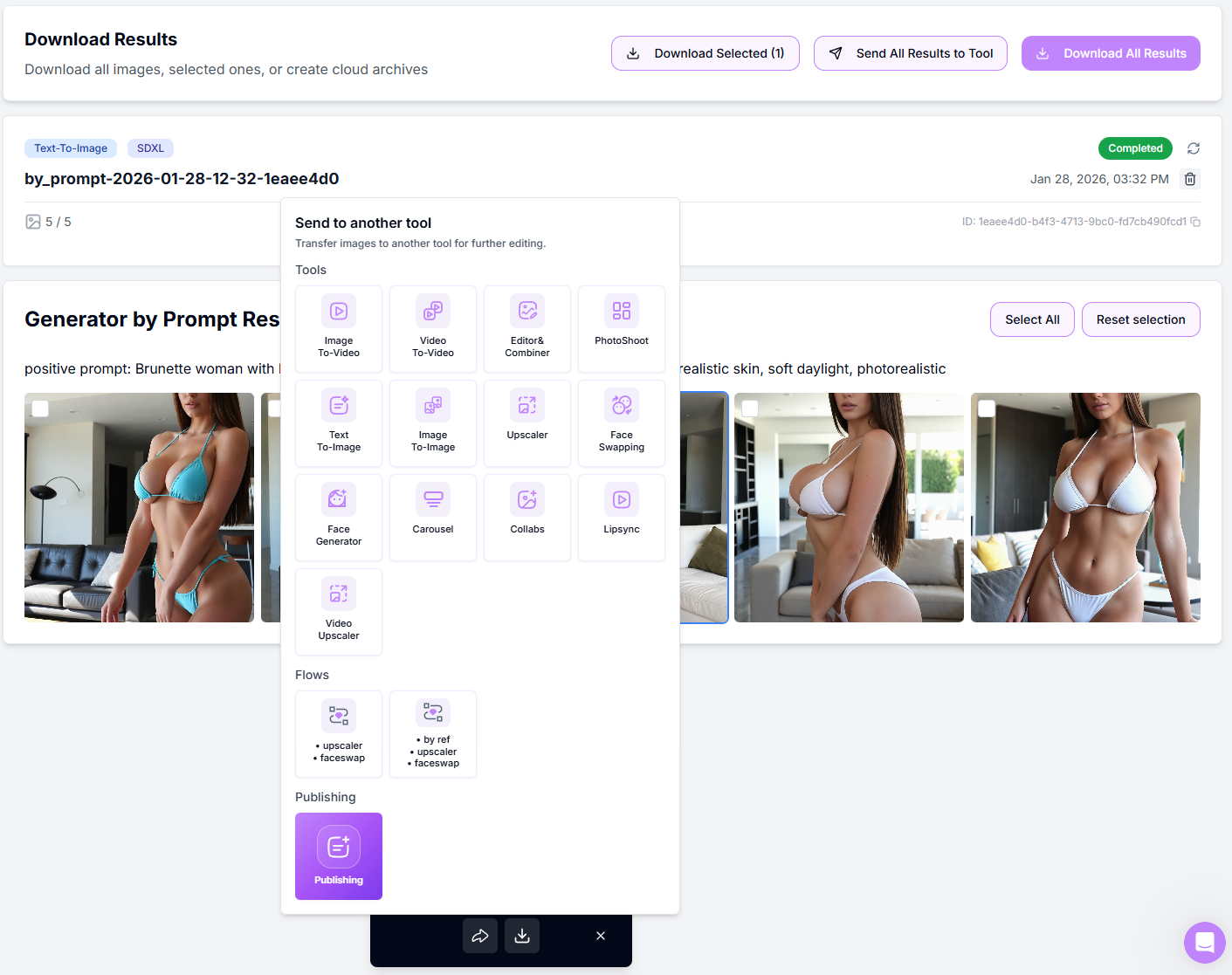
Use the checkboxes on thumbnails to Select/Deselect.
Download Selected / Download All to export a ZIP.
Send to another tool to continue the pipeline (Image Upscaler, Head & Face Swap, Reference-To-Image, Image to Video, Variations).
Retry Failed appears automatically if any frames mis-rendered.
Prompting tips (copy-paste friendly)
Portrait: "35mm portrait of [subject], half-body, eye contact, soft window light, shallow depth of field, natural skin, neutral color grade, realistic texture, high detail" — Negative: "lowres, over-smooth skin, bad anatomy, extra fingers, watermark"
Lifestyle: "[subject] walking in [location], candid pose, golden hour backlight, film look, natural grain, realistic proportions, composition rule of thirds" — Negative: "cartoonish, plastic skin, lens distortion, duplicate face"
Fashion: "[subject] studio fashion shot, 3/4 pose, key light + rim, clean backdrop, editorial style, crisp shadows, high-end retouch look" — Negative: "blown highlights, muddy blacks, JPEG artefacts"
See a full guide: How to create a good prompt.
Pro tips
Keep prompts visual and concise — describe what you see, not how the model should work.
If results look soft at higher resolution, send selected images to Image Upscaler as a final step.
If facial identity isn't stable enough, route selected images to Head & Face Swap after generation to lock the face.
Start with 2–4 images, approve the look, then increase the number of images for production runs.
Avoid mixing extreme styles and heavy LoRAs in one run — consistency drops quickly.
Troubleshooting
You're working with AI — occasional mistakes or artifacts are normal, and a 100% correct result isn't guaranteed.
Anatomy or clothing distortions → simplify the prompt or try a different model.
If something didn't work as expected, contact us in the support chat in the app, or email [email protected].
FAQ
Which model is more realistic?
Which model is more realistic?
For SFW content, Nano Banana 2 is usually the most photorealistic option. For the highest overall output quality and final images, use General. For NSFW content, use General.
Why do I see artefacts?
Why do I see artefacts?
Excessive LoRA strength or too many competing LoRAs. Lower strengths, remove one, or simplify the prompt.
Do prompts have to be written in English?
Do prompts have to be written in English?
Prompts can be written in different languages, but the models understand English best. With prompts in other languages, the quality of results isn't guaranteed, so it's better to write your prompts in English.
Can I generate very high resolution images directly?
Can I generate very high resolution images directly?
Yes, depending on the model. For the highest resolution output, use General — 4K. For other models, generate first and then send selected images to the Image Upscaler.
Should I always use a Negative Prompt?
Should I always use a Negative Prompt?
Not always, but it's recommended when generating people. A short negative prompt helps reduce anatomy issues, blur, and unwanted artifacts.
What's next
Image Upscaler — sharpen and enlarge your result
Head & Face Swap — lock in a consistent face
Reference-To-Image — build variations from this result
Image to Video — animate the final image
Was this helpful?
Still need help? Ask the team