How to Download Generated Images
Written By Arina
Last updated About 2 hours ago
You can download your generated images in ZenCreator in three ways:
From a Task
From My generations
From the Gallery inside each tool
Below are step-by-step instructions for all options.
Option 1 — Download images from a Task
1) Open the Task with your results
Open the Task where your images were generated. You’ll see the Download Results page with your generation and previews.
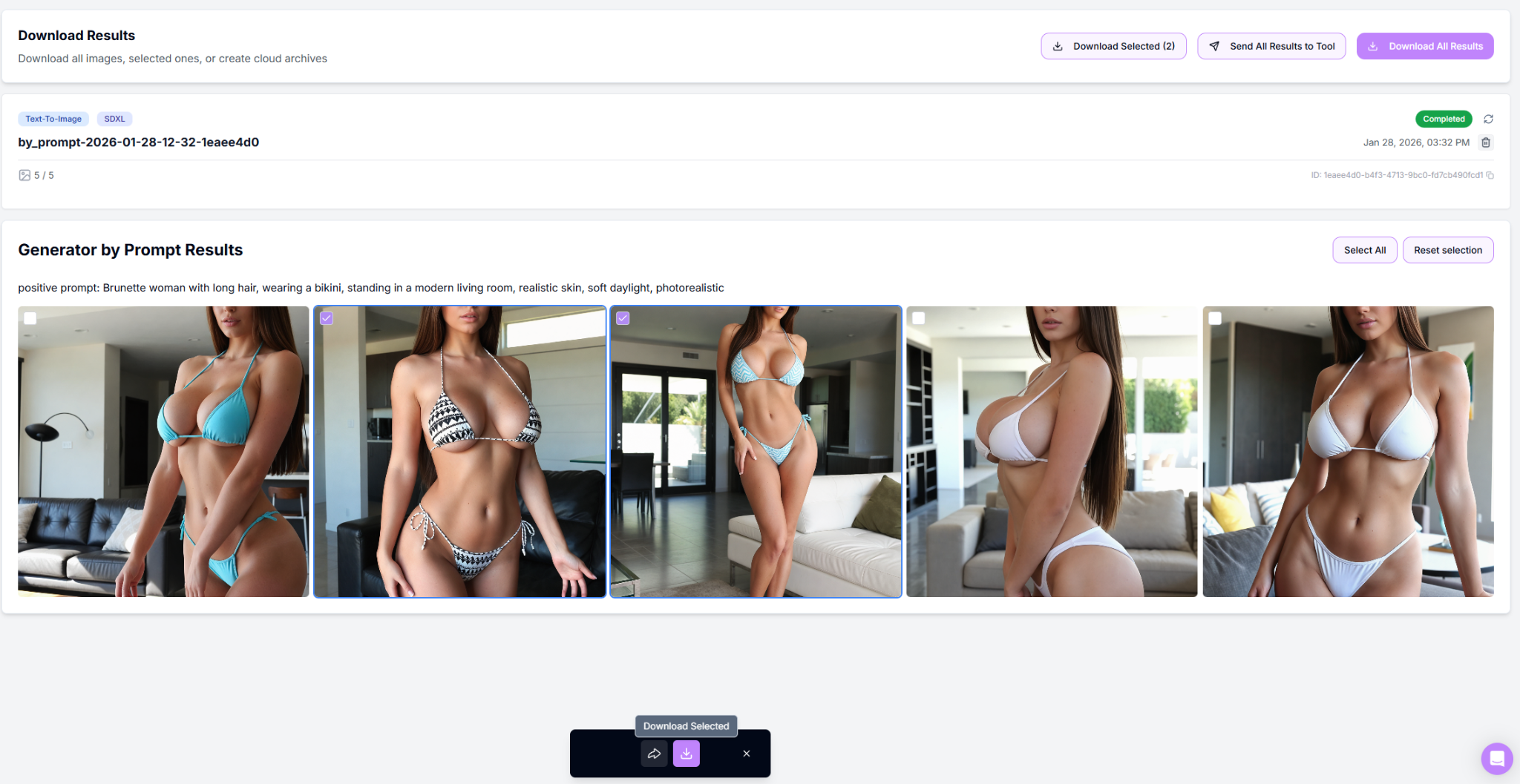
2) Select the images you want to download
If you want to download only specific images, select them using the checkboxes on the previews.
3) Download selected images
After selecting images, use the Download button in the bottom action bar to download only the selected items.
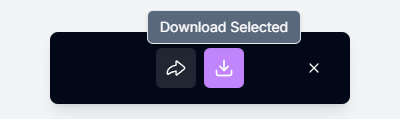
4) Download from the top-right panel

You can also download directly from the top-right buttons:
Download Selected — downloads only the images you checked
Download All Results — downloads all images from this generation
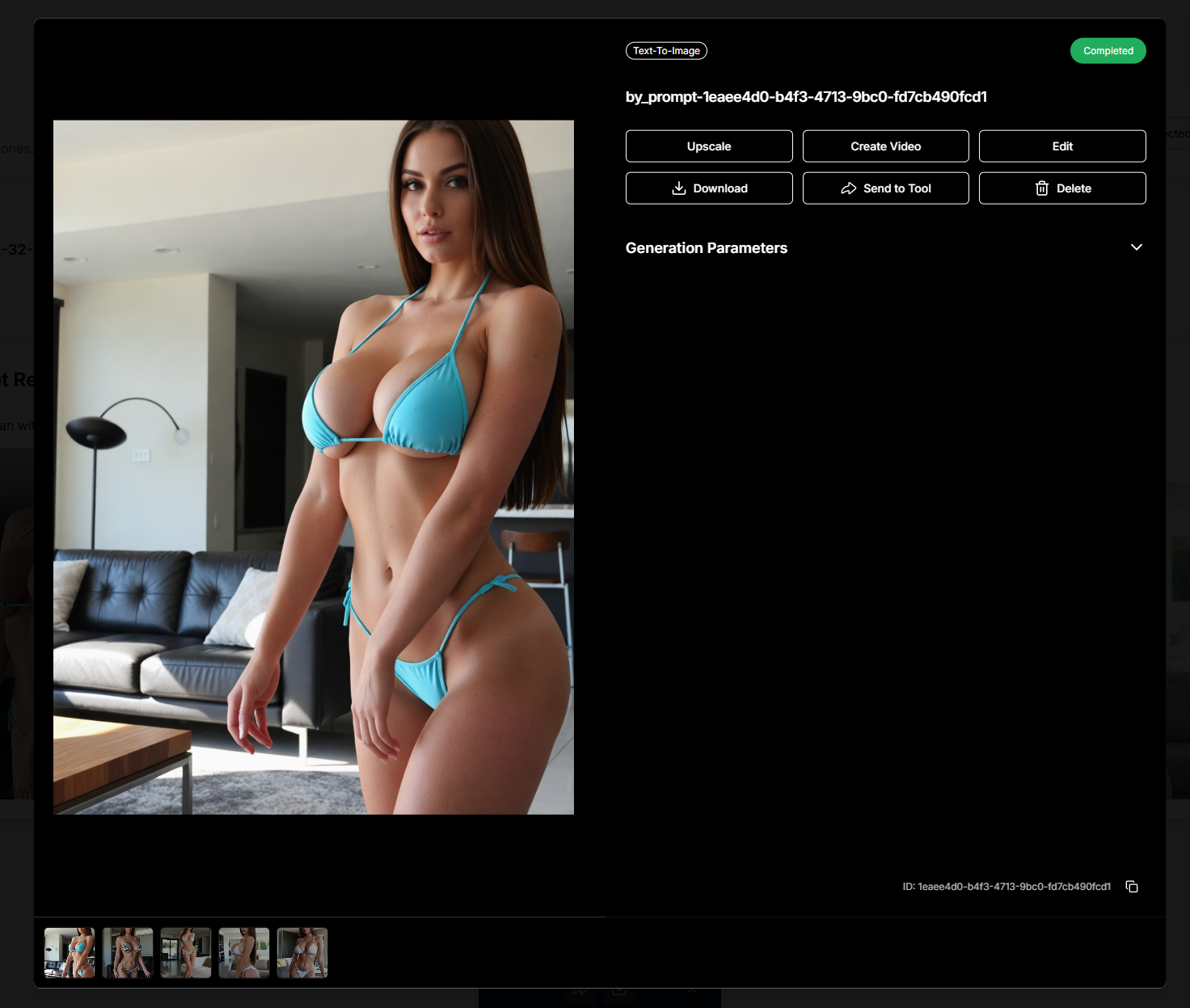
5) Download a single image from the viewer
You can also save an image using the viewer.
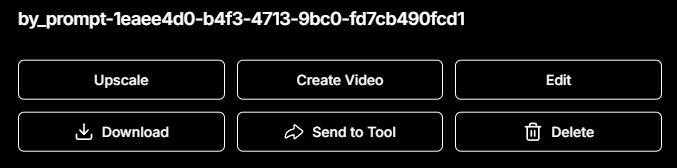
Open the image in the viewer and click Download.
Option 2 — Download images from My generations
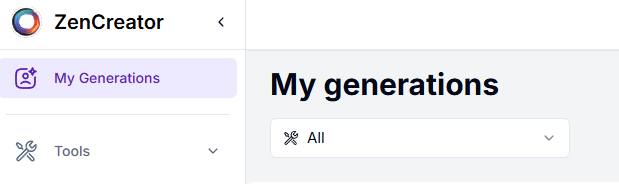
1) Open My generations
Go to My generations to see all your generation results. You can find it in the top-left corner of the screen.
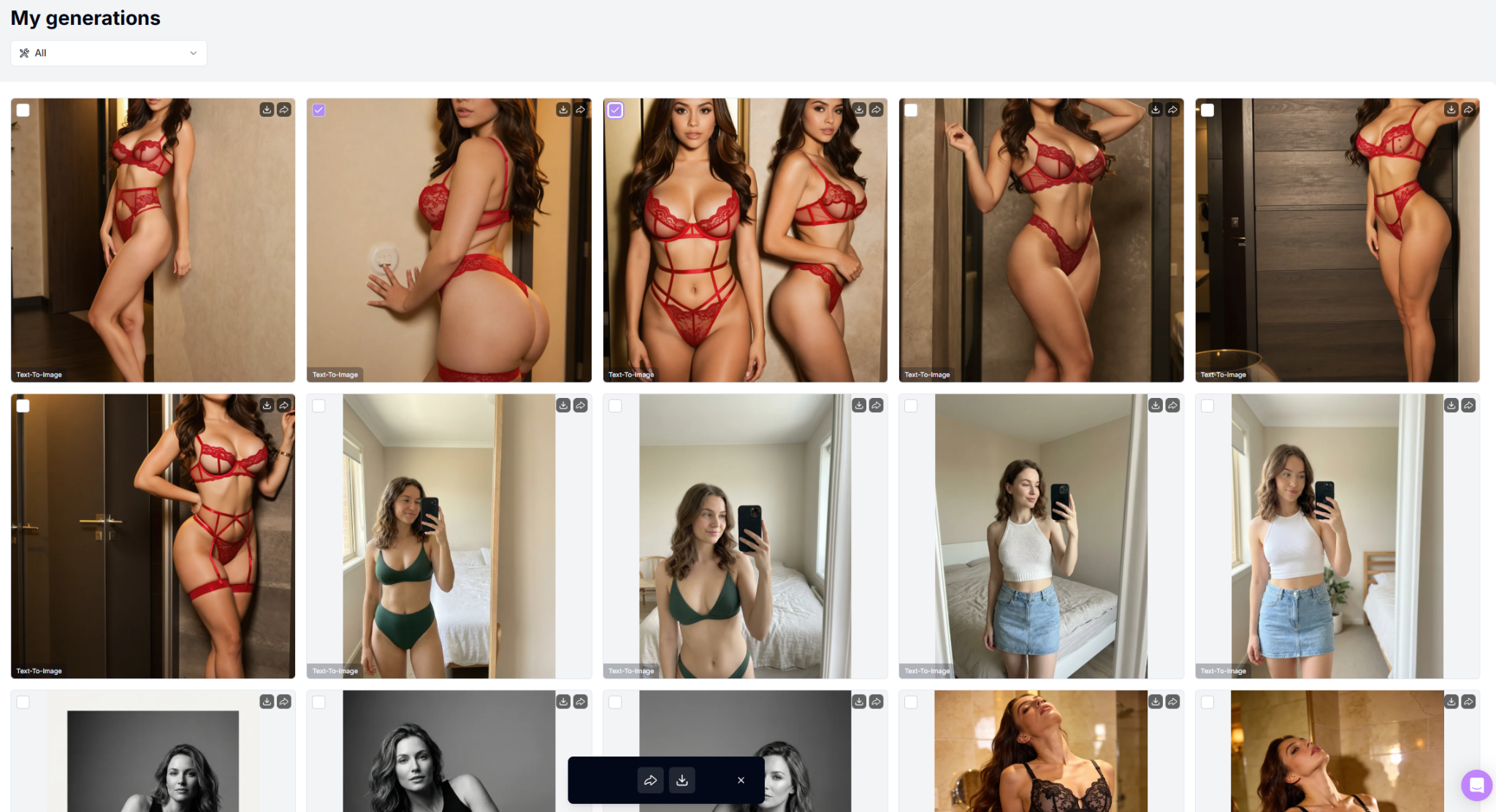
2) Download multiple images
Select images using the checkboxes and download them using the Download button in the bottom action bar.
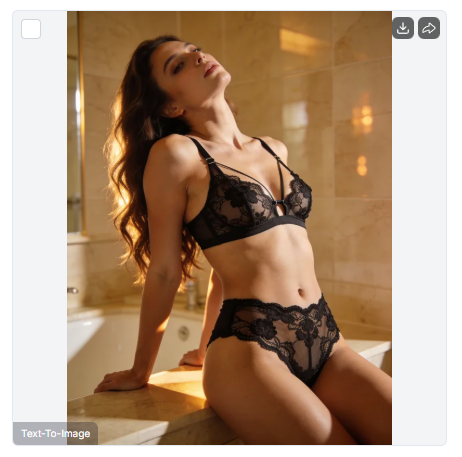
3) Download one image directly from the thumbnail
On each image card, you can click the download icon to download that specific image without selecting multiple items.
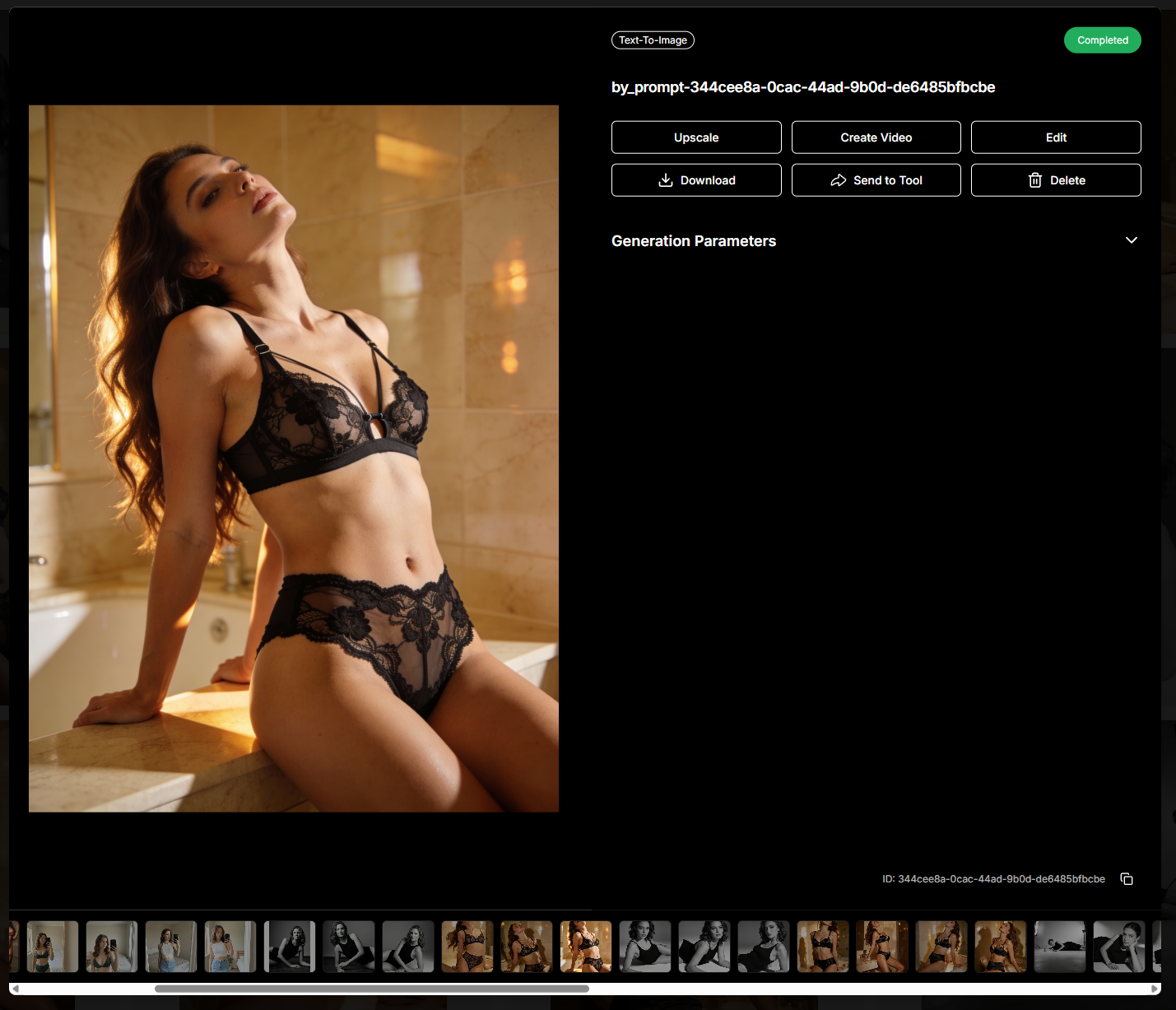
4) Download a single image from the viewer
You can also open an image in the viewer from My generations and click Download at the top.
Option 3 — Download images from the Gallery inside a tool
Each generation tool (for example, Text to Image, Reference-To-Image, Head & Face Swap, etc.) has its own Gallery tab where all results from that tool are displayed.
1) Open the Gallery tab
Go to the Gallery inside the tool where the images were generated.
2) Download multiple images
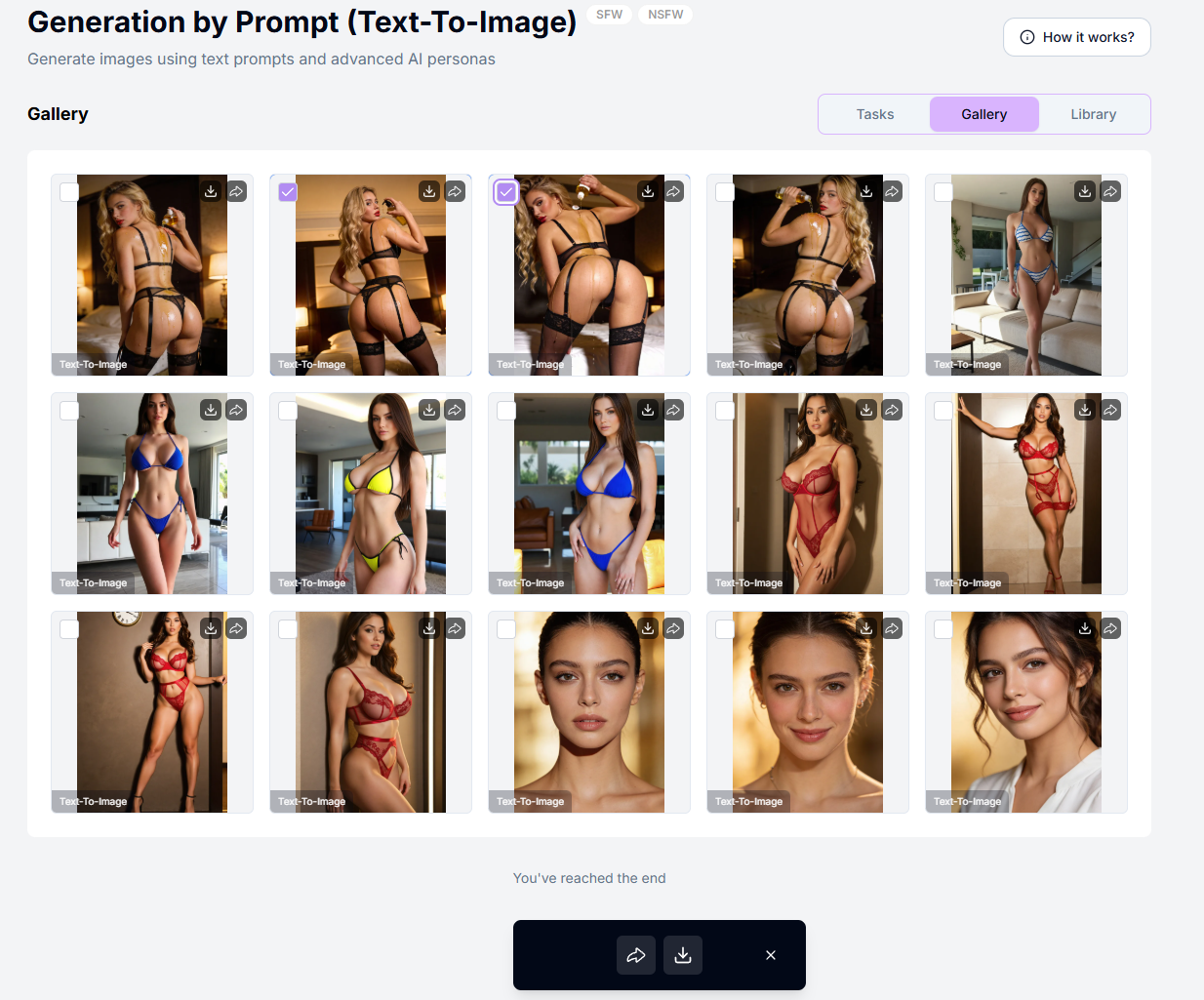
Select images using the checkboxes and click the Download button to save all selected images at once.
3) Download a single image
You can also download images individually:
Click the Download icon on the image card, or
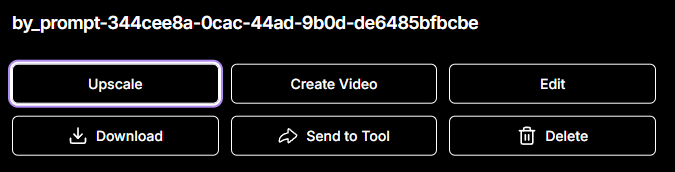
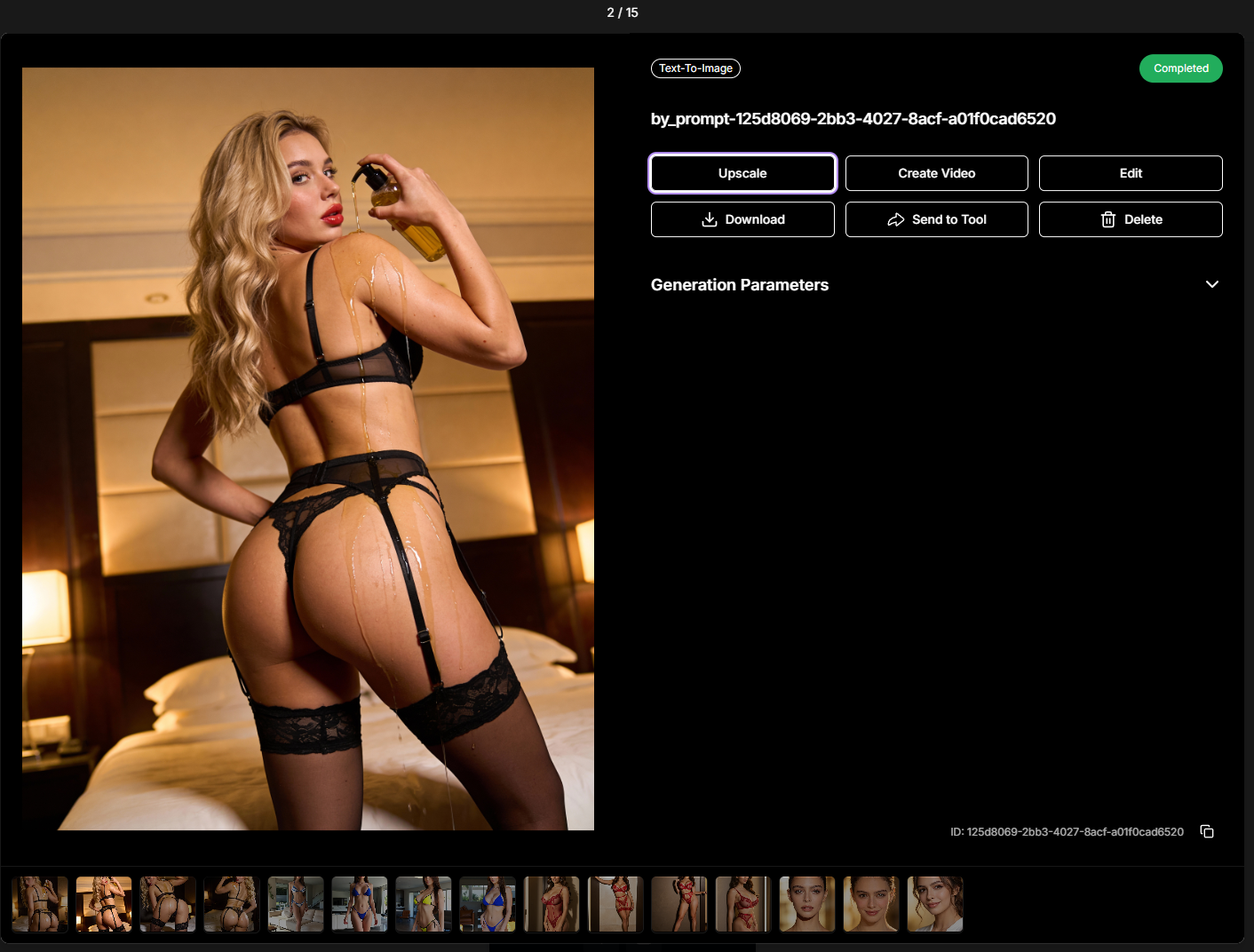
Open the image in the viewer and click Download at the top.
FAQ
What does "Download Selected" do?
What does "Download Selected" do?
It downloads only the images you have selected using checkboxes.
What does "Download All Results" do?
What does "Download All Results" do?
It downloads the entire generation.
Are downloaded images affected by quality changes?
Are downloaded images affected by quality changes?
No. Image quality is not changed and remains the same as generated.
My browser asks for permission to download images. Is this normal?
My browser asks for permission to download images. Is this normal?
Yes. Some browsers require you to allow downloads explicitly. Make sure you grant permission for ZenCreator to download files.
Where are images downloaded in the Telegram app?
Where are images downloaded in the Telegram app?
If you're using ZenCreator via the Telegram app, downloaded images are sent directly to the chat as files.
What happens if I download more than 3 images at once?
What happens if I download more than 3 images at once?
They'll be packaged into a ZIP archive and downloaded as a single file.
Why is the "Download All Results" button not active immediately?
Why is the "Download All Results" button not active immediately?
It becomes active only after all images are fully loaded. Wait a moment while the content finishes loading.
What should I do if I see "No results available to download"?
What should I do if I see "No results available to download"?
This usually means the images are still loading. Wait a few seconds and try again once the previews appear.
What should I do if an image doesn't download?
What should I do if an image doesn't download?
First, try downloading the image again. If the issue persists, try a different browser or device. If it still doesn't work, contact support and include the Task ID so we can investigate.
How long are my generated images stored?
How long are my generated images stored?
Indefinitely — there's no expiration or automatic deletion.
Is there a button to download all generations at once?
Is there a button to download all generations at once?
No, currently there's no option to download all generations from your account at once. Downloads are available per task, gallery, or selection.
How can I change the folder where images are downloaded?
How can I change the folder where images are downloaded?
Change this in your browser settings. Enable "Ask where to save each file before downloading," and your browser will prompt you to choose a folder every time you download files.
Was this helpful?
Still need help? Ask the team