How to download images to your iPhone/iPad
Written By Arina
Last updated About 2 hours ago
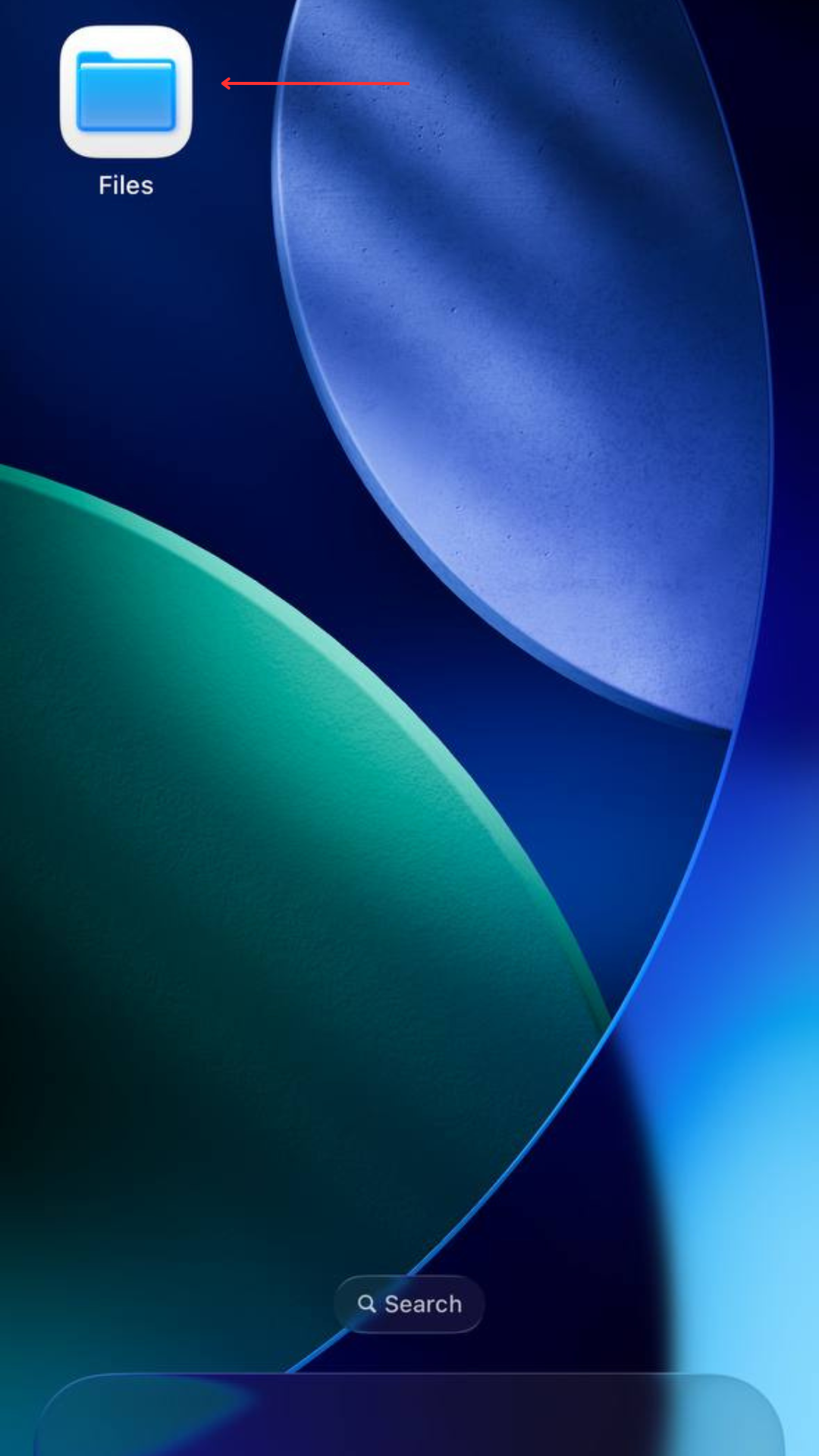
Step 1. Make sure you have the “Files” app installed (the icon with the blue folder).
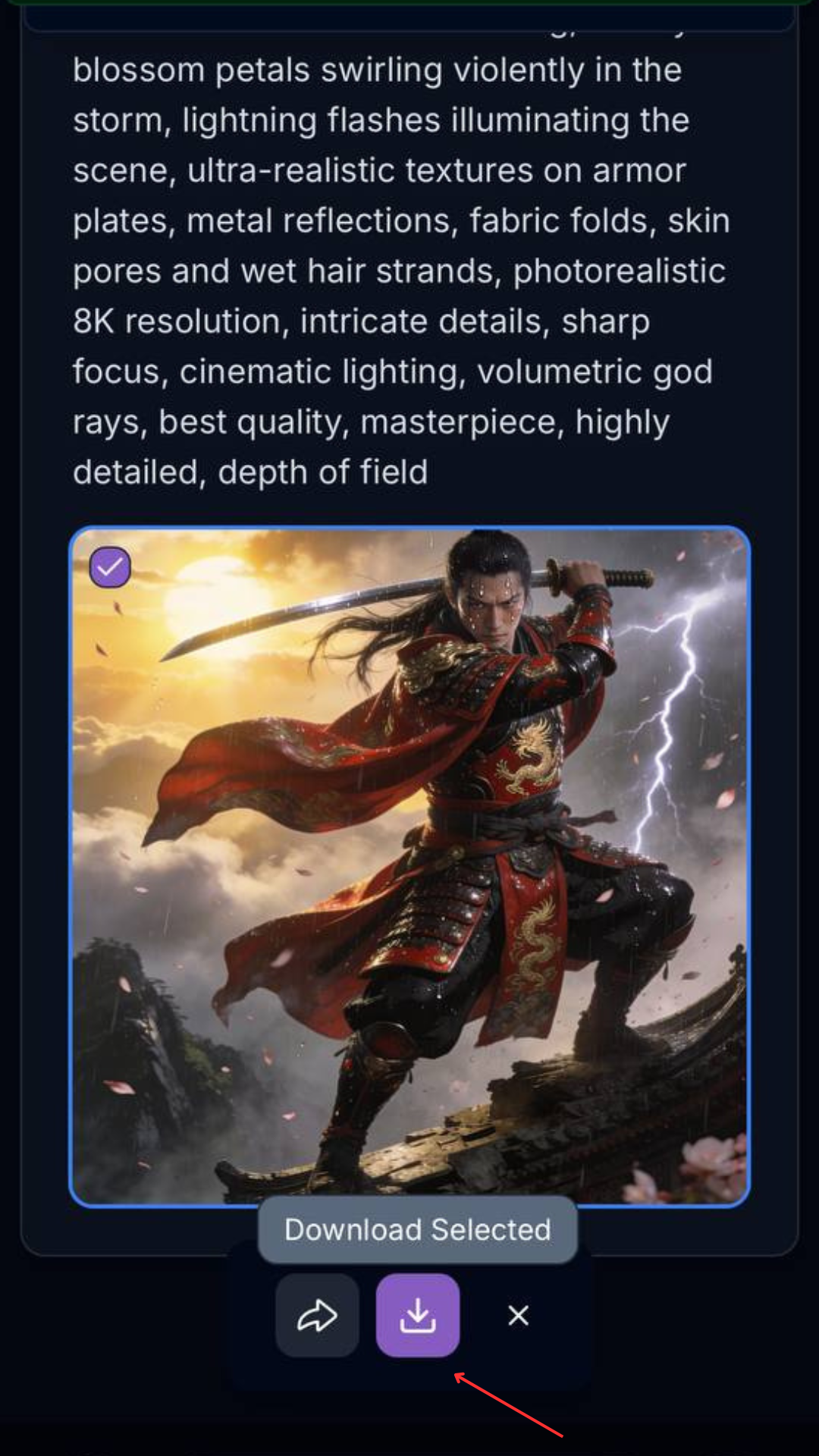
Step 2. Select the file you want to download.
Step 3. Click the download icon.
Step 4. In the dialog box that opens, confirm the action.
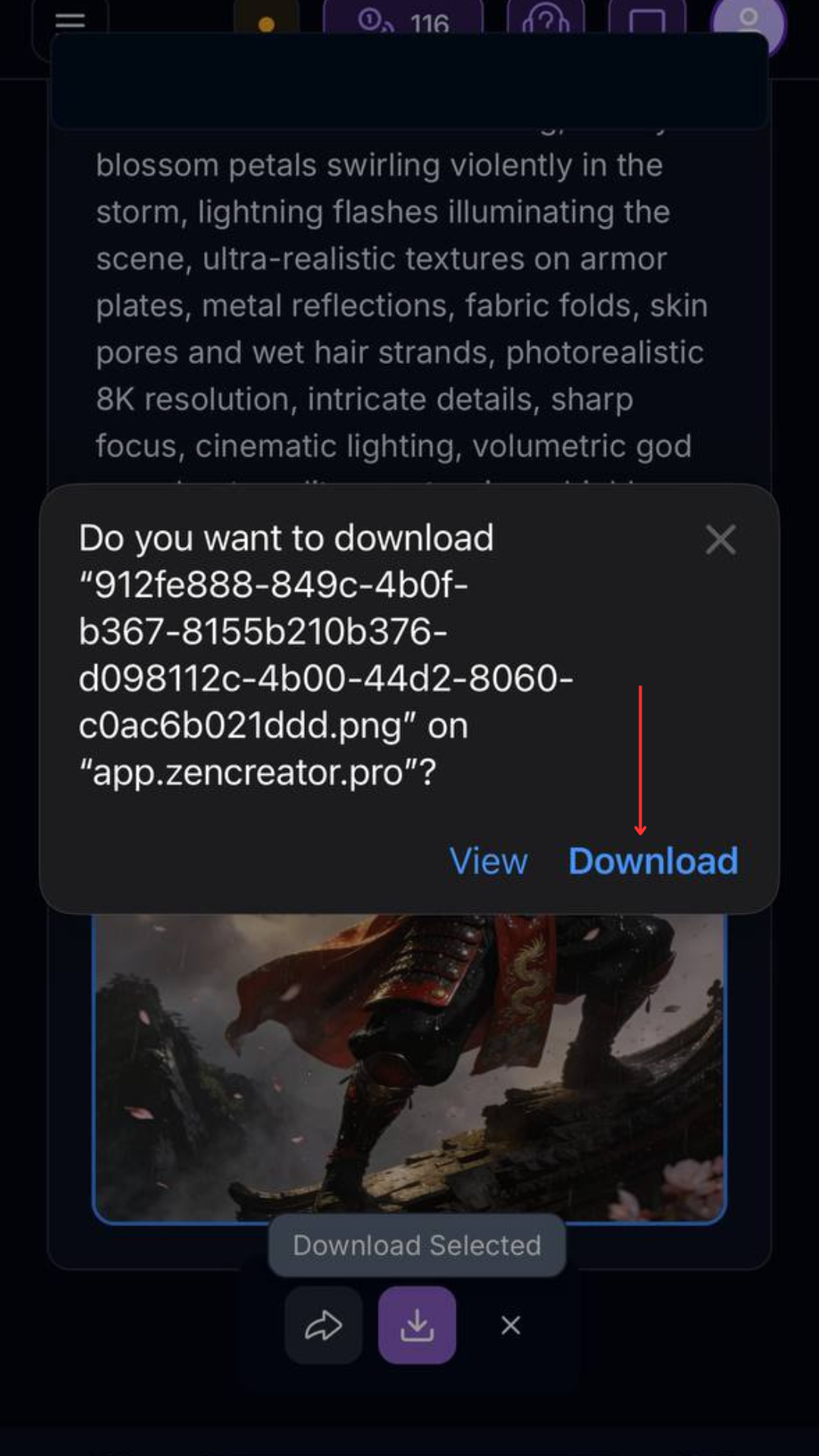
Step 5. The downloaded photo or video will be saved to the “Files” app — a download icon (arrow in a circle) also appears next to your browser’s address bar.

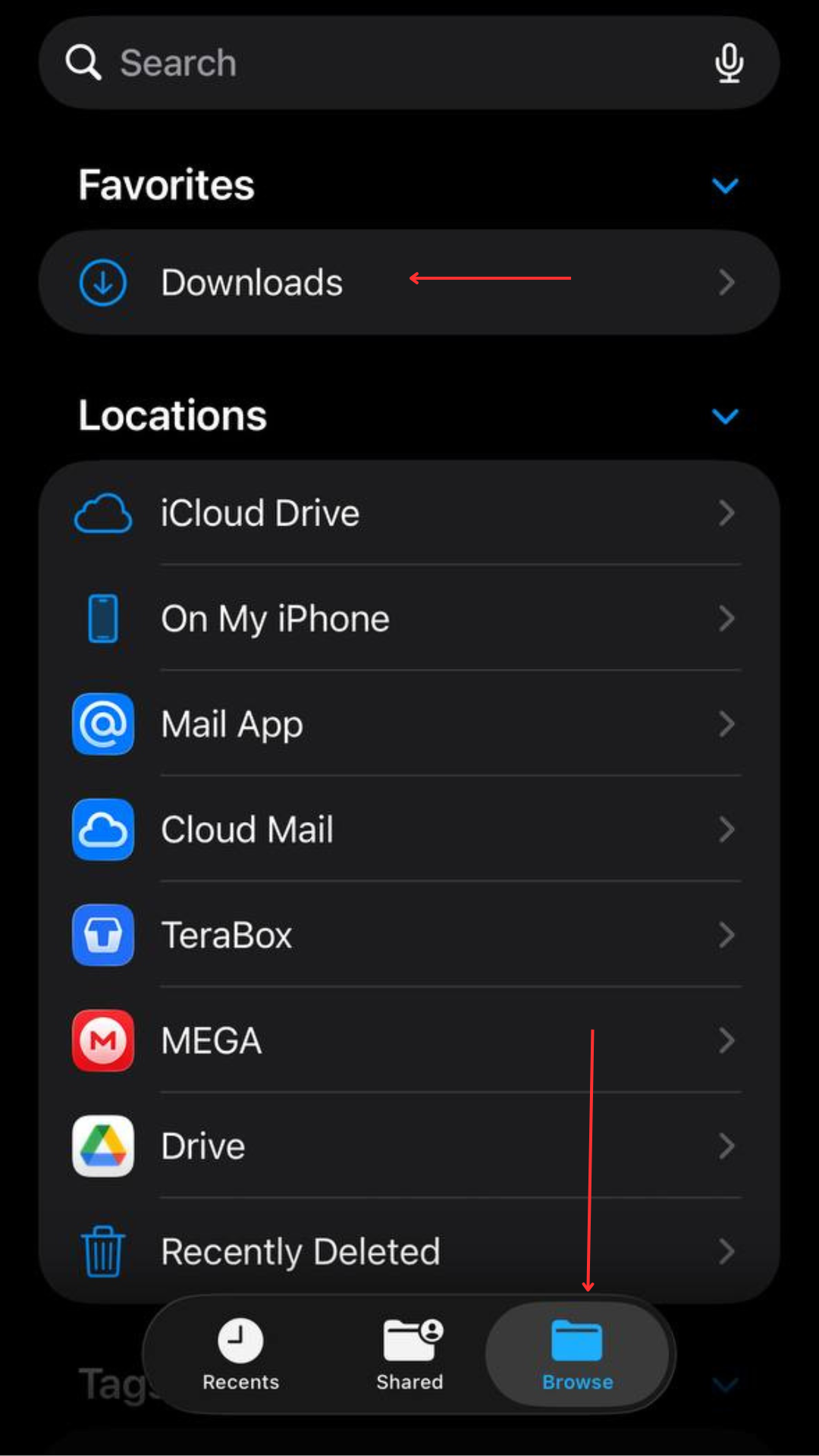
Step 6. In the “Files” app, in the “Browse” tab you’ll find Favorites → Downloads.
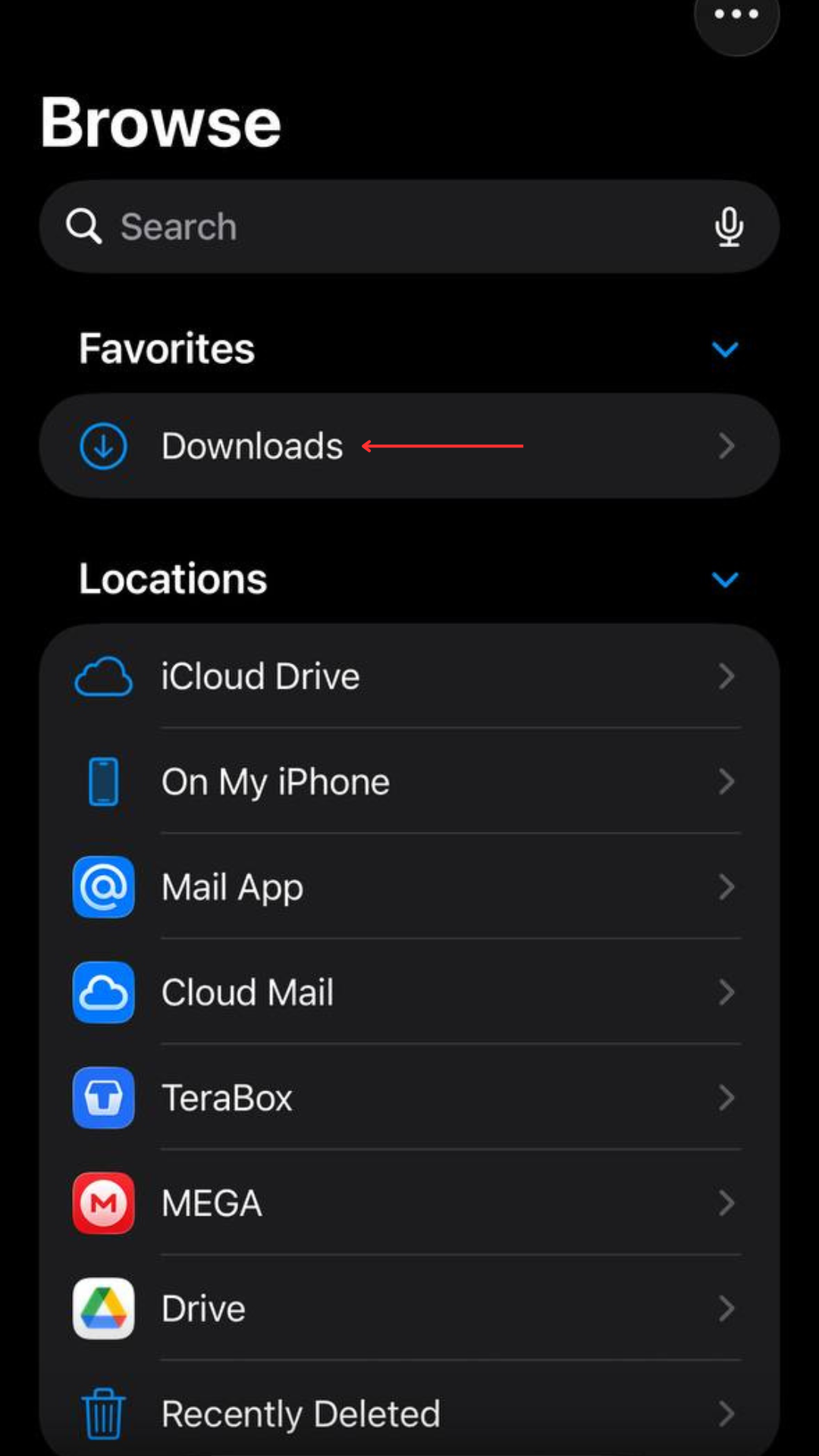
Step 7. Open the “Downloads” folder — all the files you’ve downloaded will be there.
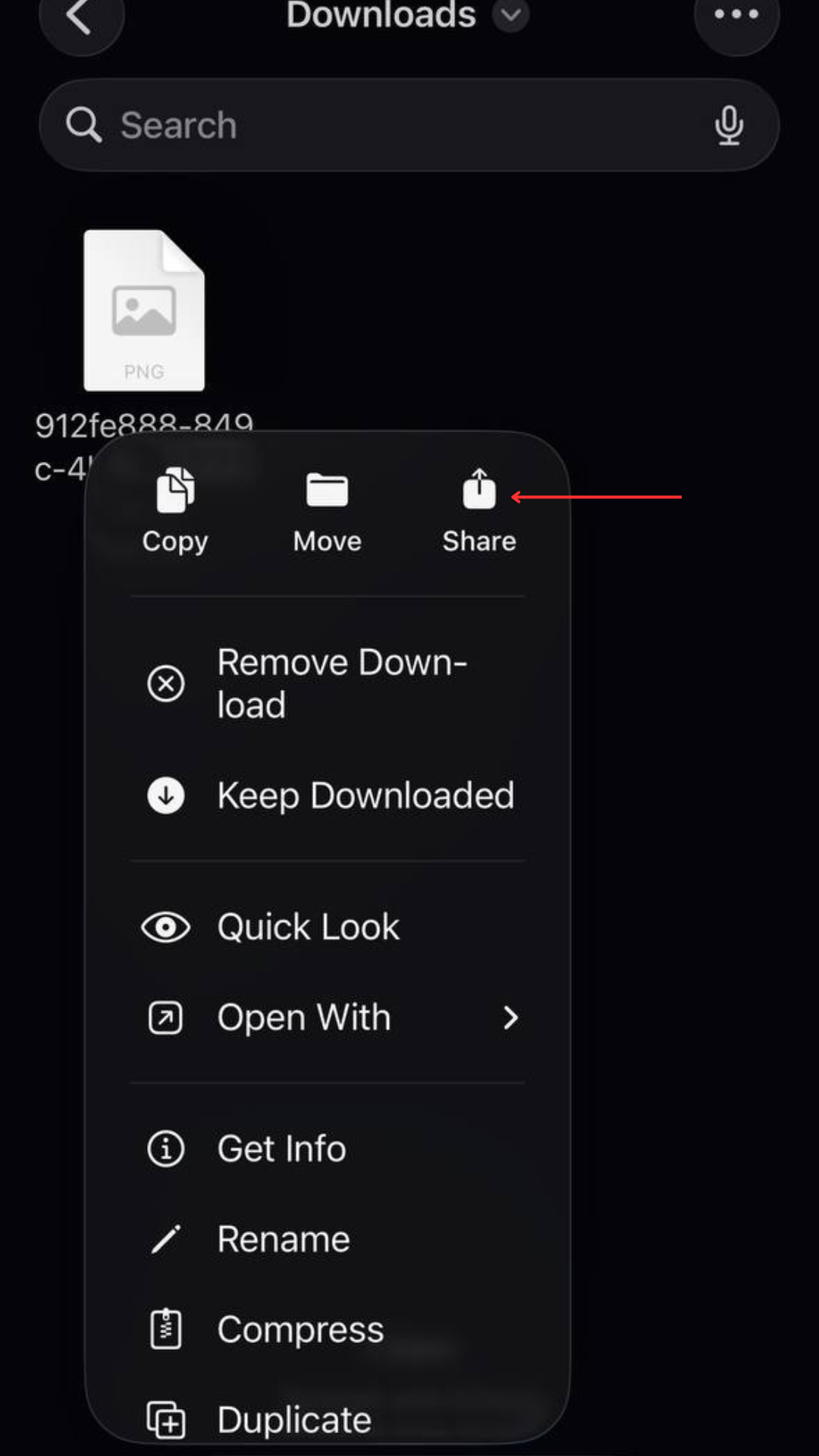
Step 8. Tap and hold the icon for the file you want, then tap “Share”.
Step 9. Press “Save Image/Video”.
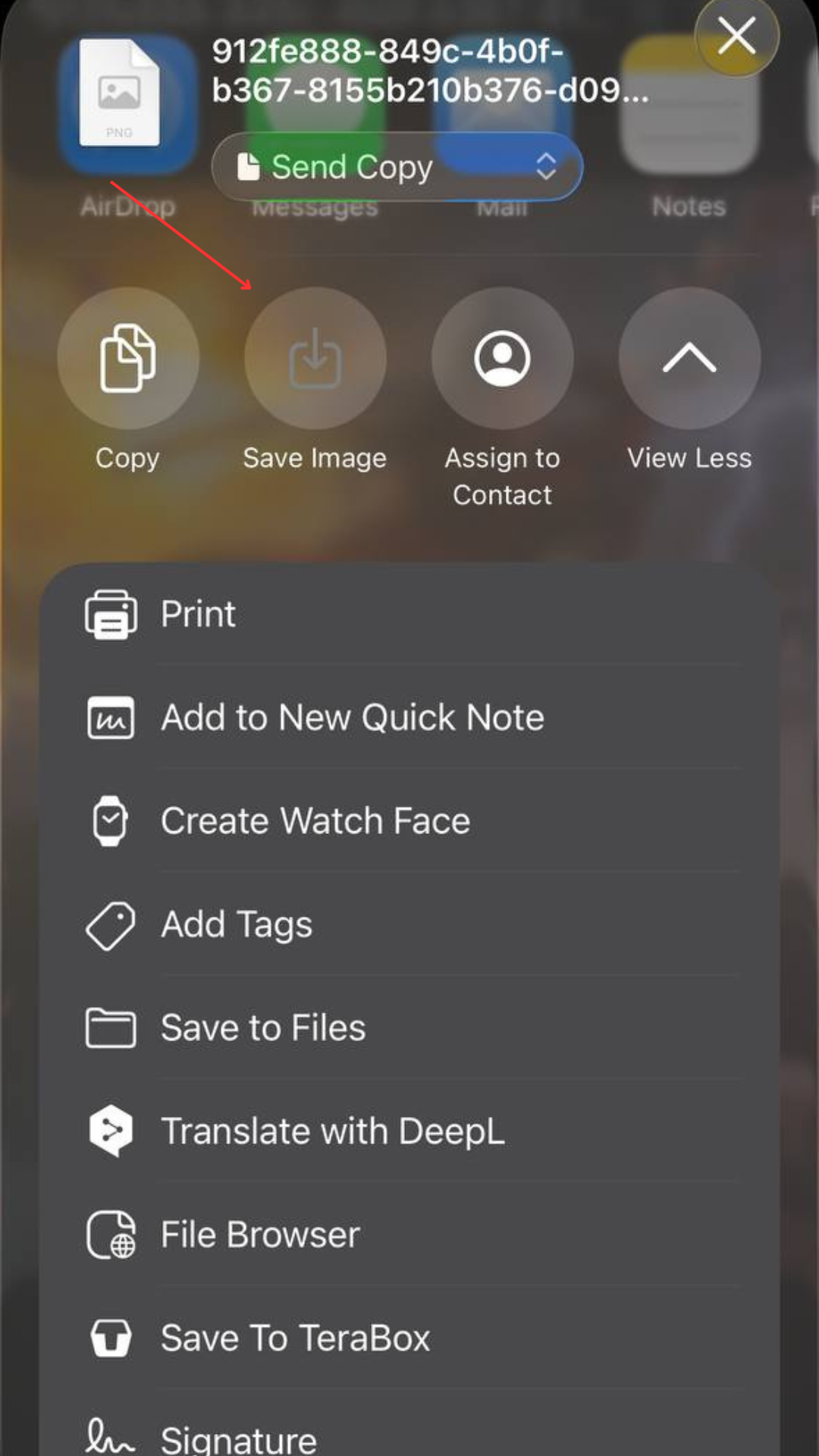
Once you’ve done this, your photo or video will appear in your regular Photos gallery.
Was this helpful?
Still need help? Ask the team