Collabs
This tool allows you to combine two characters into a single image and generate a realistic interaction or scene between them. Fully supports NSFW content.
Written By Arina
Last updated About 12 hours ago
What the tool does
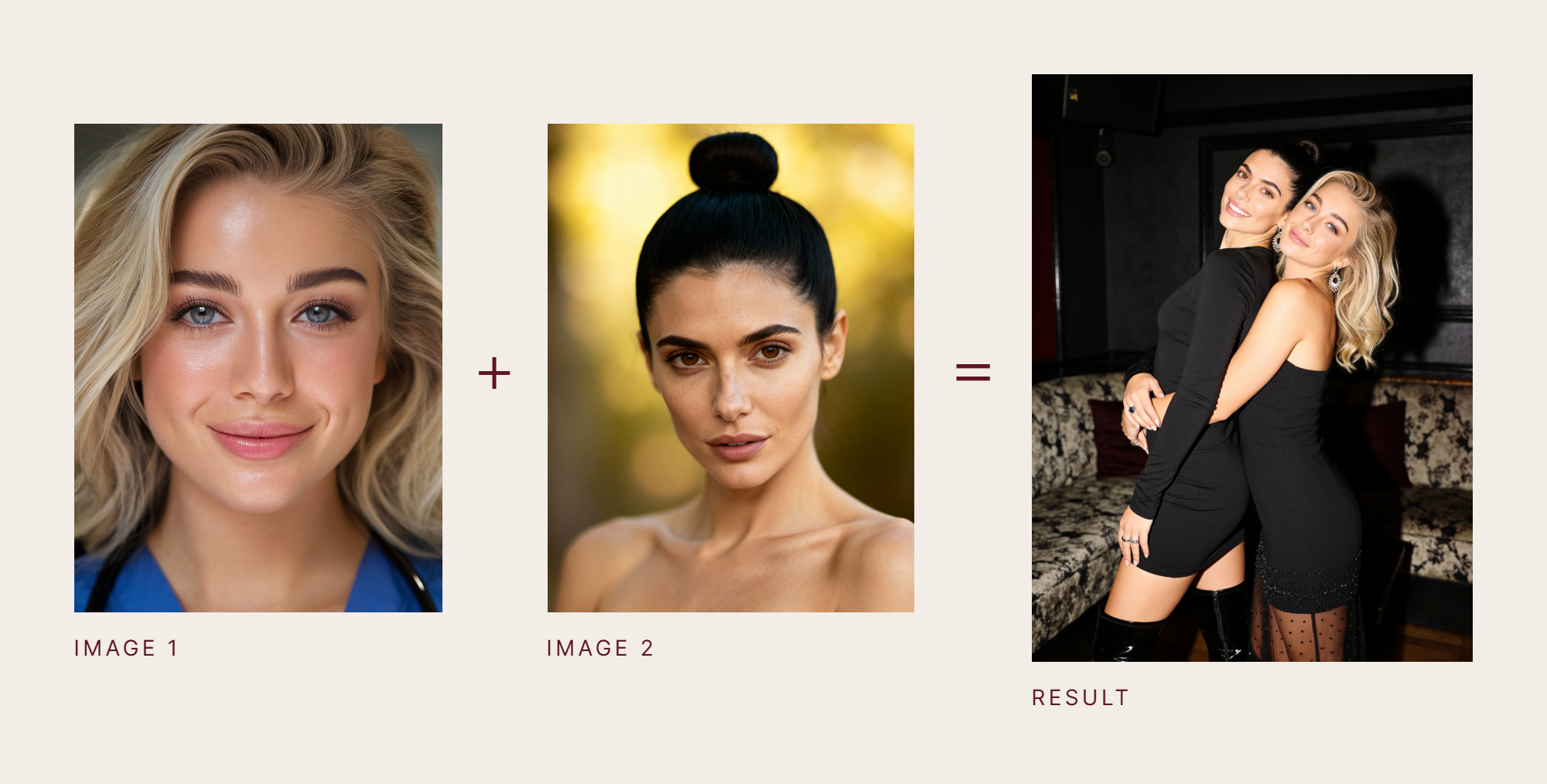
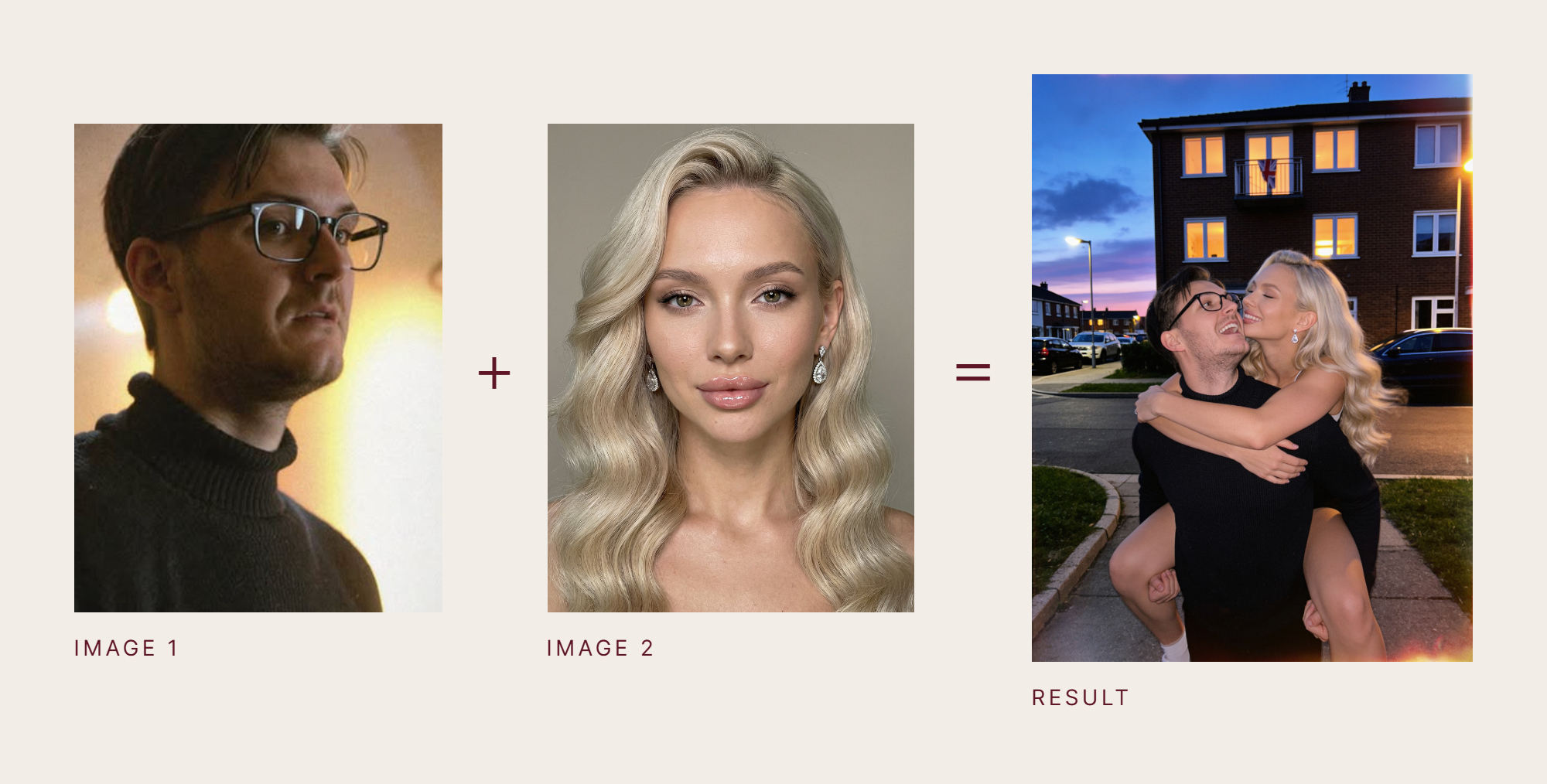
Collabs combines two characters into a single image and generates a realistic interaction or scene between them. It's designed for creating collaborations, couple shots, and multi-character compositions.
🎬 Results
A look at what Collabs can produce from two character photos.
Your step-by-step guide
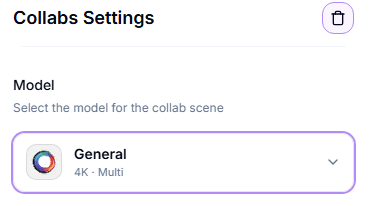
Step 1. Model — choose which model generates the scene. Tap one below to see what it's best at.
General
General
Best for character series — keeps the same face across many generations.
Resolution: 4K
1 credit / photo
Seedream 5 Pro
Seedream 5 Pro
Newer and more powerful than General — follows your prompt more precisely and produces sharper, more cinematic shots.
Resolution: 1K or 2K
2 credits (1K) or 3 credits (2K) / photo
Step 2. Upload Image 1 — upload the first character image. Use a clear, high-quality photo; the face should be visible.
Step 3. Upload Image 2 — upload the second character image. Make sure the character is clearly visible, and try to match lighting and angle with the first image.
Step 4. Upload Location Image (optional) — add a background reference image. This defines the environment (e.g., beach, room, studio). If not provided, the model will generate a background automatically.
Step 5. Prompt (optional) — describe the scene or interaction. Examples: "two women talking in a cafe" or "a couple standing close, soft lighting, romantic mood." Keep prompts simple for more stable results.
Step 6. Aspect Ratio & Size — choose resolution (e.g., 1024 × 1024) and select aspect ratio depending on your use case (1:1, 9:16, etc.).
Step 7. Number of Images — select how many variations you want. Each image is generated separately.
Step 8. Generate — click Generate Collabs to start processing. Cost: depends on the model and resolution, as listed in the model cards in Step 1.
Pro tips
Use images with one person per reference.
Make sure the face is clearly visible and well-lit.
Keep your prompt short and simple for more stable results.
Avoid complex interactions in one step.
If needed, generate multiple times and select the best result.
Troubleshooting
You're working with AI — occasional mistakes or artifacts are normal, and a 100% correct result isn't guaranteed.
Characters look mismatched? Make sure the face is clearly visible, use high-quality, well-lit images, and avoid blurry or low-resolution inputs.
If something didn't work as expected, contact us in the support chat in the app, or email [email protected].
FAQ
Why do the characters look mismatched?
Why do the characters look mismatched?
This usually happens with low-quality inputs. Make sure the face is clearly visible, use high-quality, well-lit images, and avoid blurry or low-resolution inputs.
Can I combine more than two people?
Can I combine more than two people?
No, the tool supports two characters per generation.
Do I need to upload a background image?
Do I need to upload a background image?
No, it's optional. If you don't provide one, the AI will generate a background.
Can I control the interaction between characters?
Can I control the interaction between characters?
Yes, use the prompt field to describe the scene. Keep it simple for better results.
What's next
Image Upscaler — sharpen and enlarge your result
Head & Face Swap — lock in a consistent face
Was this helpful?
Still need help? Ask the team