LoRA in Wan 2.2 and Wan 2.7 — What It Is and How to Use It
Written By Leonid
Last updated 14 days ago
This guide explains in simple terms what LoRA is, why it's needed, and how to use LoRA correctly in the Wan 2.2 and Wan 2.7 models.
What is LoRA?
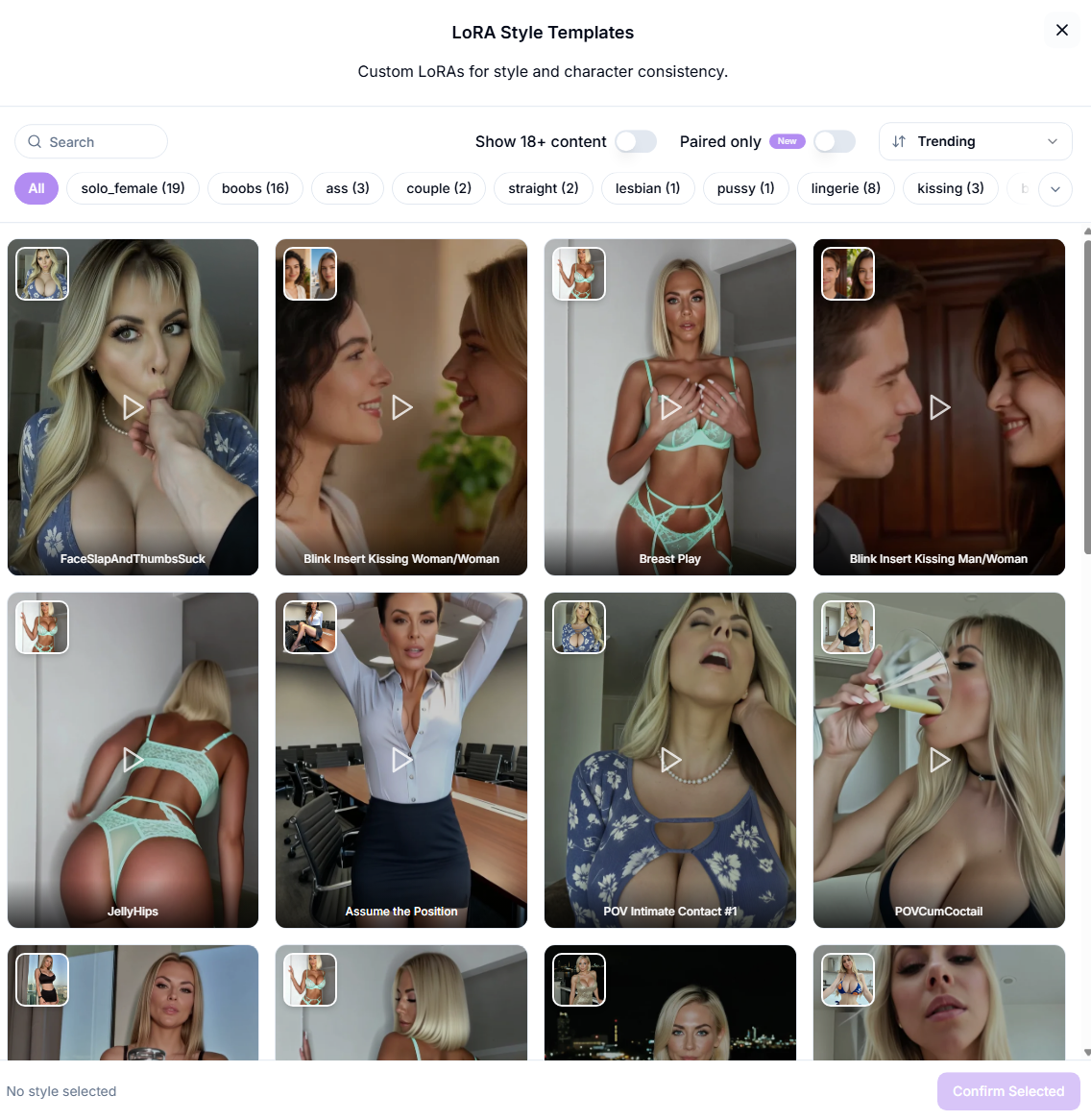
LoRA is a ready-to-use "add-on" built on top of the base video generation model. The model itself can generate videos on virtually any topic (the model without LoRA is available in the list of models on our website), while LoRA "tunes" it to something specific: for example, a particular character, a specific visual style, or a particular type of movement.
Simply put: LoRA is a pre-trained set that ensures the model consistently produces the result you want, rather than generating something new and unpredictable every time.
How It Works
When you select a LoRA, you are essentially choosing a preconfigured generation "mode." The model continues to operate as usual, but takes into account what it has been "taught" by that LoRA — whether it's a character's appearance, the style of the image, or the way the character moves.
Each LoRA already has its own custom prompt — there's no need to add anything on your own; everything is already configured to help the LoRA perform at its best.
Important note: A prompt that is paired with a specific LoRA should not be copied and used in other tools or with other LoRAs. It has been selected and "fine-tuned" specifically for that LoRA and that particular model — outside of that pairing, it may not work at all or produce a completely different, unexpected result.
What types of LoRA are there?
Standard LoRA for WAN 2.2 — this is the standard LoRA, which operates on a "first-frame" basis, and the generated result depends directly on the image you upload. If it differs from the image in the LoRA preview, the result may be completely different or contain artifacts or bugs.
Blink LoRA for WAN 2.2 is a separate type of LoRA that embeds a scene jump right within the video. The video starts with one scene (your original photo) and then abruptly "jumps" to another scene or act — while the character's appearance remains the same and is still recognizable. When using such LoRA models, there's no need to maintain consistency between the preview image and the photo you upload for generation.
Paired LoRA for WAN 2.2 is a distinct type of LoRA that works with two characters at once, rather than just one. To generate a video, you need to upload two photos — one for each character — and the model will assemble a scene depicting their interaction while preserving the appearance of both. These LoRAs are useful when you need to show two specific characters together, rather than generating a partner at random.
LoRA for WAN 2.7 — LoRA data for this model has been further trained and optimized. The basic principle is the same as that of Blink LoRA WAN 2.2. Virtually all LoRA models for this version exhibit this effect, which makes the generation results more stable.
What are the differences between LoRA in Wan 2.2 and Wan 2.7?
Wan 2.2 and Wan 2.7 are different versions of the model, and the LoRA models for them are also different: a LoRA model designed for one version will not work with the other.
Here's how the versions differ in practice:
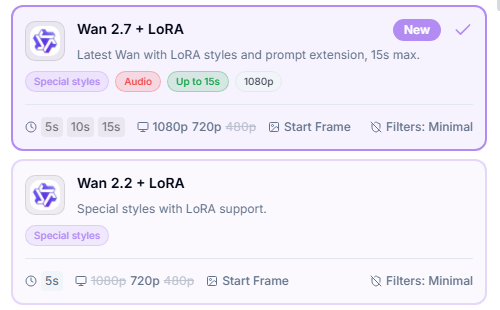
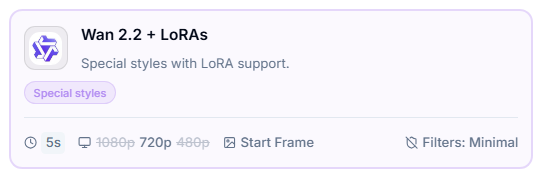
Wan 2.2 + LoRAs — an older model / supports video generation of up to 8 seconds / greater dynamic range / fewer artifacts / supports several types of LoRA
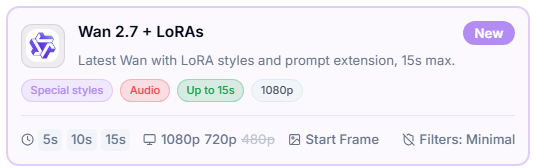
Wan 2.7 + LoRAs — a newer model / supports the generation of videos up to 15 seconds long / can generate videos with sound / however, artifacts may sometimes appear in the frame, and the generated videos are less dynamic than those from Wan 2.2
What should I choose?
If longer duration and sound quality are important to you, choose Wan 2.7.
If stable LoRA performance and a more vivid, dynamic image are more important, choose Wan 2.2.
How to Run LoRA — Step by Step
Select a model — Wan 2.2 or Wan 2.7
Select the LoRA you want from the list of available options — based on the character, task, or effect you want to achieve.
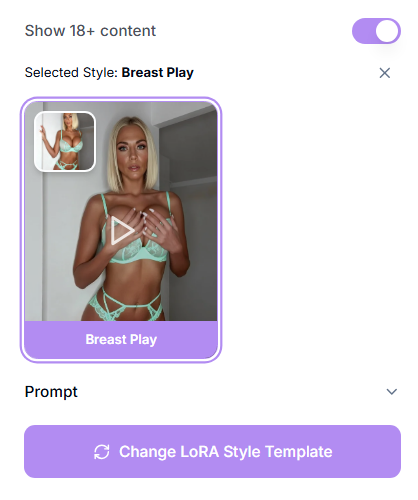
Add a photo based on the LoRA you selected.
Set the desired video duration and resolution when using Wan 2.7 + LoRA.
Start generation — the prompt for the selected LoRA is already built in; no additional configuration is needed.
Wait for the result and, if necessary, try a different LoRA or a different model if you're not satisfied with the result.
Best Practices
When working with Standard LoRA WAN 2.2, prepare an image similar to the one shown in the preview. This will help ensure more consistent results.
If you need a long video (up to 15 seconds) or a video with sound, use Wan 2.7, but keep in mind that the motion dynamics are a bit more limited there.
Do not use the prompt from LoRA for other models. The prompt from LoRA is designed exclusively for that model.
If the result looks unstable or contains artifacts, try shortening the video or switching to a different version of the model.
Take both photos for Paired LoRA under similar conditions — the same angle (for example, both full-face shots), similar lighting, and a clear, unobstructed face for each character. This significantly reduces the risk of the characters getting "mixed up" or appearing distorted.
Troubleshooting
The result differs significantly from what is expected when using Standard LoRA (Wan 2.2) — check how similar your photo is to the image in the LoRA preview; the more differences there are, the higher the risk of artifacts and unpredictable results. Try to find a photo that is as similar as possible to the preview in terms of angle, lighting, and composition.
The character becomes unrecognizable when using Blink LoRA — make sure you use a clear, high-quality photo; even though similarity to the preview isn't critical here, the quality of the original photo still affects the result. Try a different source photo if the image is still unrecognizable.
The video is choppy and glitchy — on Wan 2.2, make sure you know which LoRA version you've selected and that you've chosen the correct photo. On Wan 2.7, try shortening the video's duration.
There are visible artifacts in the video — this happens more often in Wan 2.7; try generating it again or switch to Wan 2.2 if stability and dynamics are more important than duration and sound.
The video turned out to be too static; it lacks dynamism — this is a feature of Wan 2.7; for a more vivid and dynamic image, try Wan 2.2.
LoRA does not produce the expected results — make sure you haven't replaced the built-in prompt with your own.
The interactions between the characters seem unnatural — this is a limitation of this specific LoRA; try another Paired LoRA from the list if you're not satisfied. Make sure both photos were taken at a high enough resolution.
One of the characters no longer resembles the uploaded photo — check the quality and clarity of both photos; make sure each character's face is clearly visible and not obscured.
FAQ
What is LoRA?
What is LoRA?
A pre-built model extension that tailors the generation to a specific character, style, or scenario.
Do I need to write a prompt for LoRA myself?
Do I need to write a prompt for LoRA myself?
No, the prompt is already built into every LoRA — you don't need to do anything else.
Can a prompt designed for one LoRA be used with another LoRA or in a different tool?
Can a prompt designed for one LoRA be used with another LoRA or in a different tool?
No, the prompt is tailored specifically to that particular LoRA and model — it may not work elsewhere or may produce unexpected results.
How does Standard LoRA differ from Blink LoRA?
How does Standard LoRA differ from Blink LoRA?
Standard LoRA requires that your photo resemble the preview — otherwise, artifacts may occur. Blink LoRA creates a sharp scene transition within the video and does not require the photo to resemble the preview.
What is Paired LoRA?
What is Paired LoRA?
It is a type of LoRA for Wan 2.2 that works with two photos at once — one for each character — and captures a scene of them interacting together.
How many photos do I need to upload for Paired LoRA?
How many photos do I need to upload for Paired LoRA?
Two — one for each character.
Can I use the LoRA from Wan 2.2 in Wan 2.7?
Can I use the LoRA from Wan 2.2 in Wan 2.7?
No, LoRA is tied to a specific model version and cannot be transferred between versions.
What is the maximum video length with LoRA?
What is the maximum video length with LoRA?
Up to 8 seconds on Wan 2.2 and up to 15 seconds on Wan 2.7.
Is it possible to get a video with sound?
Is it possible to get a video with sound?
Yes, but only on Wan 2.7 — Wan 2.2 does not generate sound.
Why is the video less dynamic in Wan 2.7?
Why is the video less dynamic in Wan 2.7?
This is a feature of the model — to achieve longer duration and sound, it sacrifices some of the dynamic range compared to Wan 2.2.
Which model should you choose — Wan 2.2 or Wan 2.7?
Which model should you choose — Wan 2.2 or Wan 2.7?
Wan 2.7 — if longer duration and sound quality are important. Wan 2.2 — if LoRA stability and dynamic visuals are more important.
Why do artifacts appear in the video?
Why do artifacts appear in the video?
Most often, this is due to the Wan 2.7 model or a photo that differs significantly from the LoRA preview (for Standard LoRA).
What should you do if the result is nothing like what you expected?
What should you do if the result is nothing like what you expected?
Check to see if the built-in prompt has been changed, if the photo is suitable for the selected LoRA type, and if the LoRA matches the version of the model you're using.
Why does a character become unrecognizable?
Why does a character become unrecognizable?
Usually because of the poor quality of the original photo — use a clear, well-lit image with no objects obstructing the face.
Is it possible to use multiple types of LoRA at once in a single generation?
Is it possible to use multiple types of LoRA at once in a single generation?
No, for each generation, a single LoRA is selected for a specific task — a character, style, or scenario.
Was this helpful?
Still need help? Ask the team