Your First Generation in 5 Minutes
A quick, practical walkthrough — from opening ZenCreator to your first finished generation.
Written By Arina
Last updated About 2 hours ago
What ZenCreator is
ZenCreator is an AI platform for photos and video — generate images and clips from a description or a reference, edit and upscale them, swap faces, and turn stills into video. Both SFW and NSFW are fully supported.
Find your way around

Credits balance — shows how many credits you have. Every generation shows its cost before you confirm.
Help — opens the help chat and articles, right where you are.
Theme toggle — switch between light and dark mode.
Language — switch the interface language. See Account Access for the full list of languages.
Profile — your account, billing, and settings.
Your first generation, step by step
Step 1. Pick a tool.
If you're not sure where to start, Text to Image is the simplest way in — you just describe what you want. Image to Video is the move if you already have a photo and want to bring it to life.
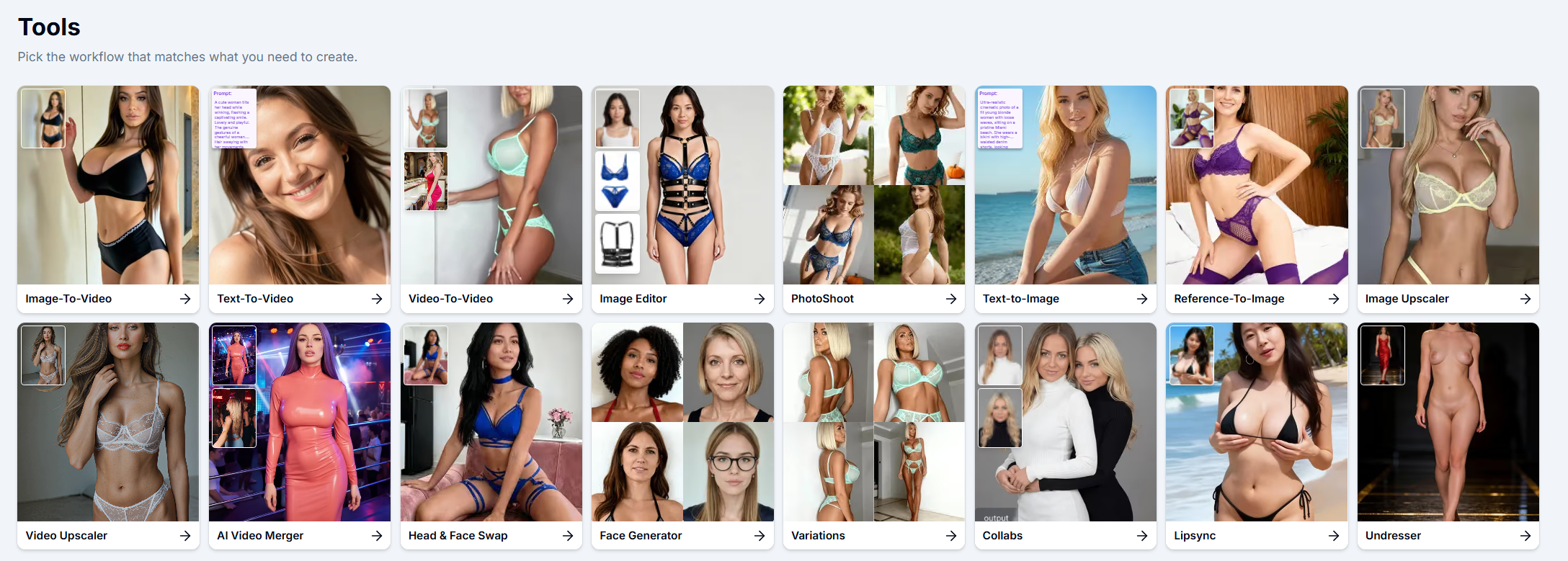
Step 2. Describe what you want.
Write a prompt: subject, setting, pose, lighting, mood. Not sure how to phrase it? Use Magic Prompt — if you're using Text to Image, it expands a short idea into a full, detailed prompt for you. If you're using Image to Video, also insert a reference image — the video is animated from that, on top of your prompt.
Step 3. Pick a model.
Every tool offers a few models with different strengths — speed, realism, style, NSFW support. Each tool has its own help article — open it anytime with the How it works? button — that breaks down which model to pick for what. If you're unsure, the default model is a safe starting point.
Step 4. Generate.
The credit cost is shown on the button before you confirm. Press it, and your result appears in a few seconds to a couple of minutes depending on the tool.
Step 5. Find your result and keep going.
Everything you generate is saved to My Generations. From there, download it, or send it straight to another tool — sharpen it in Image Upscaler, lock in a face with Head & Face Swap, or bring it to life in Image to Video.
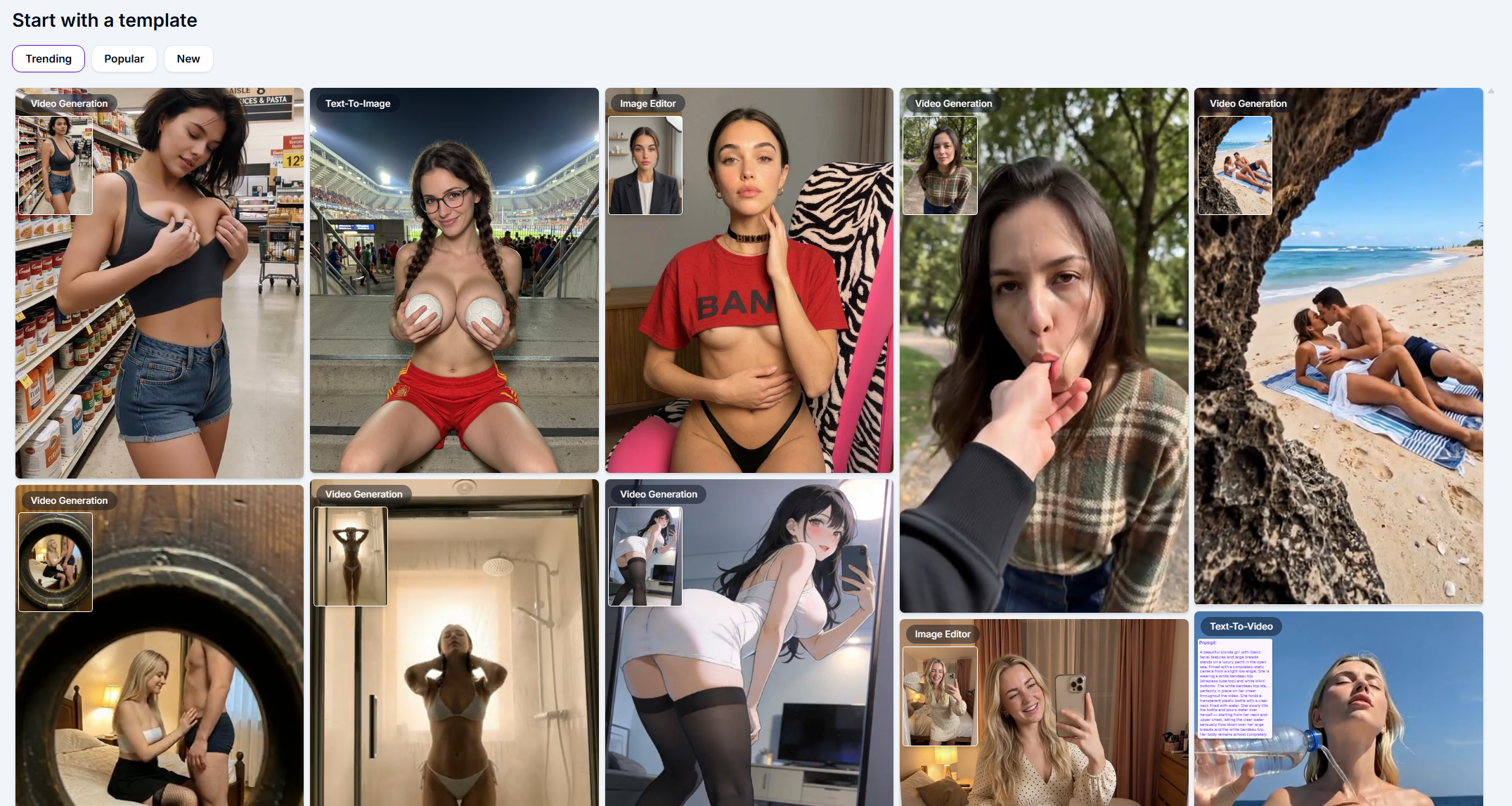
Browse Templates
Don't want to start from a blank prompt? Templates is our library of ready-made styles and scenes — a huge selection covering pretty much any theme you can think of. Pick one, drop in your reference, and generate.
About NSFW
NSFW generation is a core feature of ZenCreator. There's nothing to turn on manually — buy any credit pack, and Trusted Status unlocks automatically, giving you access to NSFW models.
Pro tips
Read the tool's help article before you start — it takes a minute and saves you credits on trial and error.
Write a detailed prompt: subject, setting, pose, lighting, mood — the more specific, the better the result.
Pick a good-quality reference — sharp, well-lit, clear subject — when a tool asks for one.
Generate a few variations before committing to one — most tools let you create more than one image per run.
Save time by chaining tools: generate first, then upscale or face-swap only your favorites.
Not sure which tool fits your idea? Ask Companion — describe what you're picturing and it will help you get there.
If something isn't working, don't keep spending credits trying to fix it — go straight to the support chat in the app, or email [email protected].
FAQ
Do I own the images and videos I generate?
Do I own the images and videos I generate?
Yes — outputs are royalty-free for commercial use.
Where do I find everything I've generated?
Where do I find everything I've generated?
My Generations keeps everything in one place, no matter which tool made it.
What if I run out of credits mid-project?
What if I run out of credits mid-project?
Top up your balance any time on the billing page. See How to Top Up Your ZenCreator Balance, or Payments & Billing: how it works for the full picture.
Are my generations private?
Are my generations private?
Yes, everything you generate is private to your account — no one else can see it unless you choose to share it.
Is there a free trial?
Is there a free trial?
No, there's no free trial — you'll need credits to generate, so top up your balance to get started.
Can I generate NSFW content?
Can I generate NSFW content?
Yes. There's nothing to turn on — buy any credit pack, and NSFW access unlocks automatically.
You're working with AI — occasional mistakes or odd artifacts in a generation are normal. If a result looks off, try again or adjust your prompt.
Where to go next
Text to Image — the fastest way to generate from a description
Image to Video — turn a still into a short clip
Image Editor — edit, combine, and transform your images
Was this helpful?
Still need help? Ask the team