Account Access: Password Reset & Email Verification
This guide explains how to reset your password and verify your account.
Written By Arina
Last updated About 2 hours ago
Changing Your Password
You can change your password directly in your account settings.
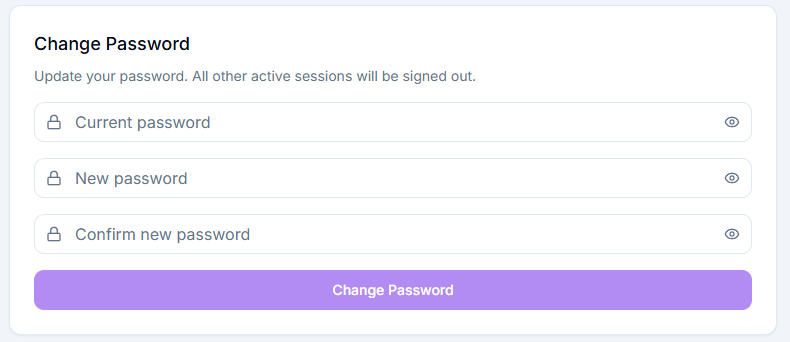
How to do it:
Go to Settings in your account.
Find Change Password section.
Enter your current password.
Enter a new password and confirm it.
Click Change Password.
All other active sessions will be signed out after the password is updated.
Resetting Your Password
If you forgot your password, you can reset it from the login page.
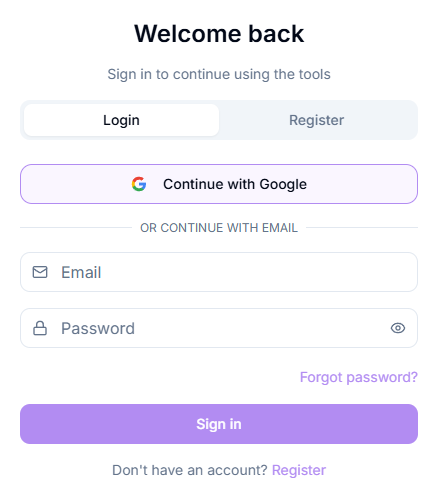
How to do it:
Click Forgot password? on the login screen.
Enter your email address.
Follow the link sent to your email.
Set a new password.
If you don’t see the email, check your spam or junk folder.
Important notes
The reset link is sent to your email
If you don’t see it, check your Spam / Junk folder
Make sure you entered the correct email address
How to verify your account
After registration, a verification email is automatically sent to your email address.
Steps:
Open your email inbox
Find the verification email
Click the confirmation link
Didn’t receive the verification email?
Check your Spam / Junk folder
Wait a few minutes (delivery can be delayed)
Make sure you registered with the correct email
Changing Your Interface Language
ZenCreator is available in multiple languages, and you can switch at any time.

How to do it:
Click the language icon in the top bar (next to the theme toggle).
Choose your language from the list.
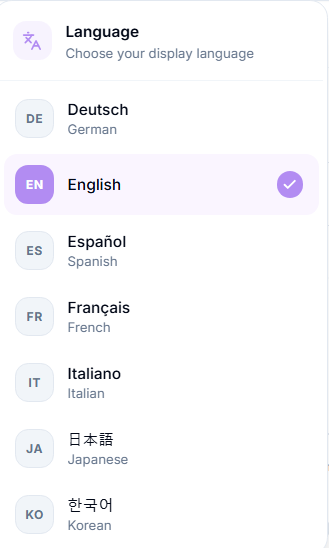
Currently available: Arabic, German, English, Spanish, French, Italian, Japanese, Korean, Polish, and Simplified Chinese, with more languages on the way. Your choice is saved automatically and applies across the whole interface.
FAQ
Can I change my password inside the account settings?
Can I change my password inside the account settings?
Yes, you can change your password directly in Settings under the Change Password section.
I didn’t receive the password reset email — what should I do?
I didn’t receive the password reset email — what should I do?
Check your Spam or Junk folder first. If the email is still missing, try again or contact support.
I didn’t receive the verification email — what should I do?
I didn’t receive the verification email — what should I do?
Check your Spam folder and make sure your email address is correct. If the issue persists, try again or contact support.
Can I change the email linked to my account?
Can I change the email linked to my account?
No, this is not possible. You would need to delete your account and create a new one with a different email.
How do I verify my account?
How do I verify my account?
A verification email is automatically sent to your email address after you register a new account. Check your inbox and follow the instructions in the email to complete verification. If you don’t see it, check your spam folder too.
What does Error code 401 mean?
What does Error code 401 mean?
This code is sent when the user is not authorized. Most likely, you've been logged out. Try logging in again.
Want to stop receiving emails from ZenCreator?
Want to stop receiving emails from ZenCreator?
If you'd like to unsubscribe from our emails without deleting your account, you can do this yourself — every email we send includes a "Manage your subscription preferences" link at the bottom. Click it to update your email preferences or unsubscribe.
Was this helpful?
Still need help? Ask the team