Variations (ex-Carousel)
Turn any photo set into a carousel. Drop in one or many reference shots, choose how many variations you want, and deliver new photos.
Written By Leonid
Last updated About 1 month ago
What the tool does
The Carousel Generator produces up to ten unique angles or crops per reference image in a single run. It keeps colour grade, lighting and subject consistent, so every slide feels like part of the same shoot. Results land in seconds, fully licensed for commercial use, and can be pipelined into Upscaler, Face Swap, Video or further Carousel edits.
Heads-up: If any slides come out a bit soft, low-res, or the facial features look off, simply pipe the selected frames into Upscaler and/or Face Swap (to quickly refine facial details and skin tone). Those two extra passes take under 30 seconds and turn rough generations into ready-to-publish content.
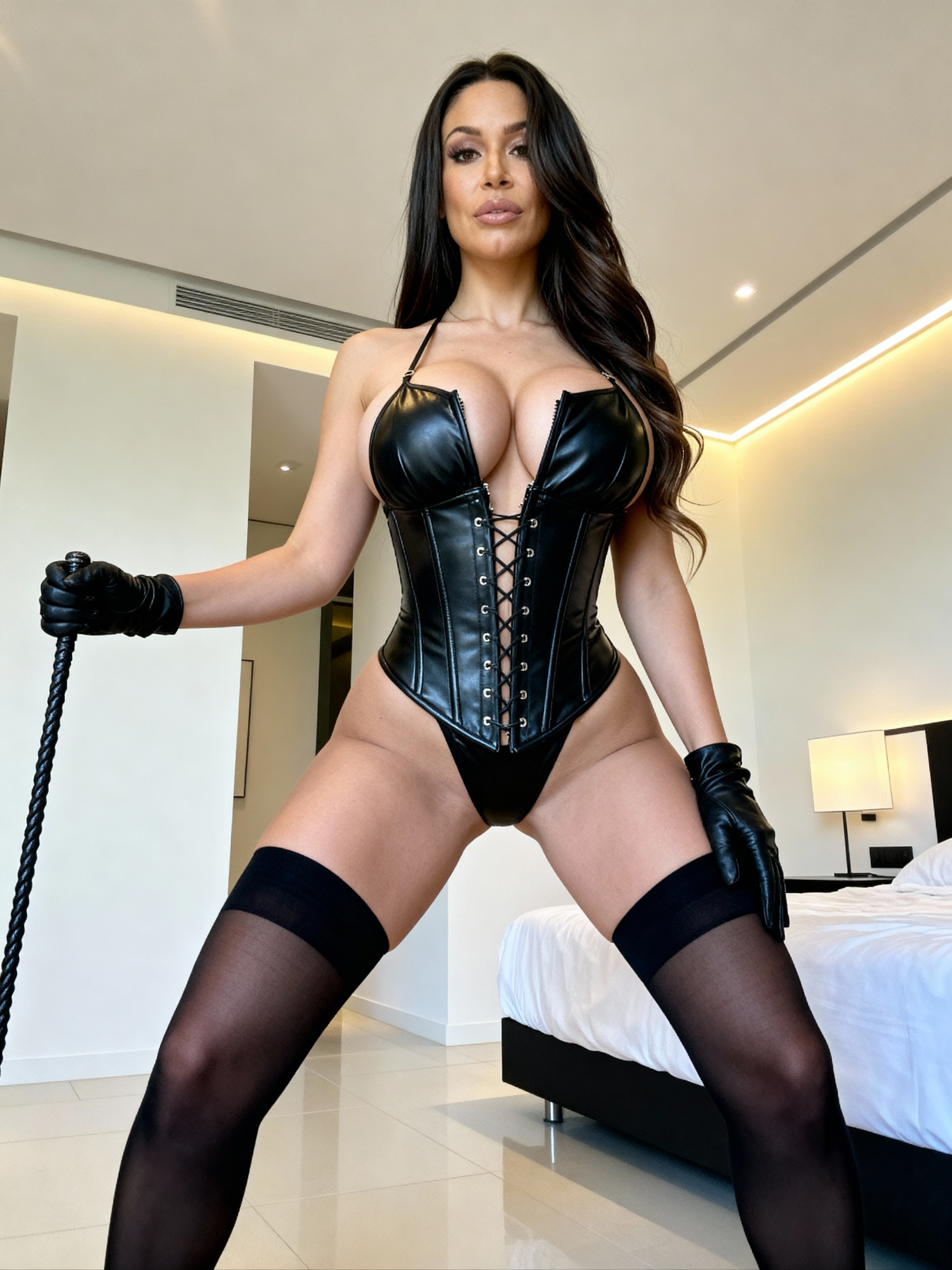
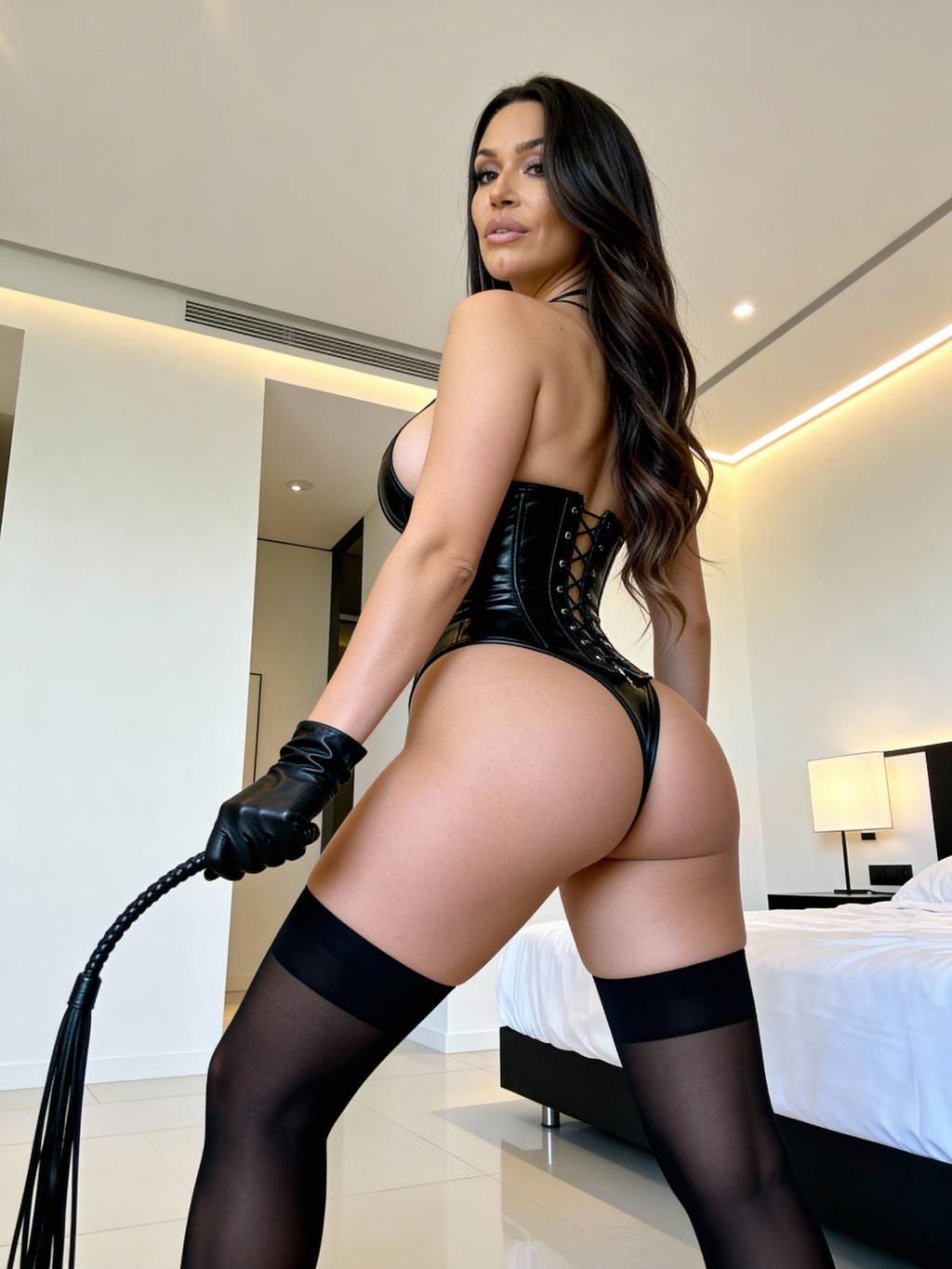
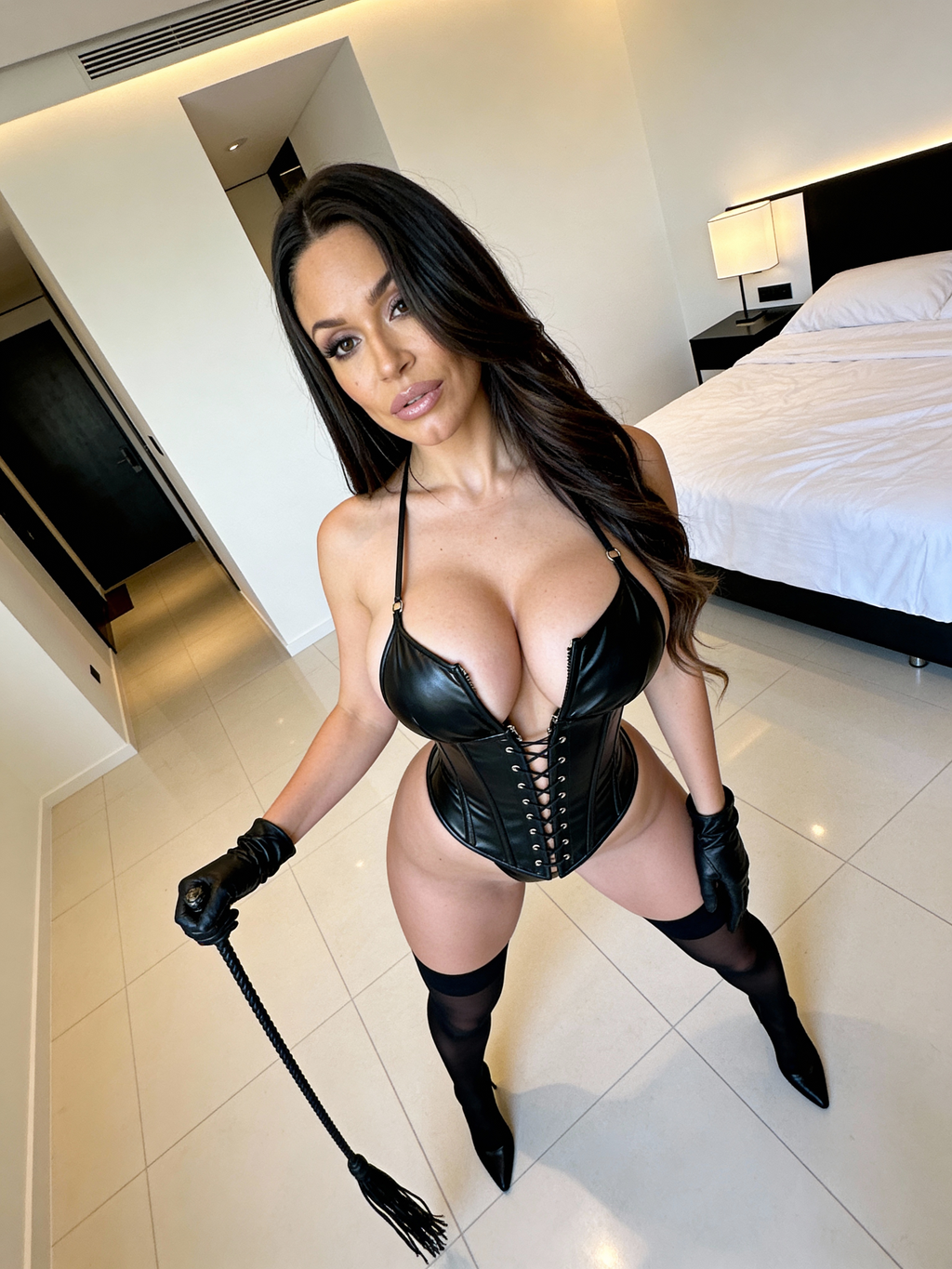
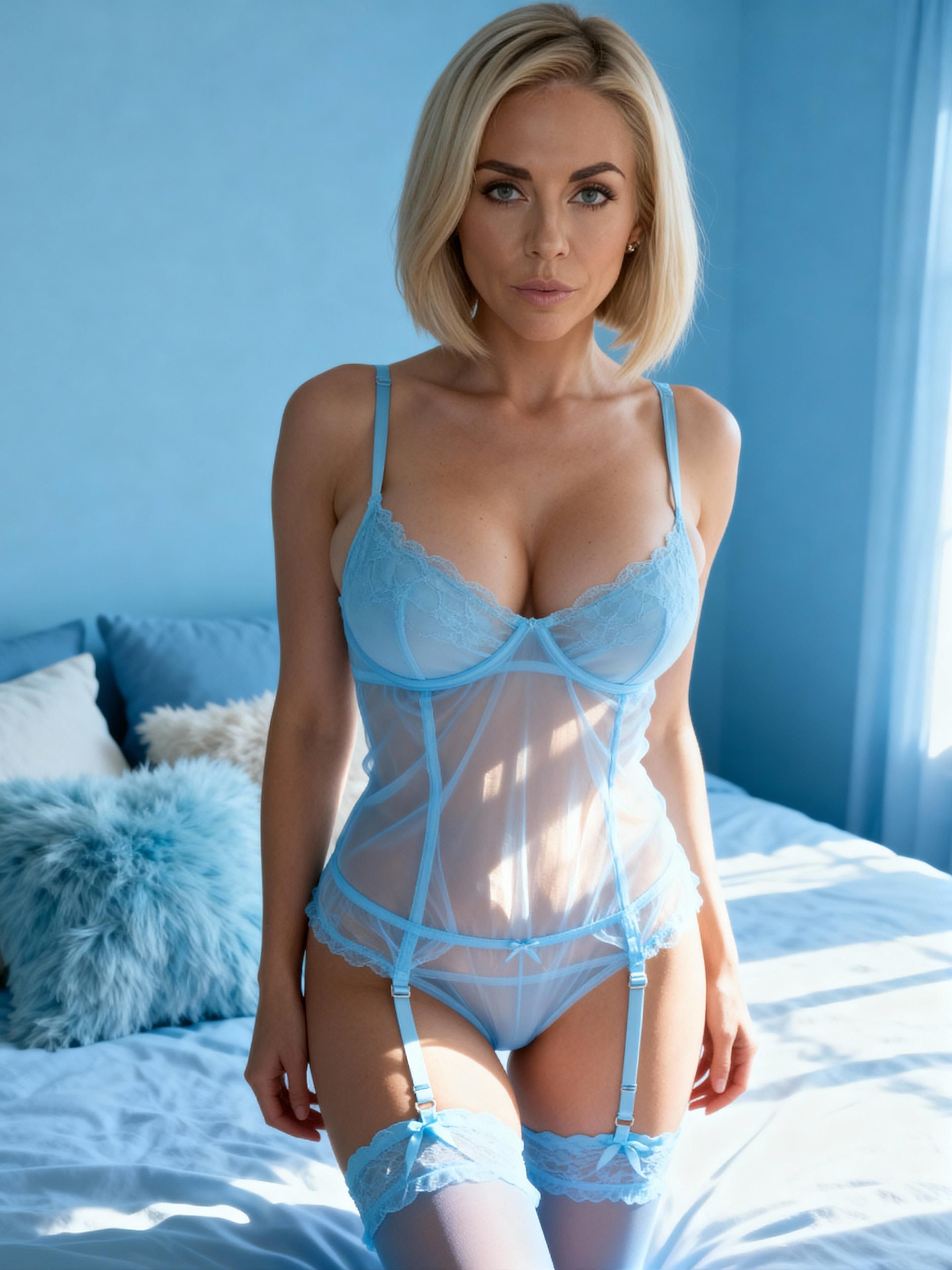
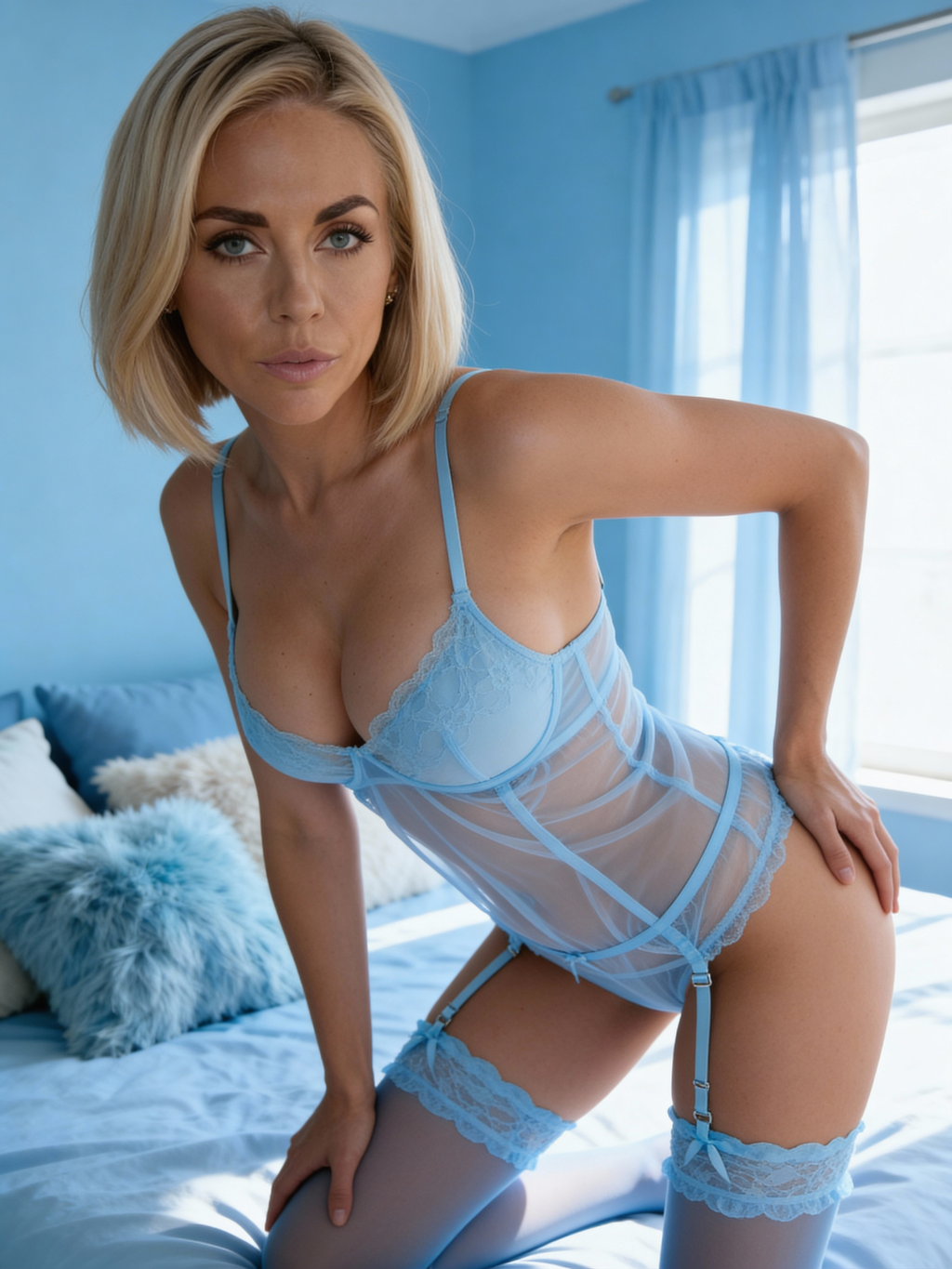
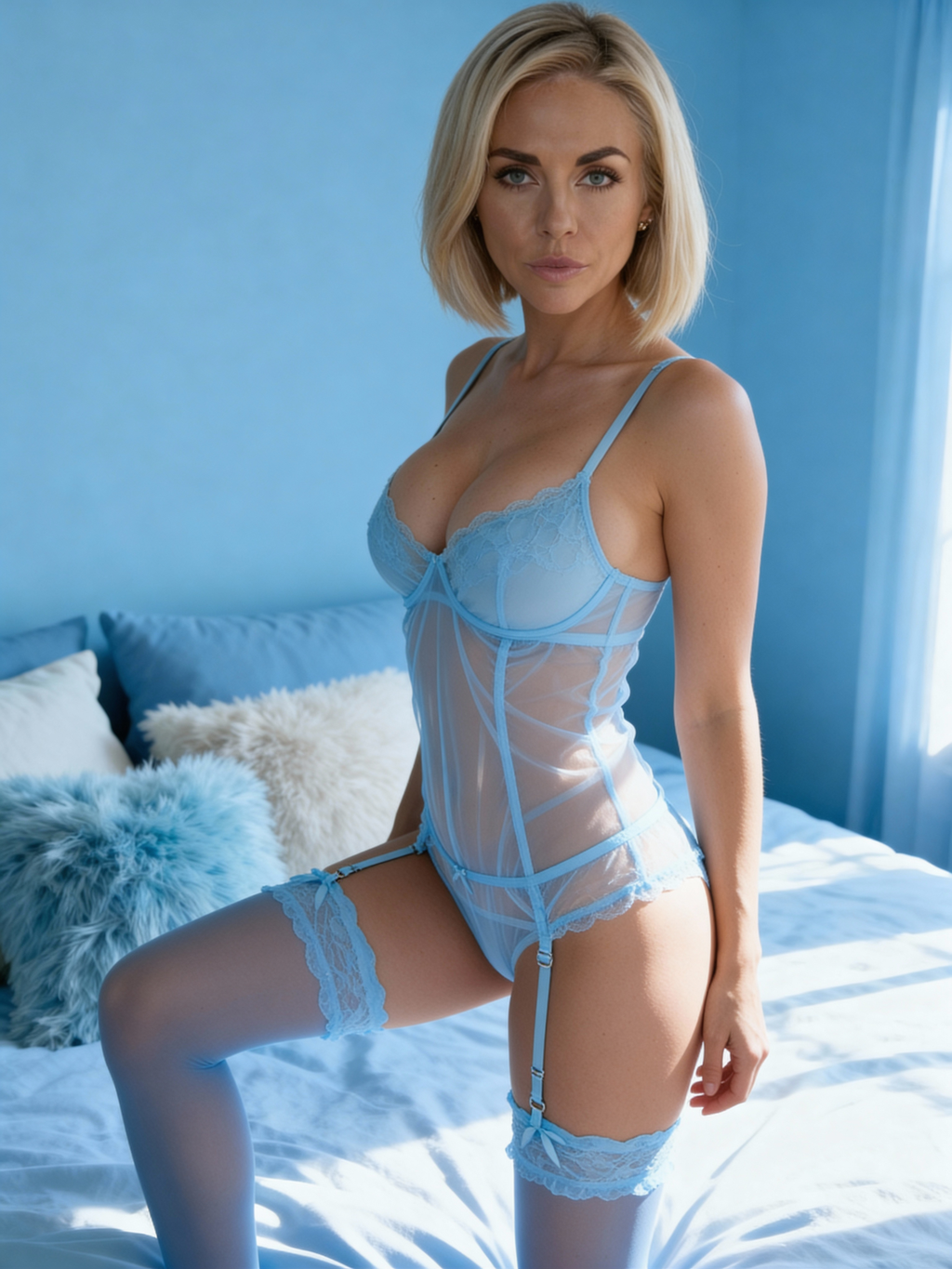
Result examples:
Interface tour
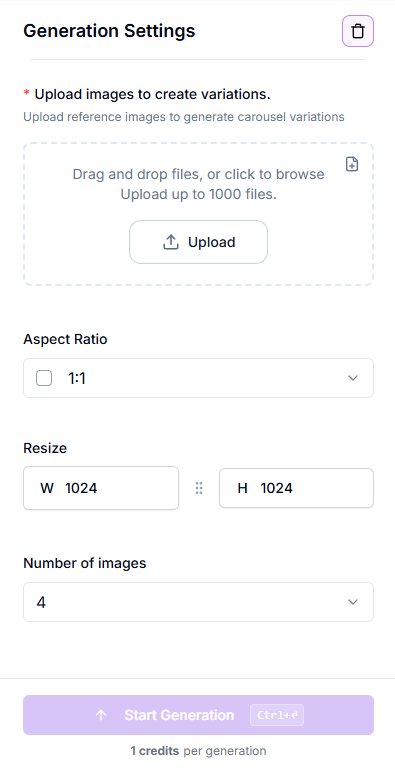
Upload images – drag-and-drop reference images or click Upload; batch up to 1,000 files.
Aspect Ratio – choose the output format (e.g. 1:1) for all generated variations.
Resize (W / H) – manually set output resolution in pixels (e.g. 1024 × 1024).
Number of images – select how many variations to generate per reference image.
Start Generation – starts the carousel generation; credit cost is shown below.
Generation behavior – each reference image generates its own set of variations in a single batch.
Task list – each batch shows its progress bar: Created → Processing → Completed / Failed.
Results – grid of thumbnails with checkboxes for bulk actions.
Quick-start walkthrough
Click Upload and add one or more reference images (up to 1,000 files).
Choose the Aspect Ratio and set the output size in Resize (W / H) if needed.
Select the Number of images to generate per reference image.
Review the settings and click Start Generation (credit cost is shown below).
Wait for the batch to complete, then review the generated carousel variations.
Select the best results and Download them or Send to another tool.
Actions on results
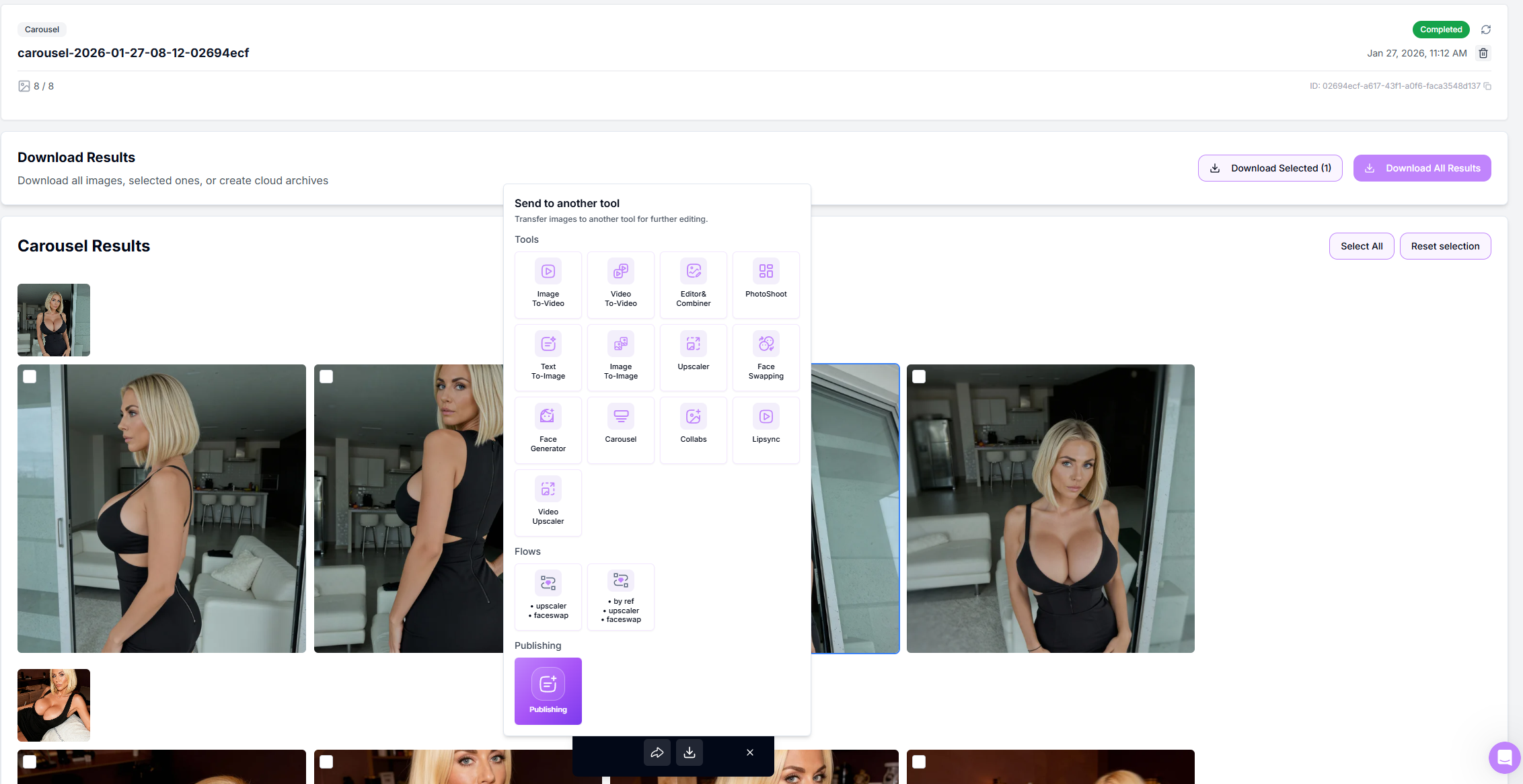
Select / Deselect thumbnails with the corner checkbox.
Download Selected / Download All for instant ZIP export.
Send to another tool – Upscaler, Face Swap, Generator by Ref, Video or to Publishing.
Retry Failed appears automatically if any slide mis-renders.
Pro tips
• Storytelling flow – set number of images to 5-7 per reference for tighter, narrative carousels.
• Batch like a boss – queue multiple carousels; GPU auto-scaling keeps waits short.
• Plan for platforms – set Aspect Ratio and Resize upfront to match Instagram, TikTok, or marketplace requirements.
• Finalize before export – send selected results to Upscaler before downloading for best final quality.
FAQ
How many images can I generate?
You can generate up to 10 images per reference using the Number of images setting. You can upload up to 1,000 reference images in a single batch, and each reference generates its own set of variations.
Can I mix different image formats and sizes?
Yes. You can upload images with different sizes and orientations, but the final output is controlled by the selected Aspect Ratio and Resize (W / H) settings, which are applied uniformly to all generated images.
Is the license commercial?
Yes. All generated images can be used for commercial purposes, including ads, social media, and marketing materials, with no attribution required.
Troubleshooting
Task failed – click Retry to restart the generation. If the task fails again, contact Support and include the task ID for faster assistance.
Need a hand? Tap the chat bubble or email [email protected].