Image Upscaler
Upscale with SeedVR2 3B Base or SeedVR2 7B Premium. To guarantee the face stays the same, use the combined Upscale + Head & Face Swap flow. Supports SFW & NSFW.
Written By Arina
Last updated About 1 hour ago
What the Image Upscaler does
Image Upscaler enlarges your image and improves its overall quality — sharpening detail and fixing common defects like softness, minor noise, and low micro-detail. You can prioritize speed & price, maximum realism, or face preservation so identity never drifts.
🎬 Results
A look at what Image Upscaler can do — before and after.
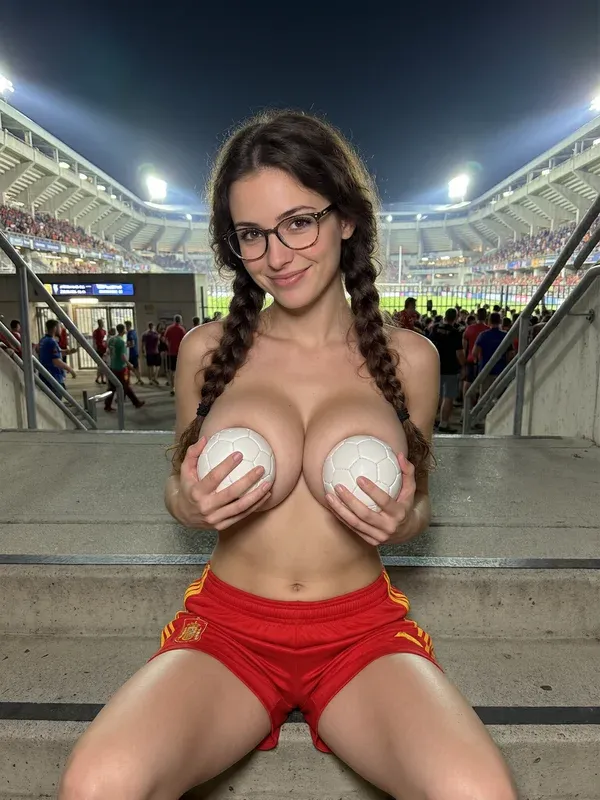
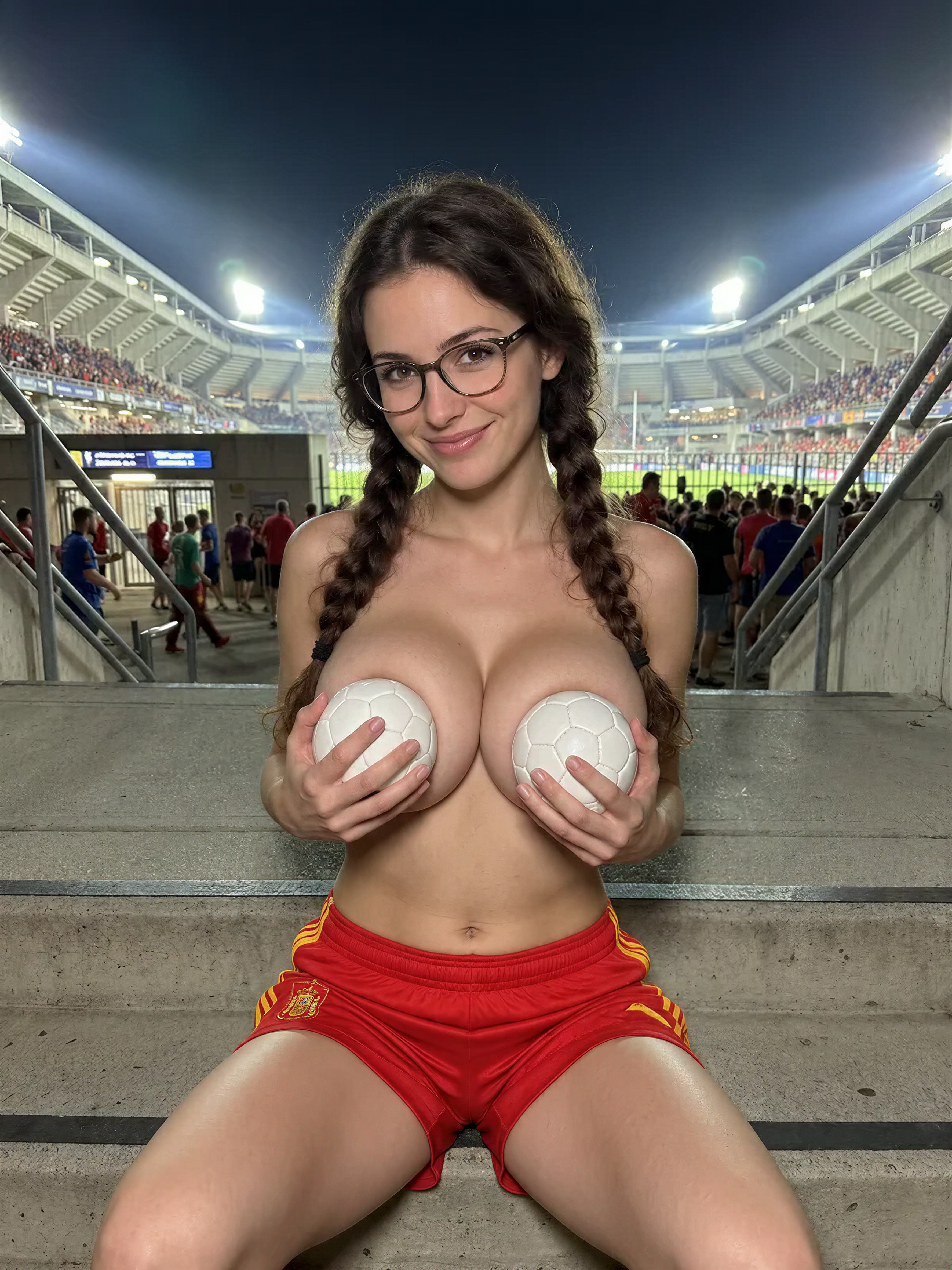
Your step-by-step guide
Step 1. Mode — choose the upscale mode from the drop-down list. Tap one below to see what it's best at.
SeedVR2 3B Base
SeedVR2 3B Base
Adaptive upscale, cleans up while enlarging
Adaptive upscale with selectable detail and resolution — cleans up noise and blur while enlarging, instead of just making the image bigger.
Detail — Low, Medium, or High: controls how much of the original resolution is preserved before upscaling.
Target Resolution — pick your output size directly (e.g. 4K), up to 8K.
Use when: you want a sharper result than a basic upscale, without paying Premium pricing.
Avoid if: you need the highest possible fidelity → use SeedVR2 7B Premium.
SeedVR2 7B Premium
SeedVR2 7B Premium
Quick pick:
Sharpest result on faces, hair, skin, and text → SeedVR2 7B Premium.
Sharp result at a lower cost → SeedVR2 3B Base.
Step 2. Output size — set the Detail level (Low/Medium/High) and pick your Target Resolution directly: up to 8K for SeedVR2 3B Base, up to 6K for SeedVR2 7B Premium.
Step 3. Upload & Generate — upload your image and start the run. Credit cost depends on the mode and output size you selected.
Pro tips
Identity matters? Both SeedVR2 modes only enhance the image — they don't intentionally redraw or change the face. For guaranteed identity control, use the combined Upscale + Head & Face Swap flow.
Need the fastest results? Use SeedVR2 3B Base.
Want the sharpest possible detail? Use SeedVR2 7B Premium.
Batch wisely: Upscale selects first; don't upscale everything — save credits for winners.
Troubleshooting
You're working with AI — occasional mistakes or artifacts are normal, and a 100% correct result isn't guaranteed.
If something didn't work as expected, contact us in the support chat in the app, or email [email protected].
FAQ
Will upscaling change the face?
Will upscaling change the face?
No — SeedVR2 3B Base and SeedVR2 7B Premium only enhance the existing image; they don't intentionally redraw or change the face.
Which mode is the best overall?
Which mode is the best overall?
There's no single "best": use SeedVR2 7B Premium when you want the sharpest possible detail on faces, hair, skin, and text, or SeedVR2 3B Base for that same sharper look at a lower cost.
Can I run it on results from any tool?
Can I run it on results from any tool?
Yes — send images from Face Generation, Text to Image, Reference-To-Image, Photoshoot, Variations, or uploads.
What if I want bigger images but 0 identity risk?
What if I want bigger images but 0 identity risk?
Both current modes (SeedVR2 3B Base and SeedVR2 7B Premium) only enhance the image and don't intentionally alter the face. For a guaranteed identity lock, run the combined Upscale + Head & Face Swap flow.
What's next
Head & Face Swap — lock in a consistent face
Variations — generate more angles or looks
Image to Video — animate the final image
Was this helpful?
Still need help? Ask the team