Variations
Turn any photo set into a carousel. Drop in one or many reference shots, choose how many variations you want, and deliver new photos.
Written By Arina
Last updated About 12 hours ago
What the tool does
Variations produces up to ten unique angles or crops per reference image in a single run. Just upload a photo — no prompts required. It keeps colour grade, lighting and subject consistent, so every slide feels like part of the same shoot.
🎬 Results
A look at what Variations can produce from a single reference.
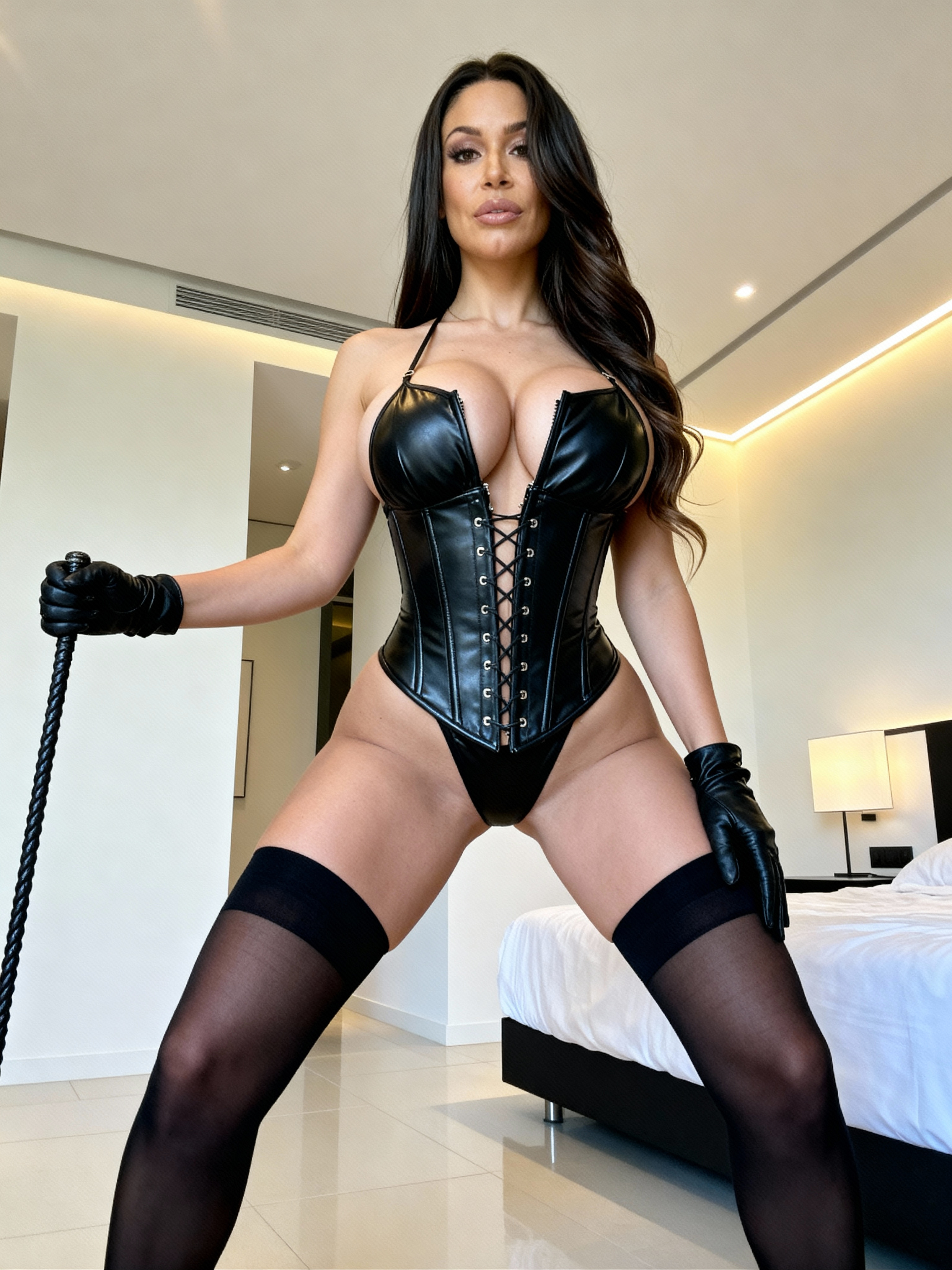
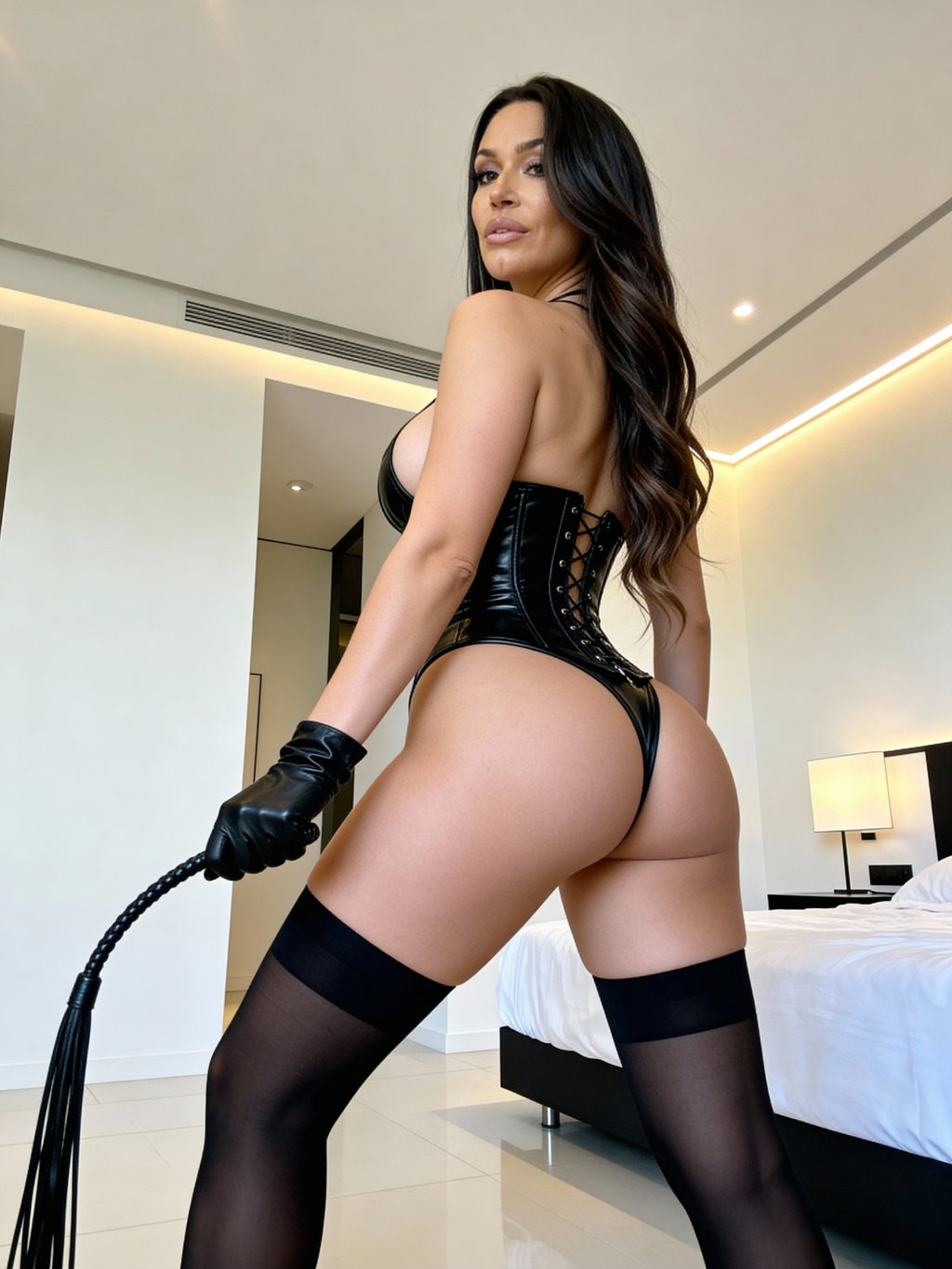


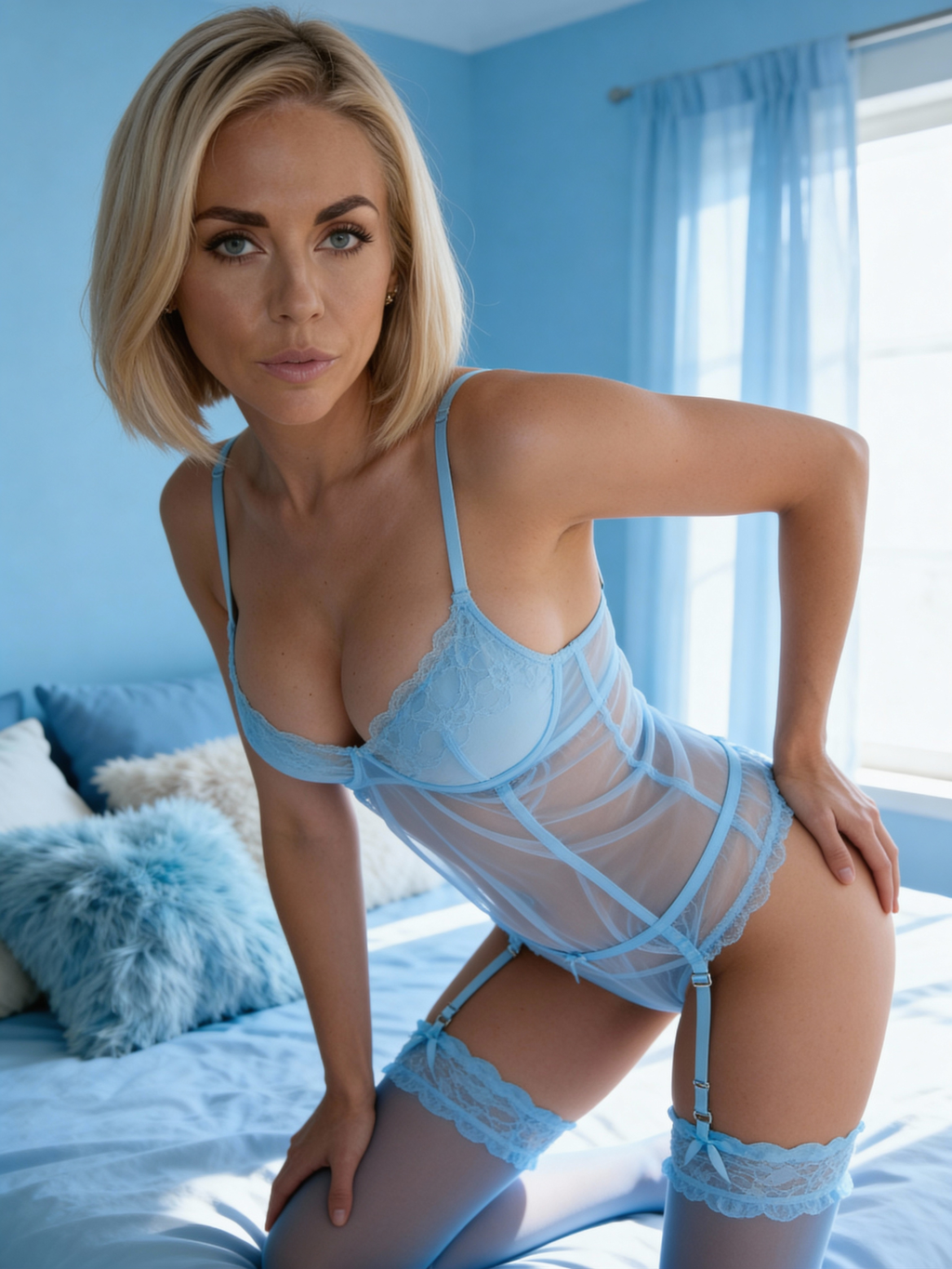
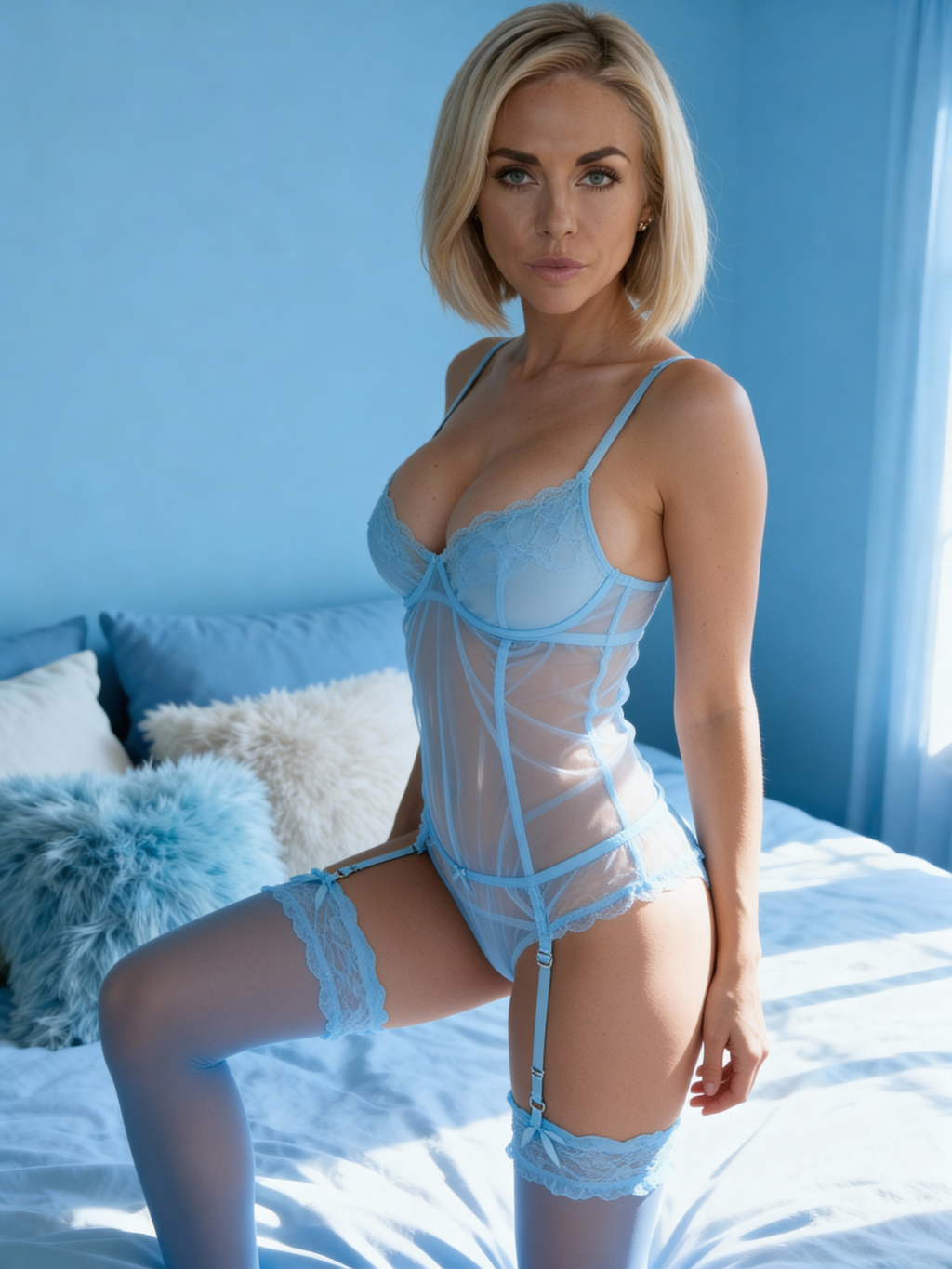
Your step-by-step guide
Step 1. Upload Images — just upload a photo, no prompts required. Drag-and-drop reference images or click Upload; batch up to 1,000 files.
Step 2. Aspect Ratio — choose the output format (e.g. 1:1) for all generated variations.
Step 3. Resolution — output resolution tier. 2K produces larger, more detailed images; 1K is faster and cheaper.
Step 4. Number of images — select how many variations to generate per reference image.
Step 5. Start Generation — starts the Variations generation. Cost is 2 credits per image at 1K and 3 credits per image at 2K, shown below the button before you confirm.
Quick-start walkthrough
Click Upload and add one or more reference images (up to 1,000 files).
Choose the Aspect Ratio and set the Resolution tier (1K or 2K).
Select the Number of images to generate per reference image.
Review the settings and click Start Generation (credit cost is shown below).
Wait for the batch to complete, then review the generated variations.
Select the best results and Download them or Send to another tool.
Actions on results
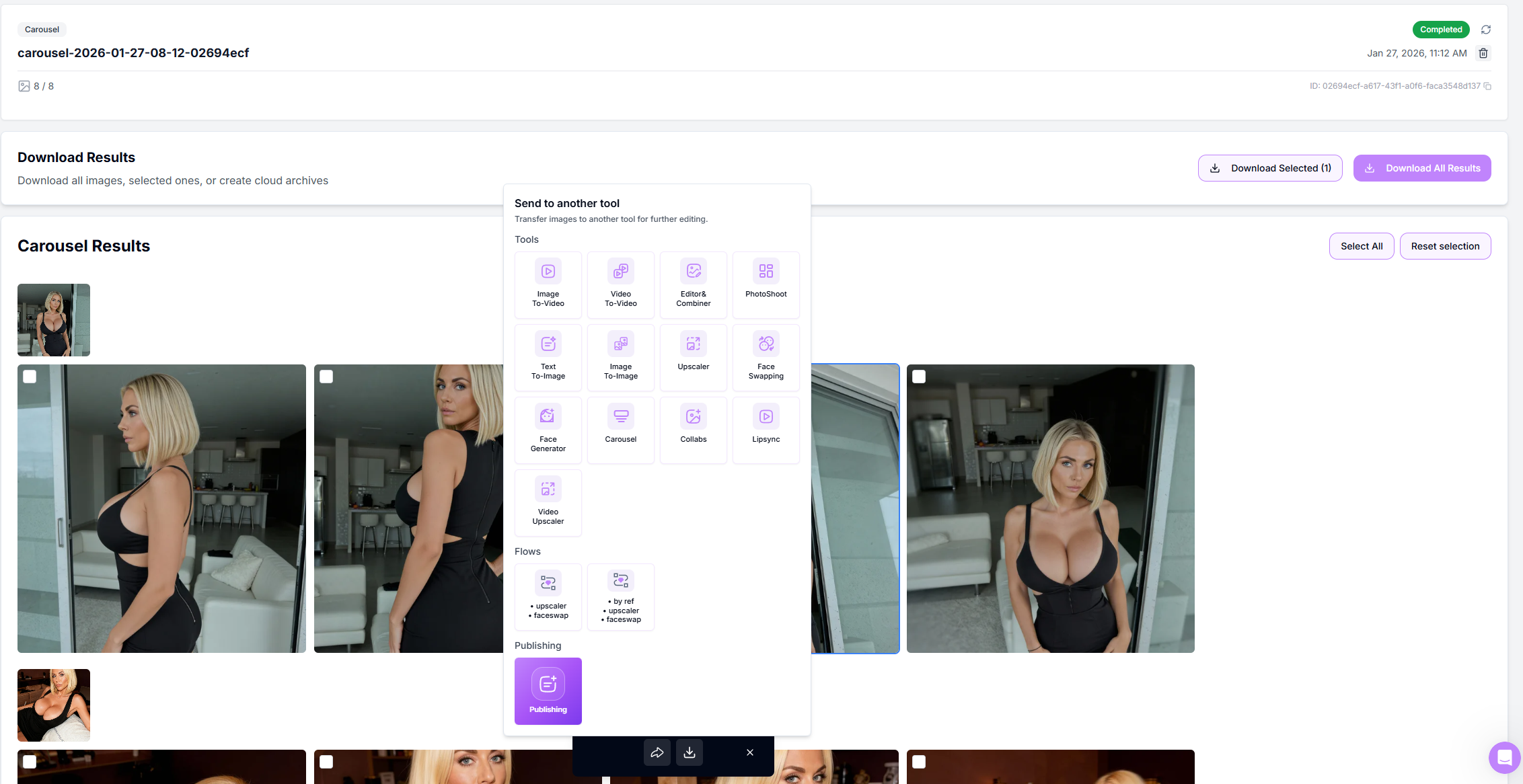
Select / Deselect thumbnails with the corner checkbox.
Download Selected / Download All for instant ZIP export.
Send to another tool – Image Upscaler, Head & Face Swap, Image to Image, Image to Video, or to Publishing.
Retry Failed appears automatically if any slide mis-renders.
Pro tips
Storytelling flow – set number of images to 5-7 per reference for tighter, narrative carousels.
Batch like a boss – queue multiple sets; GPU auto-scaling keeps waits short.
Plan for platforms – set Aspect Ratio and Resolution upfront to match Instagram, TikTok, or marketplace requirements.
Finalize before export – send selected results to Image Upscaler before downloading for best final quality.
Troubleshooting
You're working with AI — occasional mistakes or artifacts are normal, and a 100% correct result isn't guaranteed.
Task failed – click Retry to restart the generation. If the task fails again, contact Support and include the task ID for faster assistance.
Need a hand? Tap the chat bubble or email [email protected].
FAQ
How many images can I generate?
How many images can I generate?
You can generate up to 10 images per reference using the Number of images setting. You can upload up to 1,000 reference images in a single batch, and each reference generates its own set of variations.
Can I mix different image formats and sizes?
Can I mix different image formats and sizes?
Yes. You can upload images with different sizes and orientations, but the final output is controlled by the selected Aspect Ratio and Resolution settings, which are applied uniformly to all generated images.
Is the license commercial?
Is the license commercial?
Yes. All generated images can be used for commercial purposes, including ads, social media, and marketing materials, with no attribution required.
What's next
Image Upscaler — sharpen and enlarge your favorite result
Head & Face Swap — lock in a consistent face
Image to Video — animate the final image
Was this helpful?
Still need help? Ask the team