Image Editor
The Image Editor allows you to edit and transform images using reference inputs, models, and optional prompts. It supports both combined editing and batch processing workflows.
Written By Arina
Last updated About 12 hours ago
What it does
Image Editor edits and transforms your images using reference uploads, an AI model, and an optional prompt — no design skills needed. For example, you can:
change a person's pose or outfit
combine two or more people into one photo
change the location or background
apply a consistent style across a whole set of images
batch-edit many images the same way at once
Results
A look at what Image Editor can produce from your references.
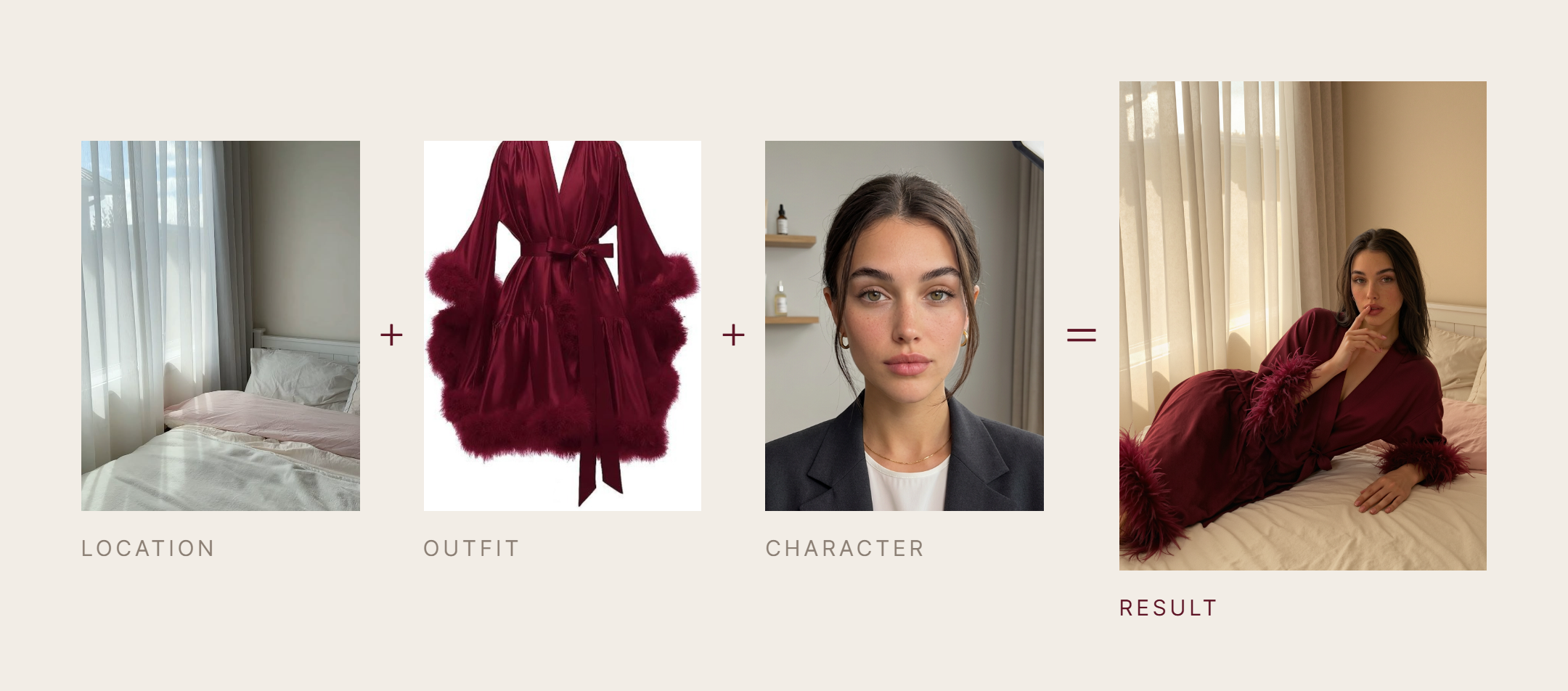
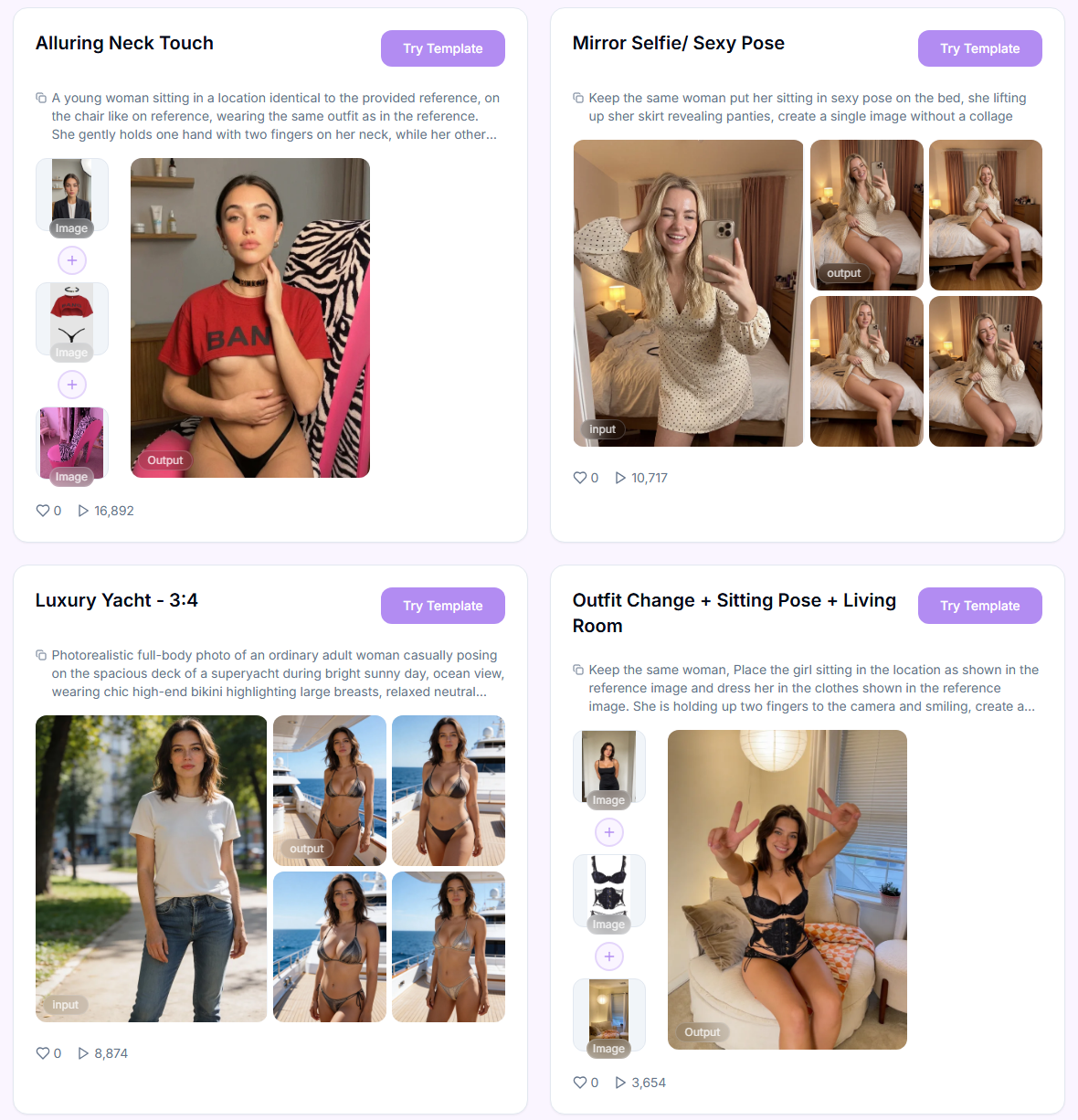
Don't want to set everything up yourself?
Skip the setup — pick a ready-made style from the Templates library and drop in your reference.
Your step-by-step guide
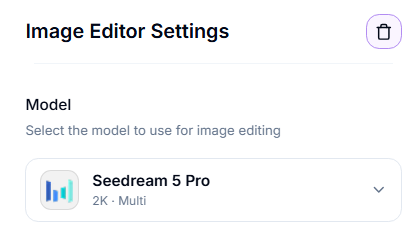
Step 1. Model — choose which of the 10 models edits your images from the drop-down list. Tap one below to see what it's best at and how to tune it.
General
General
Strong sides: Uncensored — supports both SFW and NSFW. The universal default editing model, with balanced realism, anatomy, and lighting for general edits like outfit or pose changes.
Weak sides: it's an older model, so watch for occasional hand or limb artifacts.
Settings: just insert a reference and add a prompt. Accepts up to 14 reference images.
Seedream 5
Seedream 5
Strong sides: Uncensored. Intelligent generation with better prompt understanding, stronger stylization, better likeness, and fewer artifacts than General.
Weak sides: output tops out at 2K resolution — for very large or print-quality output, send the result to Image Upscaler afterward.
Settings: just insert a reference and add a prompt. Accepts up to 14 reference images.
Seedream 5 Pro
Seedream 5 Pro
Strong sides: Uncensored. The newest Seedream flagship — supports up to 10 reference images with their order preserved, and all 15 aspect ratios.
Weak sides: costs more credits at the 2K resolution tier than most other models.
Settings: choose the Resolution (1K or 2K) — 2K costs more credits but gives a larger, more detailed image. You can add up to 10 references, and the order you upload them in matters.
Flux Klein Spicy
Flux Klein Spicy
Strong sides: Uncensored, with minimal content restrictions. Understands anatomy and accepts a face reference to preserve identity — can generate explicit content from scratch. Best for NSFW results.
Weak sides: slightly lower overall image quality than most other models, with occasional artifacts.
Settings: just insert a reference and add a prompt. Accepts up to 3 reference images.
Flux Klein LoRA
Flux Klein LoRA
Strong sides: Uncensored. Same base as Flux Klein Spicy, plus LoRA style templates — including clothing-removal presets — for a consistent, specific look.
Weak sides: occasional artifacts, same as Flux Klein Spicy.
Settings: pick a LoRA style template before generating — browse them in the app. Without one selected, this behaves the same as Flux Klein Spicy. Accepts up to 3 reference images.
Qwen Image
Qwen Image
Strong sides: Uncensored. Stable, structured, predictable results — handles a wide range of styles well, great for stylized or illustrative subjects.
Weak sides: it trails top proprietary models on raw photorealism — strongest for stylized, illustrative, and layout-precise work rather than perfect realism.
Settings: just insert a reference and add a prompt. Accepts up to 3 reference images.
Qwen Image Pro
Qwen Image Pro
Strong sides: Uncensored. Same strengths as Qwen Image, plus cleaner and more detailed results — better suited for final images.
Weak sides: costs more than the base Qwen Image.
Settings: just insert a reference and add a prompt. Accepts up to 3 reference images.
WAN 2.7 Image
WAN 2.7 Image
Strong sides: Uncensored. Adapts well to a wide range of prompts, with aesthetic bodies and composition, few artifacts, and precise editing.
Weak sides: lower resolution ceiling than the Pro version — for higher-resolution stills, use WAN 2.7 Pro instead.
Settings: just insert a reference and add a prompt. Accepts up to 14 reference images.
WAN 2.7 Pro
WAN 2.7 Pro
Strong sides: Uncensored. The newest and most powerful model in the WAN family — more detailed results than WAN 2.7 Image, and better handling of complex scenes and compositions.
Weak sides: highest cost of the WAN pair.
Settings: just insert a reference and add a prompt. Accepts up to 14 reference images.
Nano Banana 2
Nano Banana 2
Strong sides: Highest realism and the most precise prompt-driven edits, with clean anatomy and stable faces. The only model that reliably renders text inside an image (signs, captions, labels).
Weak sides: supports SFW content only — no NSFW support at all. Slightly weaker at preserving facial likeness than Seedream or WAN.
Settings: just insert a reference and add a prompt. Accepts up to 14 reference images.
Quick pick:
Most realistic SFW results → Nano Banana 2.
Explicit NSFW from scratch, not already in the reference → Flux Klein Spicy.
General NSFW edits (outfit, pose) → General (default) or Flux Klein Spicy.
A specific LoRA style, including clothing-removal presets → Flux Klein LoRA.
Highest fidelity, most careful composition → WAN 2.7 Pro, Qwen Image Pro, or Seedream 5.
Combining up to 10 references in one edit → Seedream 5 Pro.
Not sure? → General is the overall default.
Step 2. Upload Images — required. How many you can add depends on the model.
Step 3. Batch Mode — toggle. When on, each uploaded image is edited separately (one result per image) instead of being combined into a single result.
Step 4. Prompt — describe the edit as a change: what to do, and what to keep the same (e.g. "keep her face and pose unchanged"). Vague prompts like "make it cooler" give unpredictable results.
Step 5. Aspect Ratio — sets the width-to-height ratio of the output. Leave on Auto to keep the first reference's aspect ratio.
Step 6. Resolution — output resolution tier (Seedream 5 Pro only). 2K produces a larger, more detailed image; 1K is faster and cheaper. Other models ignore this field.
Step 7. Number of images — how many variations to generate per run.
Step 8. Generate — starts the run. Credit cost per image and total cost are shown on the button before you confirm.
Pro tips
Always add a clear face image to preserve identity.
Include a full-body photo for better pose and proportion accuracy.
Use Batch Mode when applying the same edit to multiple images independently.
You can mix images from different sources — the model adapts lighting and composition.
For composition diversity, send results to the Variations tool.
For complex edits, apply changes step by step — first adjust pose, then modify clothing in a separate generation.
Troubleshooting
Didn't get the expected result? This may happen if the prompt is unclear or too complex, or the selected model isn't suited to this type of request. Try simplifying the prompt or switching models. If the issue persists, contact us in the support chat in the app, or email [email protected].
FAQ
Can I use it for NSFW images?
Can I use it for NSFW images?
Yes. Most models are uncensored, only Nano Banana 2 is heavily censored and does not support NSFW at all.
My edit includes text — why does it look garbled?
My edit includes text — why does it look garbled?
Only Nano Banana 2 reliably renders text inside an image (signs, captions, labels). Every other model tends to produce broken or nonsensical letters when asked to add or change text — switch to Nano Banana 2 for these edits.
How many reference images can I upload?
How many reference images can I upload?
It depends on the model. General, Seedream 5, Nano Banana 2, WAN 2.7 Image, and WAN 2.7 Pro accept up to 14. Seedream 5 Pro accepts up to 10. Qwen Image, Qwen Image Pro, Flux Klein Spicy, and Flux Klein LoRA accept up to 3. If you need more, split them into separate runs — Batch Mode still applies within each run.
How do I use a LoRA style template?
How do I use a LoRA style template?
LoRA templates only work with the Flux Klein LoRA model. Pick that model, then choose a template from the template browser in the app before generating — including clothing-removal presets. Without a template selected, Flux Klein LoRA behaves the same as Flux Klein Spicy.
What is the difference between Batch Mode and combined editing?
What is the difference between Batch Mode and combined editing?
Batch Mode processes each image separately using the same prompt. Without it, references can be combined into one result.
Can I change clothes or background only?
Can I change clothes or background only?
Yes. Describe the change clearly in the prompt (e.g. "change outfit to a black dress, keep face and pose"). You can also upload a reference image for the model to use.
Will the editor preserve facial identity?
Will the editor preserve facial identity?
Yes, especially with a clear face image and prompts that avoid extreme or conflicting instructions. If needed, use Head & Face Swap after generation.
What is the difference between Batch Mode and Sequential Generation?
What is the difference between Batch Mode and Sequential Generation?
Batch Mode processes each image separately using the same prompt. Sequential Generation creates a consistent sequence of images with shared characters and style, each one built on the last.
Is this tool suitable for product or brand visuals?
Is this tool suitable for product or brand visuals?
Yes. For clean, brand-safe visuals, use Nano Banana 2 and keep prompts simple and descriptive.
What's next
Image Upscaler — sharpen and enlarge your result
Head & Face Swap — lock in a consistent face
Image to Video — animate the final image
Variations — generate more angles or looks from the winner
Was this helpful?
Still need help? Ask the team