Video Analyzer
Break down any video up to 30 seconds into key frames, a transcript, and a timestamped AI analysis.
Written By Leonid
Last updated About 4 hours ago
What it does
Video Analyzer breaks down any video up to 30 seconds long. Paste a link or upload a file, and you get key frames, a transcript, a timestamped AI breakdown of what happens on screen, and the ability to generate a prompt for any frame.
It's useful when you want to understand how a video is built — who's in it, what happens when, how it's shot and lit — so you can recreate a similar scene with ZenCreator's image and video tools. NSFW content is supported.
Step-by-step guide
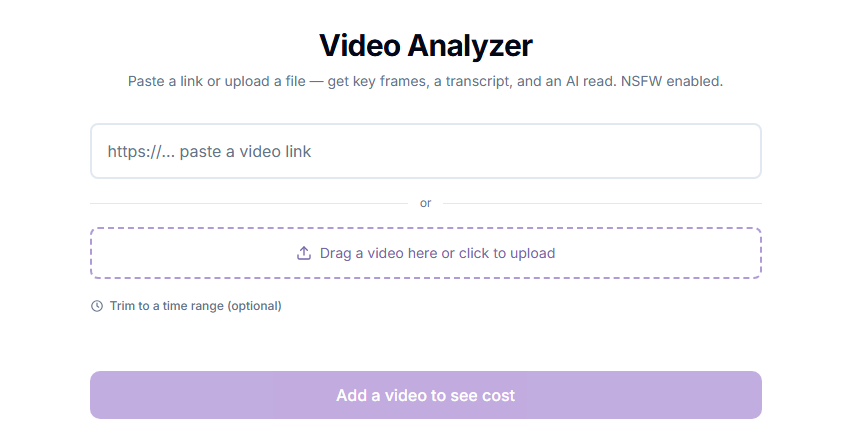
Step 1. Open Video Analyzer from the Apps section.
Step 2. Add your video. Paste a video link into the top field, or upload a file from your device. The video must be 30 seconds or shorter.
Step 3. Trim to a time range (optional). If you only need part of the video analyzed, click Trim to a time range and set the start and end.
Step 4. Check the cost. The Cost panel shows the length being analyzed and the exact credit price before you start.
Step 5. Analyze. Click Analyze. A progress bar shows the status and switches to Complete when the analysis is ready.
Step 6. Review the results in the Analysis, Details, and Frames sections below.
What you get
Analysis — a structured AI read of the video:
Overview — a short summary of the setting, the people, the mood, and what happens.
Who is on screen — each person's appearance, clothing, and role in the scene.
Timeline of key moments — a timestamped, second-by-second description of the action.
Visuals — lighting, color palette, camera framing, and orientation.
Audio / dialogue — what's said, based on the transcript when speech is available.
Notable details and a closing summary.
Details — the video's technical info: title, uploader, duration, resolution, transcript status, and source.
Frames — key frames extracted from the video, each labeled with its timestamp. You can generate a prompt from any frame and use it in other ZenCreator tools.
Pro tips
Trim to the part you need — if only a few seconds matter, trimming focuses the analysis on that moment.
Use frames as a starting point — generate a prompt from a key frame, then take it to Text to Image or Image to Video to recreate a similar shot.
Use the timeline for video prompts — the timestamped breakdown is a ready outline of the action, which helps when describing motion in a video prompt.
Troubleshooting
Video is too long — the maximum is 30 seconds. Shorten the clip to 30 seconds or less before uploading.
Transcript shows "none" — the video has no recognizable speech. The analysis will still describe the visuals but won't include dialogue.
Link doesn't load — check that the video is public and the link opens without logging in. If it still fails, download the video and upload the file instead.
Results from AI models can vary and may not always be fully accurate. If you continue to experience issues, contact our support team at [email protected].
FAQ
How much does an analysis cost?
How much does an analysis cost?
1 credit per 5 seconds of video — for example, a full 30-second video costs 6 credits. The exact price is shown in the Cost panel before you start.
What's the maximum video length?
What's the maximum video length?
30 seconds. A longer clip needs to be shortened to 30 seconds or less before uploading.
Can I analyze NSFW videos?
Can I analyze NSFW videos?
Yes — NSFW analysis is enabled, as long as the content stays within the platform's Terms of Service.
Why does the analysis say the dialogue can't be determined?
Why does the analysis say the dialogue can't be determined?
Dialogue comes from the transcript. If the video has no audible speech, the AI can only describe what's visible on screen.
What's next
Image to Video — animate a frame you've recreated
Text to Video — turn the timeline into a video prompt
Pricing & Credits — see credit costs across all tools
Was this helpful?
Still need help? Ask the team