Video Extend
Make any video longer: upload a clip, add 5, 10 or 15 seconds and get one seamless video.
Written By Leonid
Last updated About 12 hours ago
What Video Extend does
Video Extend continues your clip. Upload a video, choose how many seconds to add, and the studio carries the scene on from its last shot. You get one seamless video with no cuts, and you can extend it again until it reaches 60 seconds.
Good to know. Your clip should be 2 to 60 seconds long. End it where you want the story to continue.
The page at a glance
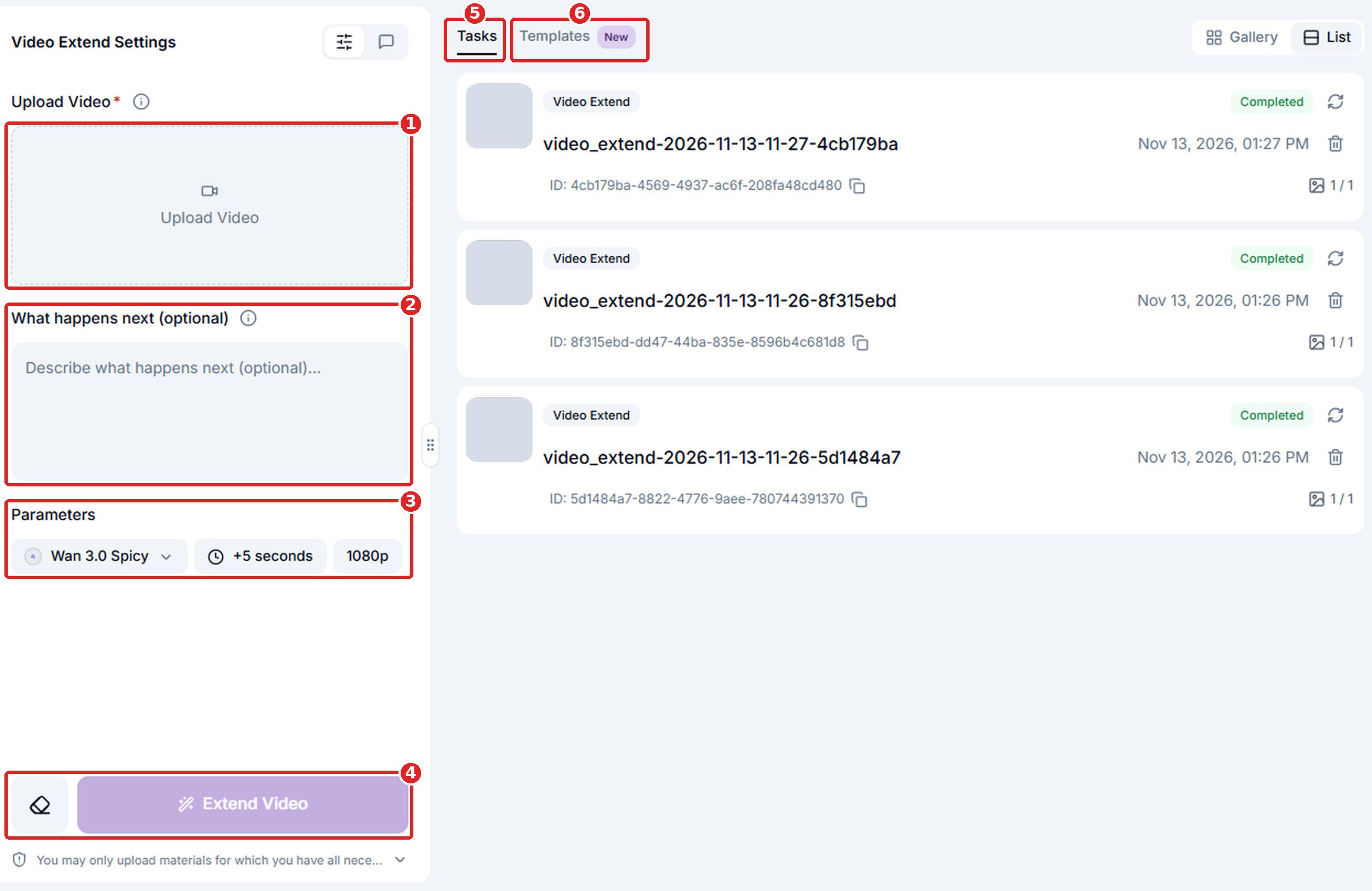
Find Video Extend in the left menu under Video. Settings are on the left, tasks and templates on the right. The red numbers on each screenshot match the points above it.
Upload Video: your starting clip.
What happens next: an optional description of the new part.
Parameters: model, extra seconds and quality.
Extend Video: starts the job. The price is shown on the button.
Tasks: your jobs and finished videos.
Templates: ready-made examples to start from.
How to extend a video
Step 1. Upload your clip
Tap the upload area and choose a file from your device, or pick a video from your generations. Changed your mind? Tap the cross on the preview and choose another one.
Only upload videos you have the rights to, and where everyone shown is an adult.
Step 2. Describe what happens next (optional)
Write a short description, for example "The camera slowly pulls back as the crowd starts to cheer." Leave the box empty and the video continues in its own way. The trash can in the corner of the box clears your text.
Tip: keep it short and describe one clear thing, like a camera move or a change in the scene.
Step 3. Choose model, length and quality
Everything is under Parameters. Tap a button to open its list.
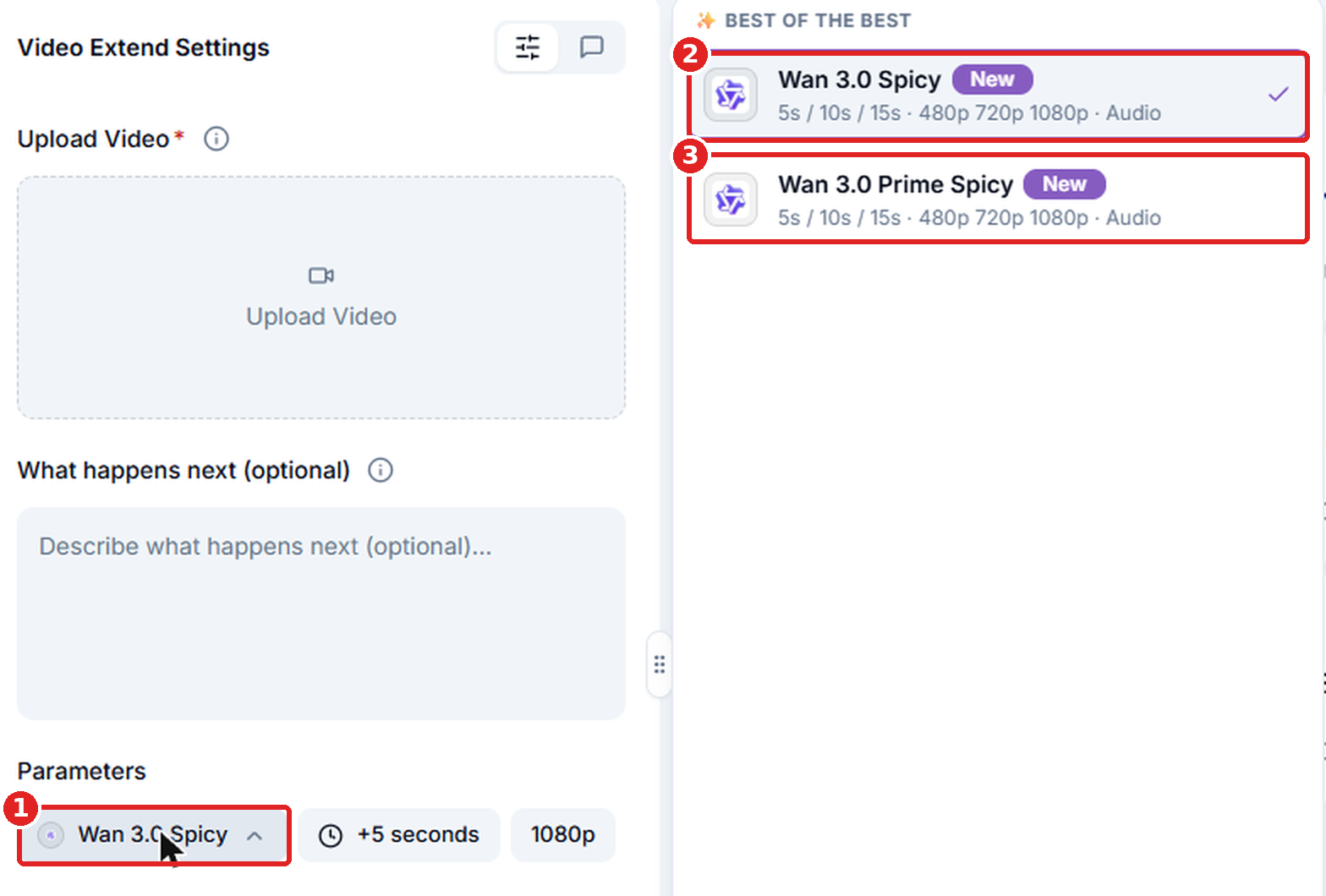
Model (first screenshot):
The Model button opens the list of models.
Wan 3.0 Spicy: works in 480p, 720p and 1080p with sound.
Wan 3.0 Prime Spicy: the same, costs a little more but renders a bit faster.
Length and quality (second screenshot):
Extend by: +5, +10 or +15 seconds.
Quality: 480p, 720p or 1080p. Higher quality costs more credits. If your clip has a lower resolution, the highest options may not appear.
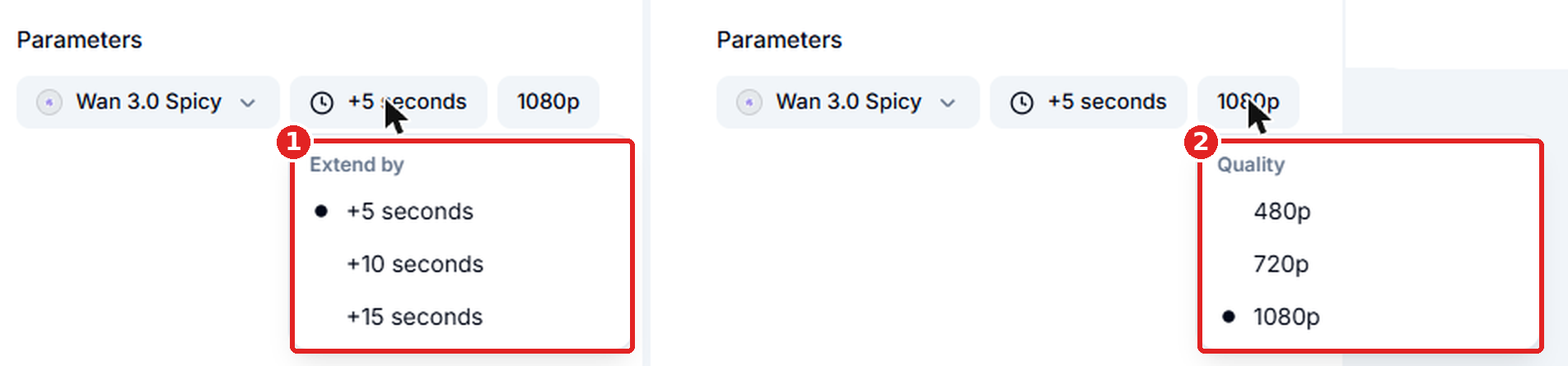
The price updates every time you change a setting, so you always see it before you start. For example, with Wan 3.0 Spicy, adding 5 seconds in 480p costs 27 credits and adding 15 seconds in 720p costs 101 credits.
Step 4. Tap Extend Video
The credits are spent and your job appears in the Tasks tab. You can start another one right away, no need to wait. The eraser button next to Extend Video resets the whole form.
Your results
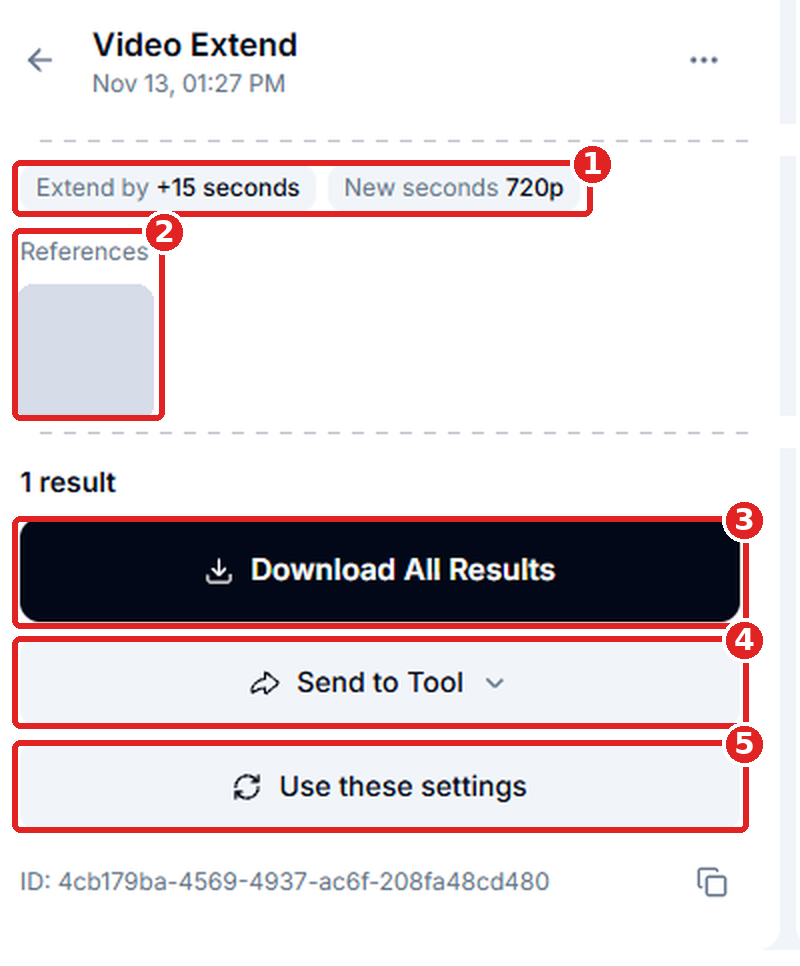
Open the Tasks tab. A job shows In process with a percentage and usually takes a few minutes, longer when many people are generating. When it says Completed, tap it to open the video. On the left you will see:
What you chose: how many seconds were added and the quality of the new part.
References: your original clip.
Download All Results: saves your video.
Send to Tool: sends your finished video to another ZenCreator tool, so you can keep working on it there without downloading it and uploading it again.
Use these settings: brings the same settings back to the form.
Want it even longer? Run Video Extend again on your result. Each round adds 5, 10 or 15 seconds, up to 60 seconds in total.
Need inspiration? Try templates
Not sure what to write? Open the Templates tab (1) next to Tasks and look through ready-made examples. Pick one you like and use it as a starting point. We add new templates for our models regularly, so check back from time to time.

Troubleshooting
It's AI, so an occasional glitch is normal.
The Extend Video button is grey. Upload a video first.
The job failed. The credits go back to your balance automatically. Nothing is lost.
Why did it fail? Your description or your video did not pass the content check. All people in the video must be adults. Try another description or another clip.
It is taking long. Check the Tasks tab. When the service is busy it can take longer than usual.
Still stuck? Write to us in the in-app chat or at [email protected].
What's next
Video Builder — plan and generate a multi-shot video from 15 seconds to 3 minutes from a single prompt
Video Upscaler — upscale your finished video for sharper detail
Film Maker — turn a few choices into a full film with two characters
Was this helpful?
Still need help? Ask the team