LoRAs AI Effects
A hub of ready-made LoRA styles for images and video, built on Wan 2.2, Wan 2.7, and Flux Klein.
Written By Arina
Last updated About 7 hours ago
What it does
LoRAs AI Effects is a hub of ready-made LoRAs for both images and video — built on Wan 2.2, Wan 2.7, and Flux Klein. Instead of hunting for the right model and settings yourself, browse a style, upload your reference, and generate.
Results
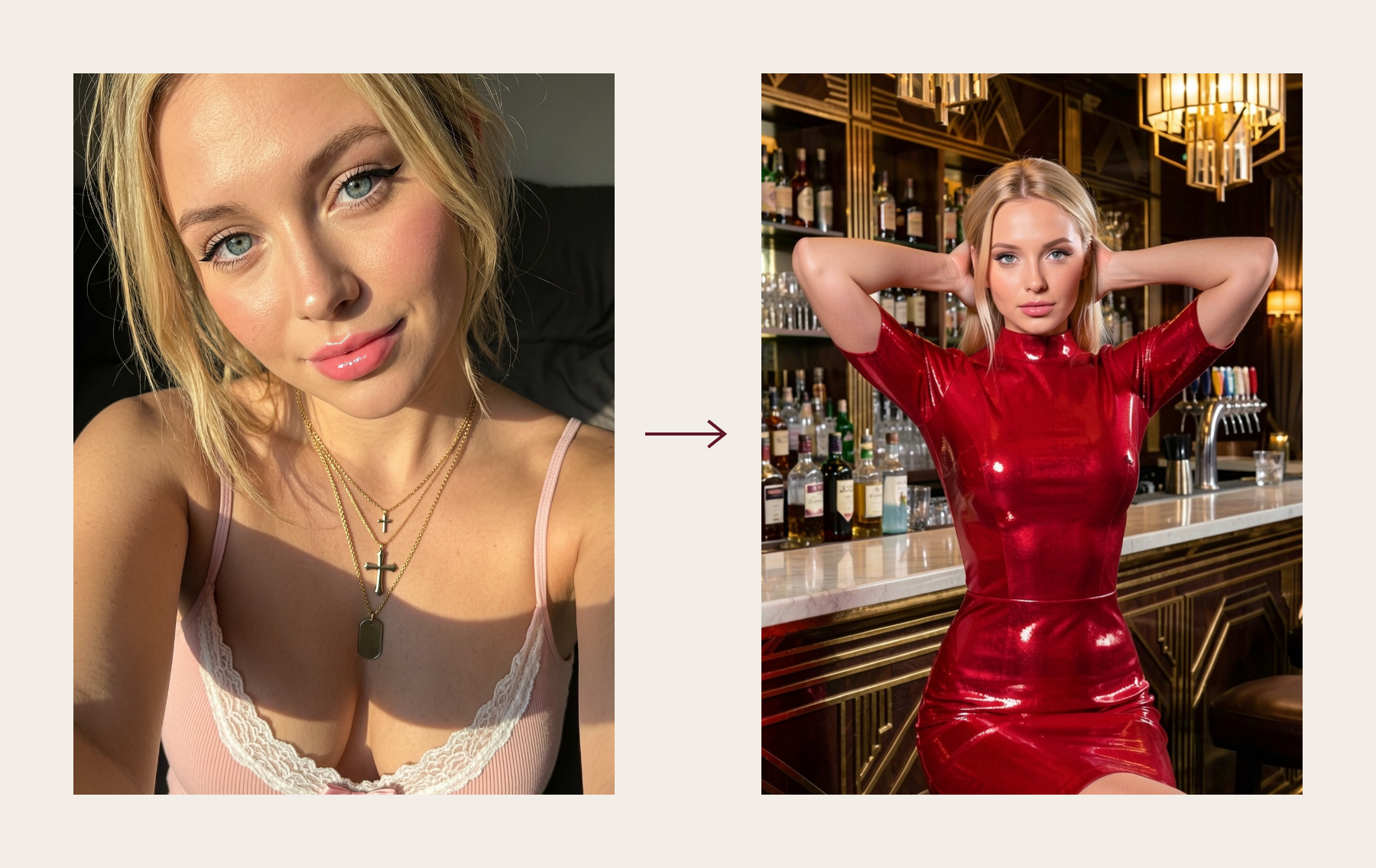
Your step-by-step guide
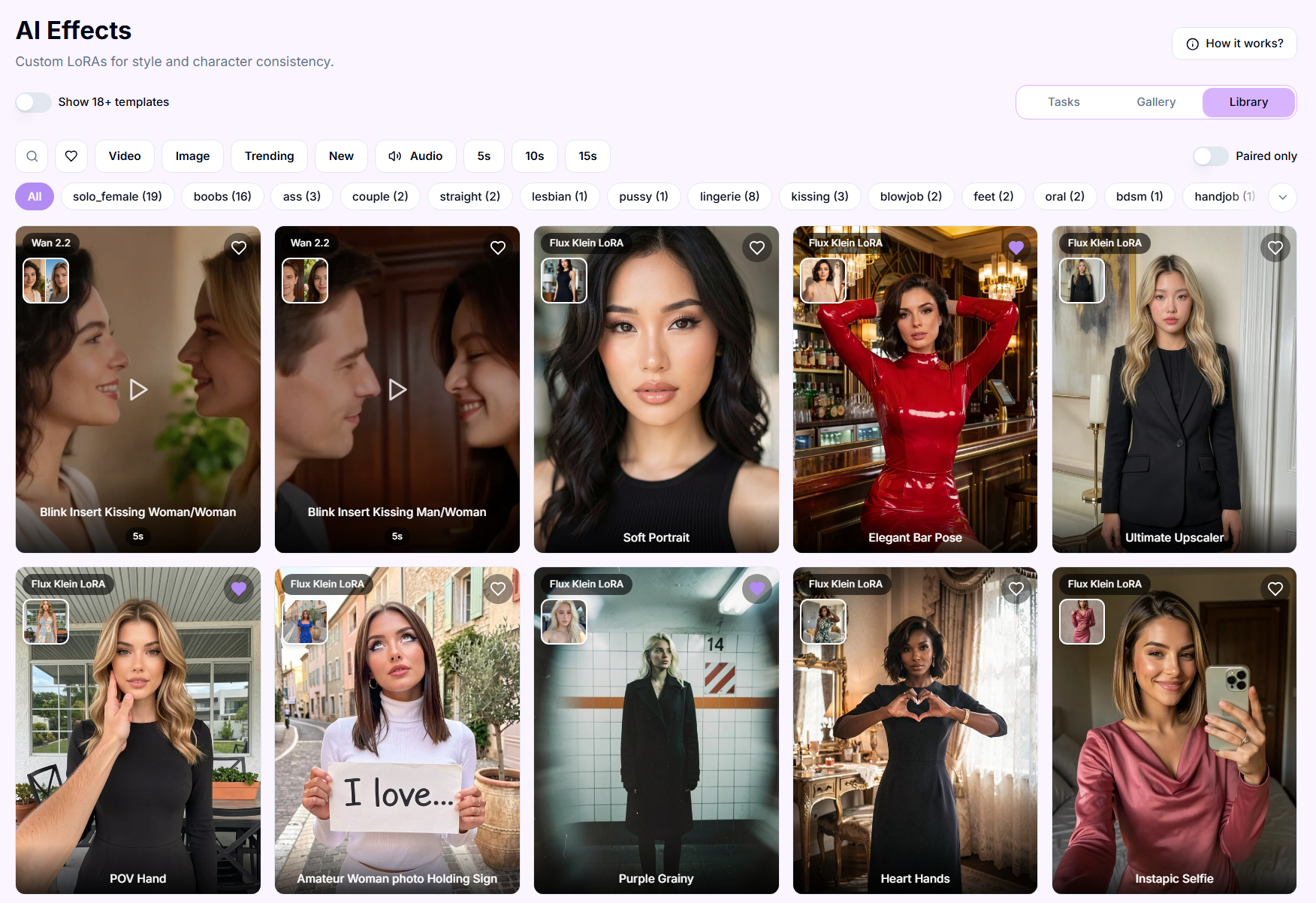
Step 1. Browse or search. Switch between the All, Video, and Image tabs, sort by Trending or New, filter video styles by clip length (5s / 8s / 10s / 15s), or search by name.

Step 2. Look through LoRAs and pick yours. Hover your mouse over a style you like to load a quick video preview of the effect, then click the card to open it — you'll see the full details: style name, tags, credit cost, and an example (input → result).
Step 3. Upload your reference.
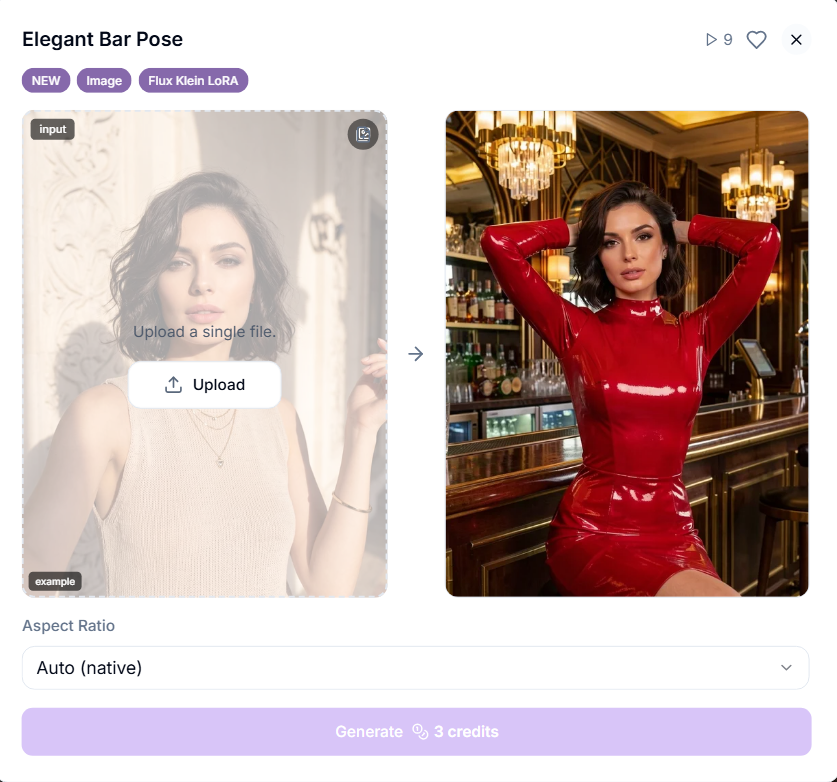
Step 4. Generate. Everything happens right inside LoRAs AI Effects — no need to leave the panel or switch to another tool. Press Generate and the credit cost is shown on the button before you confirm.
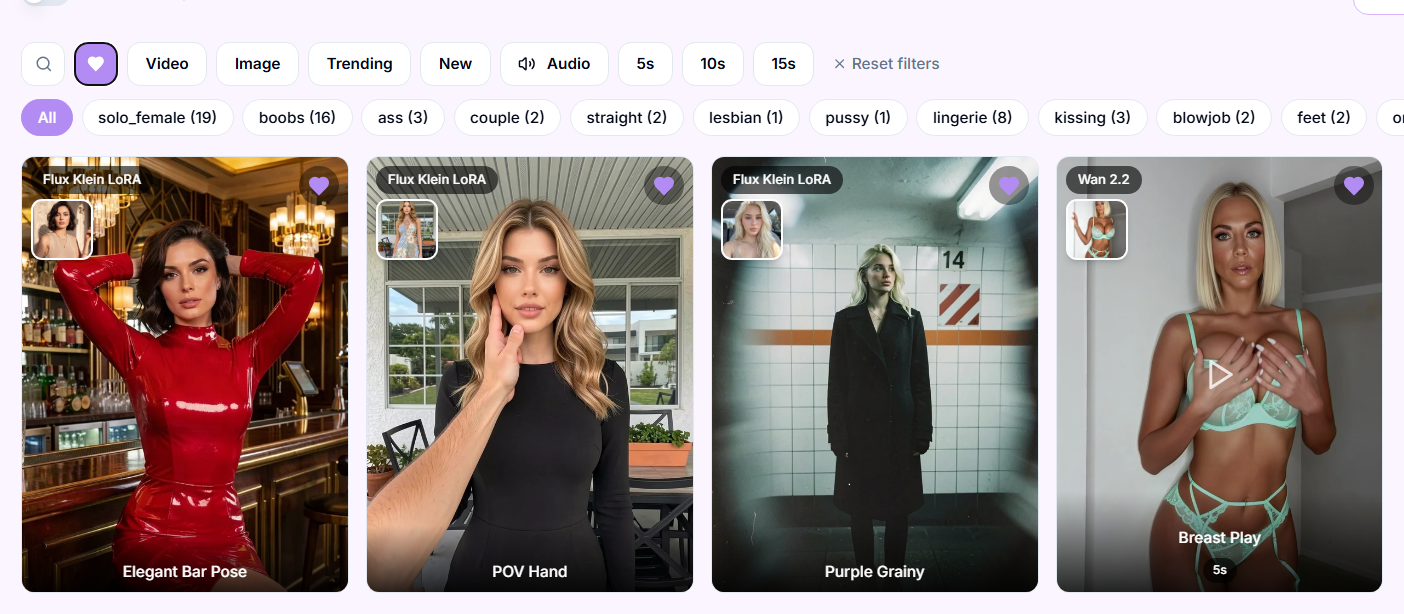
Step 5. Save favorites. Tap the heart icon on any style to save it — favorited styles are one click away next time.
Pro tips
Favorite styles you use often so you don't have to search for them every time.
Video styles are filterable by clip length — pick 5s for quick clips, 15s for longer scenes.
For image LoRAs, use a good-quality photo reference — the sharper and better-lit it is, the cleaner the result.
For video LoRAs marked Blink, your reference can be in any pose. For regular video LoRAs, pick a reference that's similar to the style's example.
Set up your filters once you know what you're looking for — it makes finding the right LoRA much faster.
Troubleshooting
Didn't get the expected result? Check that you used a reference that fits the style — see the Pro tips above for what makes a good reference for image vs. video LoRAs. If your reference looks right and the result is still off, contact us in the support chat in the app, or email [email protected].
FAQ
Can I use any photo or video as a reference?
Can I use any photo or video as a reference?
It depends on the LoRA type. For video LoRAs marked Blink, your reference can be in any pose. For regular video LoRAs, pick a reference that's similar to the style's example. More details: LoRA in Wan 2.2 and Wan 2.7.
What's the difference between Video and Image styles?
What's the difference between Video and Image styles?
Video styles are built on Wan 2.2 and Wan 2.7 and apply to video generations. Image styles are built on Flux Klein and apply to still images.
Do LoRAs support NSFW content?
Do LoRAs support NSFW content?
Yes. Simply enable the 18+ toggle at the top to view and use NSFW templates.
What's next
Text to Image — generate from scratch with more manual control
Image to Video — animate a still into a short clip
Was this helpful?
Still need help? Ask the team