How to Top Up Your ZenCreator Balance (Credits)
Written By Arina
Last updated About 6 hours ago
You can top up your ZenCreator balance in two ways:
Open the Billing page.
Or click the Credits button in the top menu

You’ll see all available credit packages.
Everything unlocked with any pack
More templates, styles, and workflows
Premium photoshoot themes
Expanded generation capabilities across supported tools
Full access to premium creative tools
Additional LoRA models for Wan 2.2 and Flux Klein
Professional tools for advanced editing
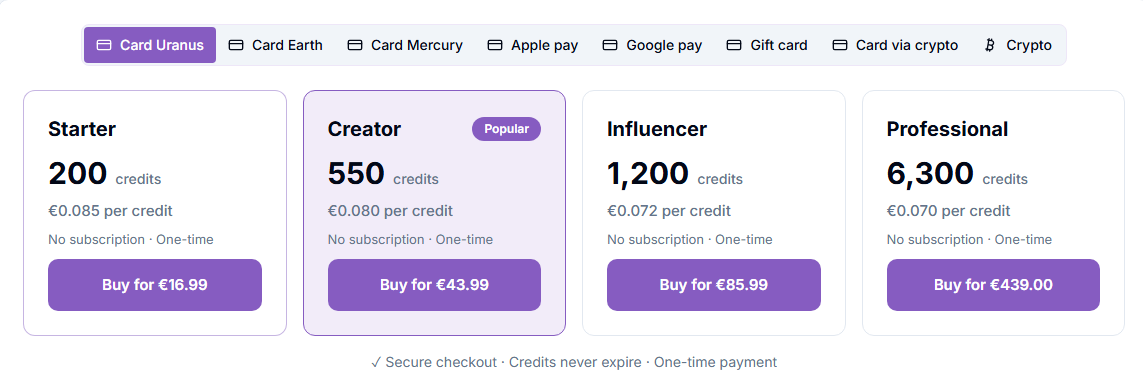
Step 1 — Choose a payment method

At the top of the checkout window, choose how you want to pay. Which payment methods you see depends on your region — choose any method that's available to you.
Pay by card — all methods named after planets are card payments:
Card Uranus
Card Earth
Card Mercury
Card Jupiter
Card Venus
Card Neptune (Indonesia only)
Each of them works through a different payment provider. If your card doesn't go through with one, try another.
Other ways to pay:
Apple Pay and Apple Pay 2 — both let you pay with Apple Pay; they go through different payment providers.
Google Pay
Open Banking — pay directly from your bank account (UK only).
Revolut — pay with your Revolut account (Europe only).
Gift card — buy a gift card and redeem its code to top up.
Card via Crypto — pay by card; the payment is processed through our crypto payment partner.
Crypto — pay directly with USDT / USDC.
Prices can differ by payment method. Each payment provider charges its own fees, so the price of the same credit package may vary depending on the method you choose. Always check the final price before you pay.
Then select the credit package you want to buy.
Card methods without a separate guide work like a standard card checkout: enter your first and last name and your card details, then confirm the payment. For Apple Pay, Google Pay, Open Banking, and Revolut, just follow the on-screen steps.
Below are step-by-step guides for the methods with extra steps: Card Mercury, Card Venus, Card via Crypto, Gift card, and Crypto.
Option A — Pay by Card Mercury or Card Venus
Card Mercury and Card Venus follow the same steps.
Under Payment Method, choose Card Mercury or Card Venus. The payment window opens.
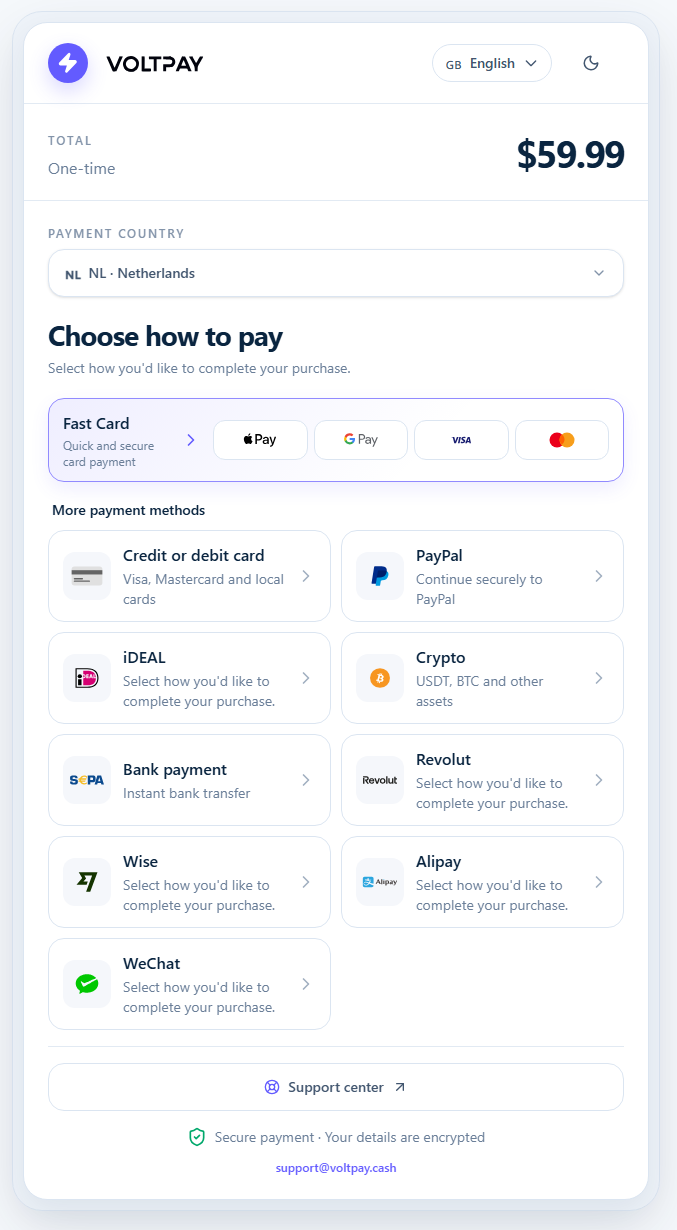
A list of payment methods appears: Fast Card (Apple Pay / Google Pay / Visa / Mastercard), Credit or debit card, PayPal, iDEAL, Crypto, Bank payment (SEPA), Revolut, Wise, Alipay, WeChat — availability depends on your country. Choose Credit or debit card (or Fast Card) to pay by card.
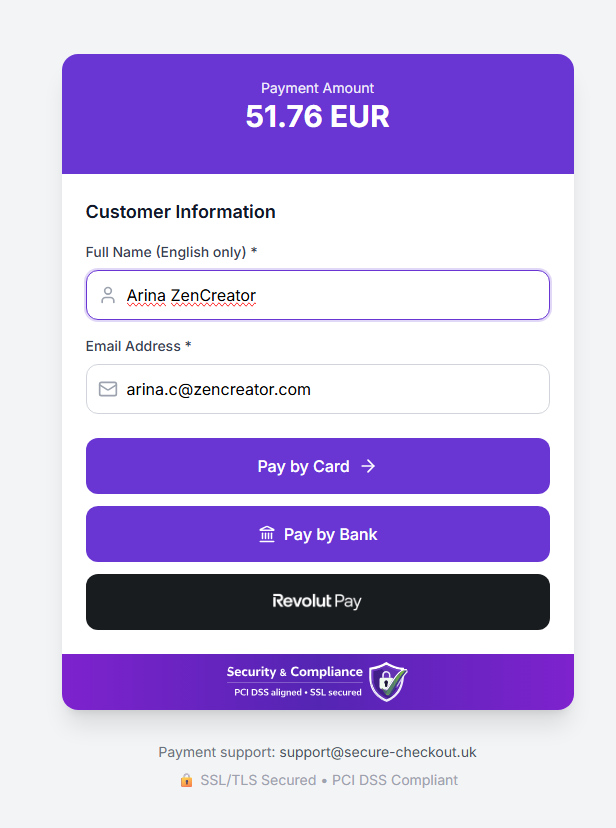
You'll be taken to a secure checkout page confirming your name and email. Click Pay by Card.
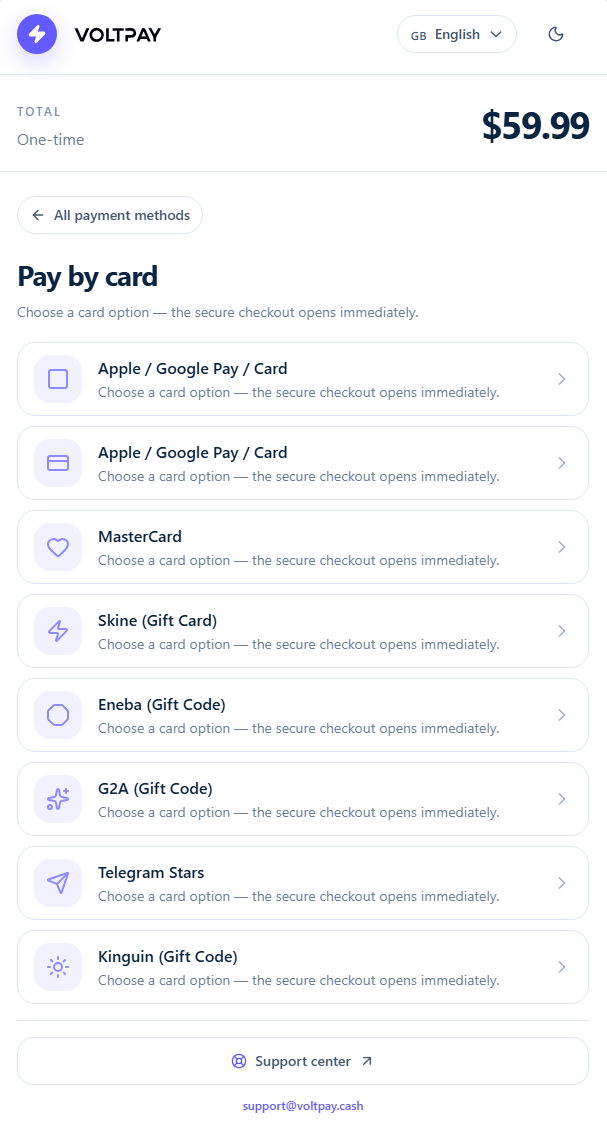
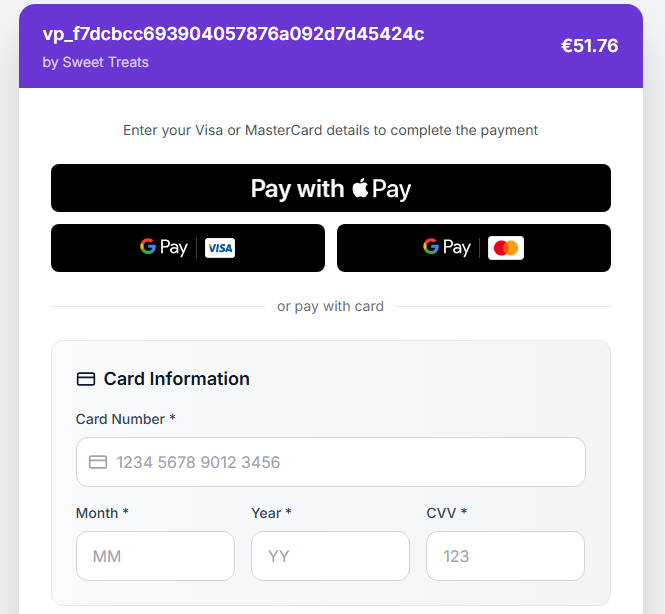
Enter your Visa or Mastercard details (card number, expiry month/year, CVV), or use Apple Pay / Google Pay if offered.
Fill in your billing information: name, email, country, address, city, state, postcode, and phone number.
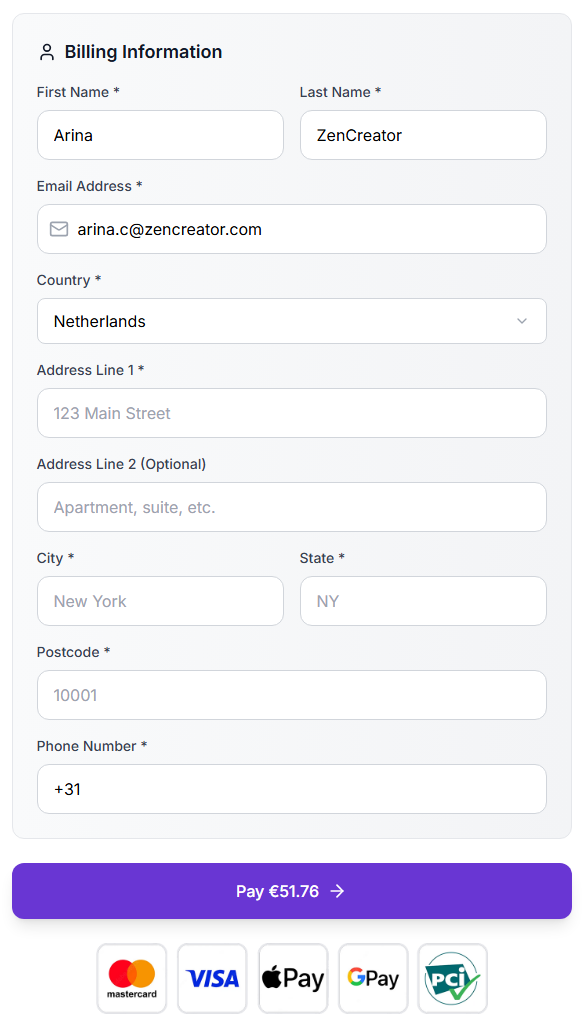
Check the total, then click Pay.
A receipt is sent to your account email after a successful payment.
Option B — Pay by Card via Crypto
This option lets you pay with a card while the payment is processed through our crypto payment partner — your card payment is automatically converted, and credits land on your account once it completes.
Under Payment Method, choose Card via Crypto.
On the checkout page, review your order (price and Order ID).
The best provider for you is selected automatically — you don't need to choose one yourself.
Under Pay with, choose how you want to pay: Credit Cards, Apple Pay, Google Pay, or Revolut Pay.
You may be asked to verify your identity before payment — this usually takes about a minute.
Click Pay. Once the payment completes, credits are added to your account automatically.
Option C — Pay with a Gift card
Under Payment Method, choose Gift card.
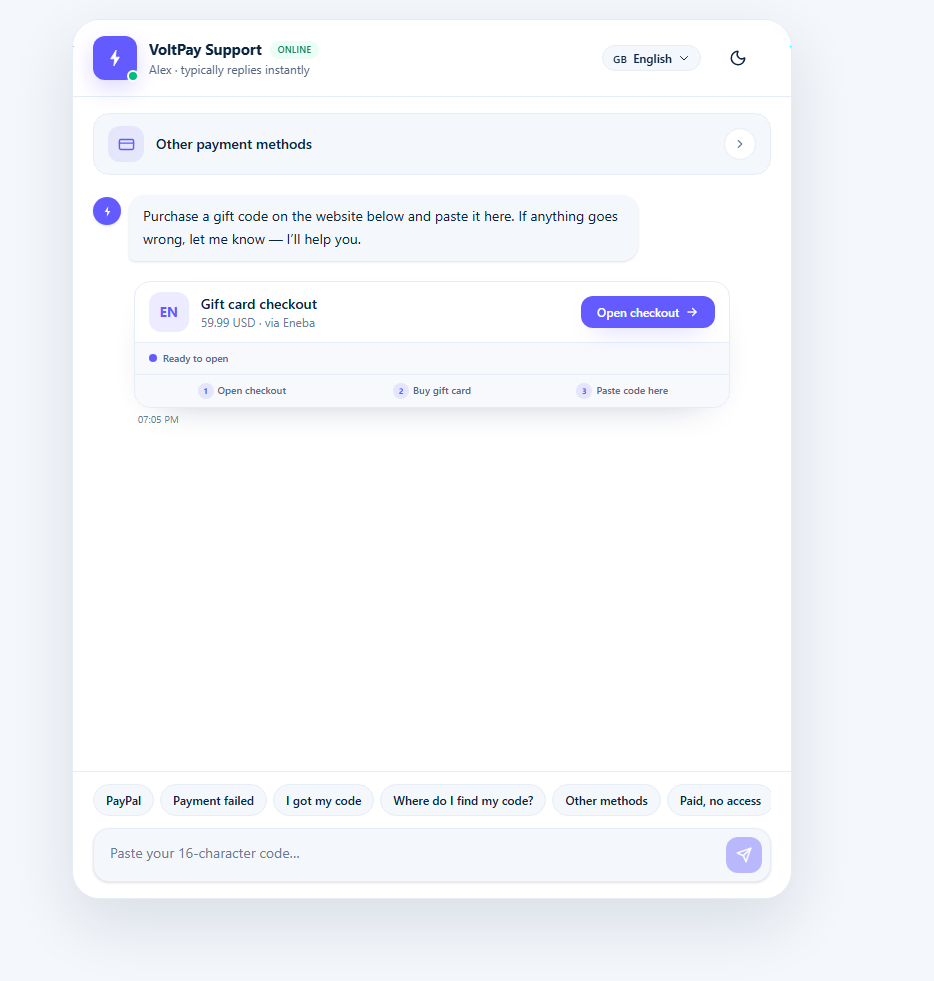
1) The chat will offer a Gift card checkout for the exact amount owed, with an Open checkout button.
2) On the gift card site, you can complete the purchase using any payment method available there (card, PayPal, Apple Pay, Google Pay, crypto, etc.) — it doesn't have to be a card.
3) After purchase, you'll receive a gift code.
4) Paste the code into the support chat where indicated.
5) Once the code is validated, your credits are added to your account automatically.
Option D — Pay with Crypto directly (USDT/USDC)
After you choose Crypto and click a package, you must select:
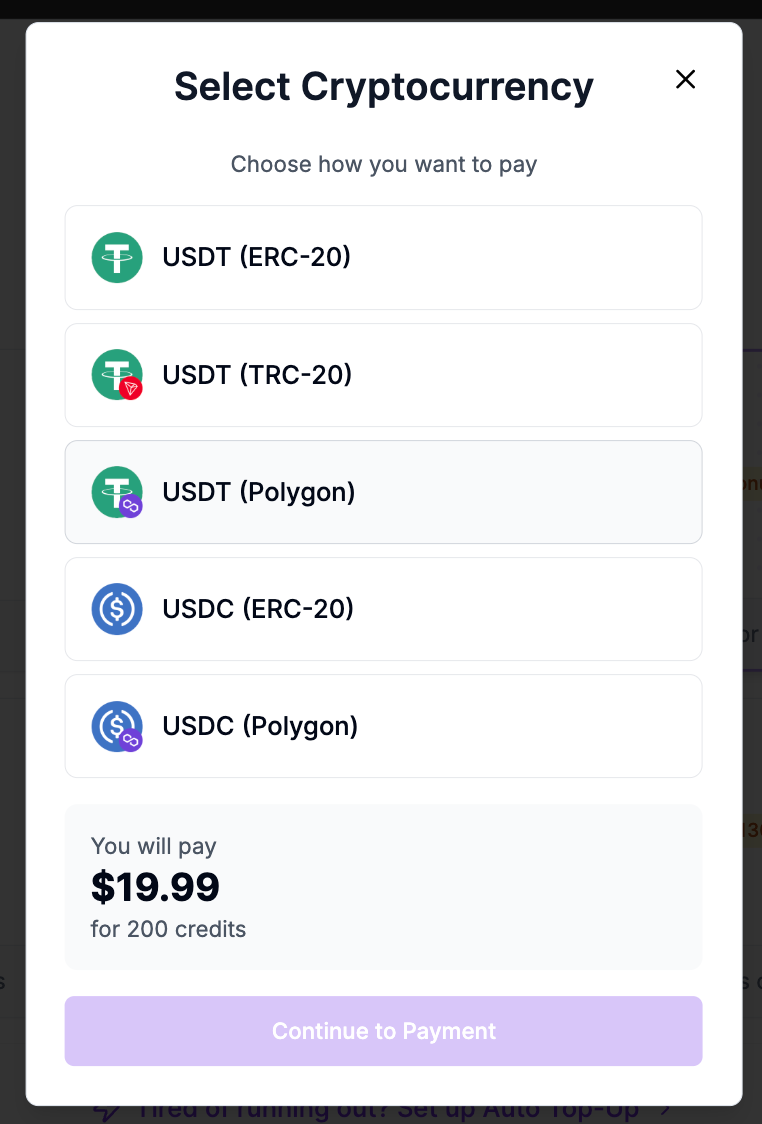
which coin (USDT or USDC)
which network/blockchain (ERC-20 / TRC-20 / Polygon)
⚠️ Important: The network must match exactly
Crypto wallet addresses can look the same across different blockchains.
But if you choose the wrong network, we won’t be able to automatically detect/accept your payment — and in most cases, we also won’t be able to recover or refund it.
In other words: the network you pick in ZenCreator must be the same network you use in your wallet/exchange.
What’s the difference between networks (in plain English)?
A “network” (ERC-20, TRC-20, Polygon) is basically a different rail for sending crypto.
Even if the address looks familiar, sending on the wrong rail can make the payment unreachable for us.
How to send the payment
After you select the network, you’ll see a payment window with:
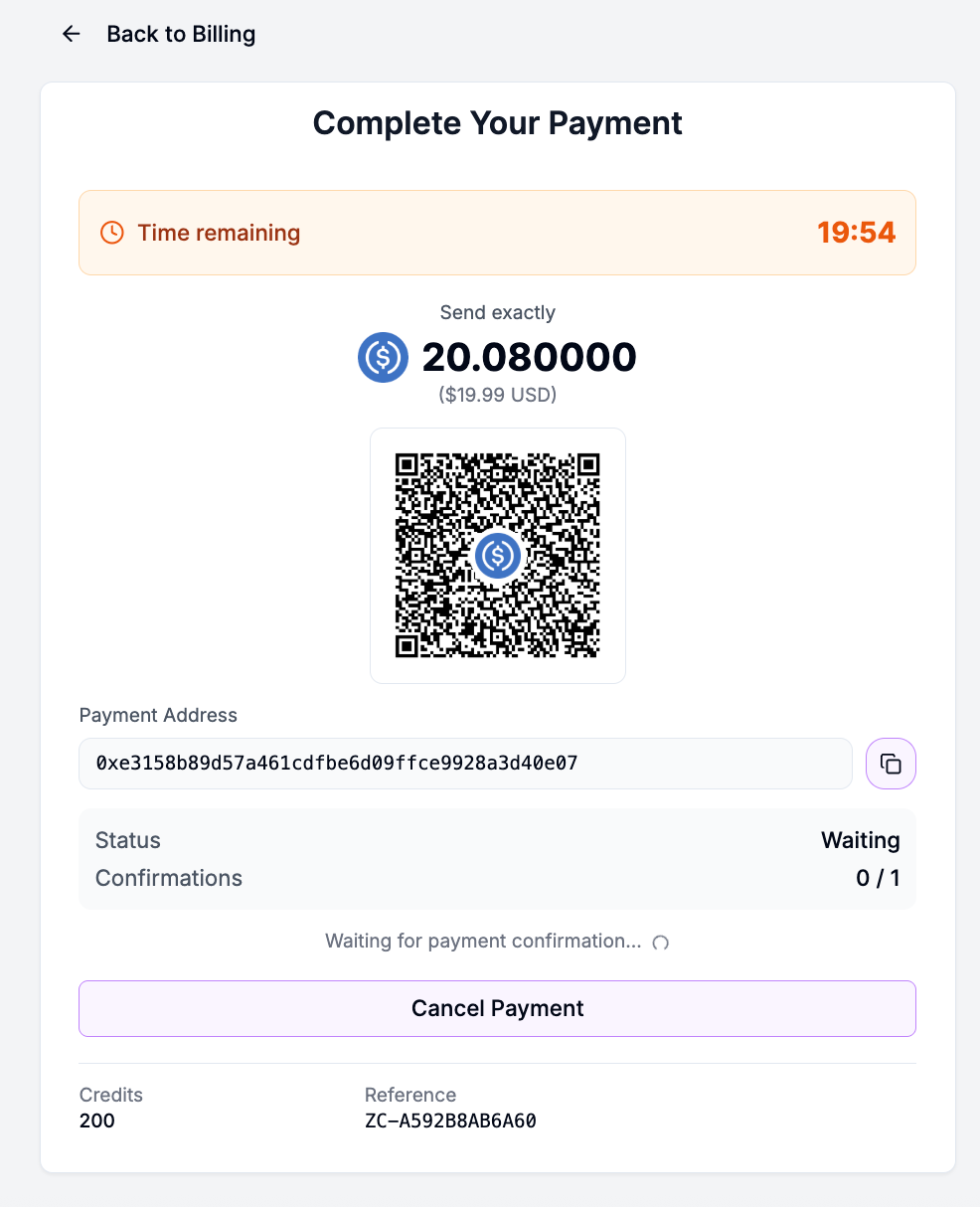
QR code
wallet address
exact amount to send
time remaining (timer)
You can pay in two ways:
Scan the QR code with your phone wallet — it usually auto-fills the wallet address + network
Copy the wallet address and send manually from your wallet/exchange
If you’re not sure, use the QR code — it helps your wallet auto-fill both the address and the network correctly.
✅ Send the exact amount shown (not less)
It’s very important to send exactly the amount shown in the payment window (not less).
Crypto payments can take up to 24 hours to be verified by our payment partner — this is normal, don't worry if it doesn't confirm instantly. Once the check is complete, the payment will either go through or be refunded to you.
What will happen next (summary)
If you sent everything correctly → the payment will be processed automatically
If you sent on a different network or to a different address → we won’t receive the funds, credits won’t be added, and you won’t be able to get the money back.
If you sent less → the payment won’t be processed and will be canceled; the amount will be returned to you.
You can complete the same payment using multiple transfers (for example, if you sent less at first).
⚠️ Common mistake: the wallet address changes every time
Each new crypto payment is created with a new wallet address.
Do not reuse an address from an older payment.
While your payment is confirming
You can keep using ZenCreator while the payment is confirming.
If you click Back in the payment window:
You’ll still see the payment on the Billing page with time remaining
Click Complete payment to reopen the same payment window
Receipts, invoices, and taxes
A receipt is sent to your account email after each purchase.
Business invoices with VAT/GST are temporarily unavailable while we update our billing systems. Contact support for the latest status.
We collect VAT/GST where required by law based on your billing country and tax details.
Alternative payment methods (on request)
If card or crypto payment isn't an option, reach out — we can arrange manual payment for larger top-ups:
Bank / wire transfer (US/EU) — from $1000
ACH (US)
Crypto (USDT/USDC/ETH/BTC) for larger amounts than the standard flow above
Tell us your required amount, company details, and preferred method. We'll send instructions and credit your account once funds clear. Contact [email protected] or the chat bubble in the app.
Common payment issues
Card declined / 3-D Secure failed: try again, use another card, or call your bank to allow the charge.
Charged but credits missing: it's usually a browser refresh or a delayed processing — contact us and include your payment details (email, time, and method).
Wrong amount / duplicate payment: message us first; we'll investigate and resolve if applicable.
Refunds & disputes
If something goes wrong, please contact us before filing a chargeback. We can usually resolve billing mistakes quickly and, when appropriate, issue a refund directly, in accordance with our Refund Policy.
Need help?
In-app chat (fastest)
Email [email protected]
We're happy to assist with invoices, VAT info, enterprise billing, or enabling an alternative payment route.
Was this helpful?
Still need help? Ask the team