How to Create NSFW Content for a New AI or Real Model
This guide explains how to transform a safe, consistent photo set into NSFW variants while keeping facial identity, lighting, and realism intact.
Written By Leonid
Last updated 3 months ago
🎯 Goal
You already have 10 – 20 SFW photos of your model.
Now you’ll create a matching NSFW set — maintaining the same body, face, and aesthetic style.
🧭 Available Workflows
Image Editor (Body + Scene Mix)
Image-to-Image with NSFW Mode
1️⃣ Text-to-Image → Upscale → Face Swap
🎯Goal
Generate realistic nude or semi-nude images while keeping the figure, lighting, and pose consistent with your SFW set.
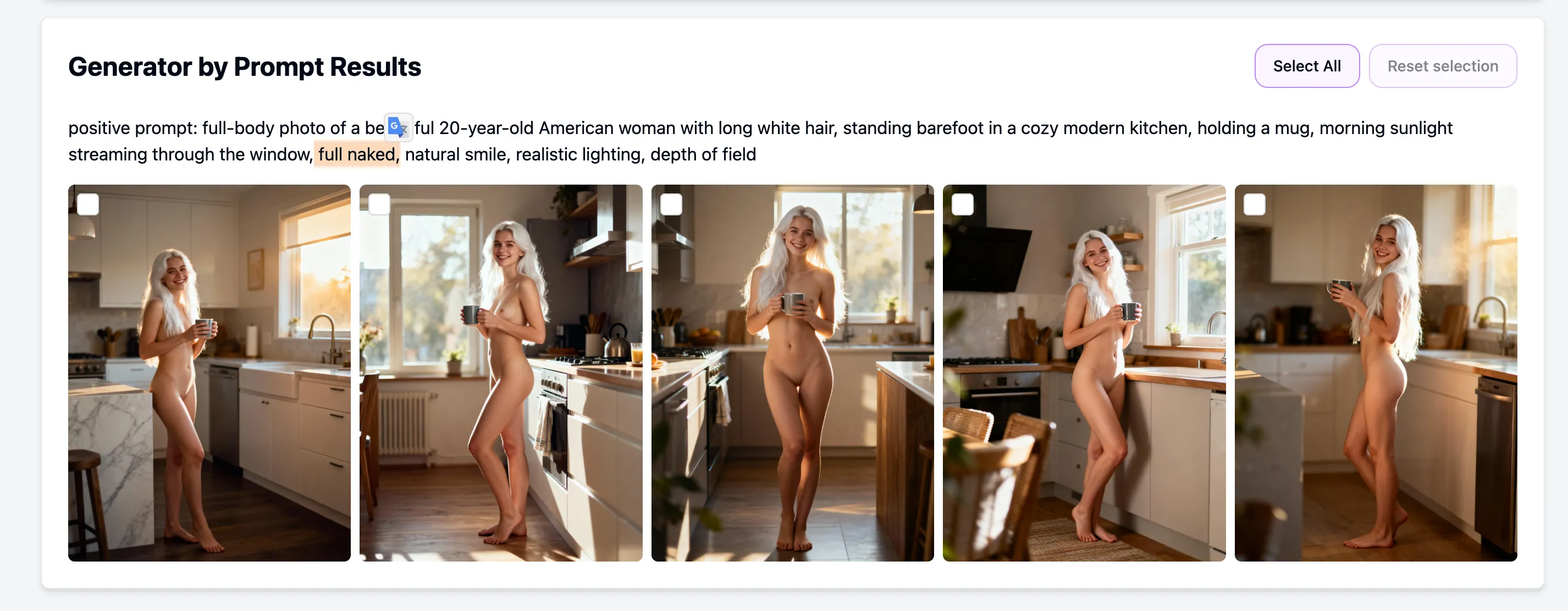
Step 1 · Generate Base Images
Tool: Generator by Prompt
Recommended modes:
SDXL — best skin & body detail
General — balanced artistic realism
Use the same physical parameters from your SFW prompts; just change wardrobe cues (e.g. “nude”, “topless”, “in bathroom”).
📸 Example Prompt
cinematic photo of a 20-year-old woman with long white hair, nude, lying on white sheets in morning sunlight, natural lighting, DSLR realism
🎯 Pro Tips
Keep body proportions and hair colour identical to the SFW set.
Avoid over-detailed explicit text — the AI model understands subtle cues.
If genitals are poorly rendered, try SDXL over General mode.
Step 2 · Select and Upscale
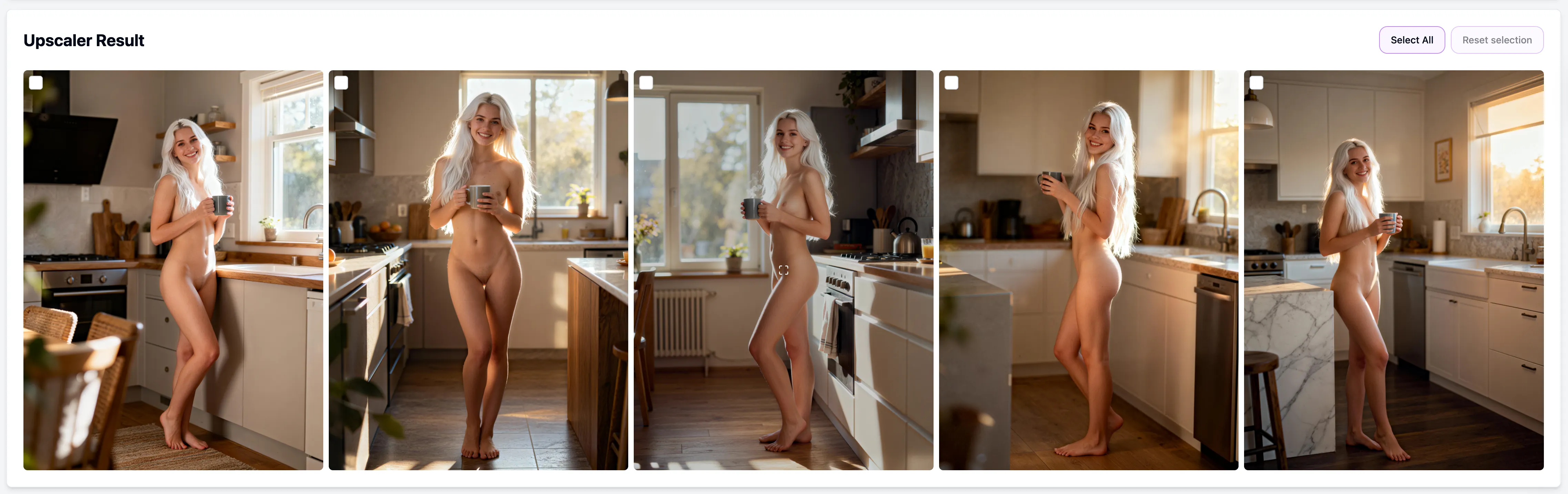
Tool: AI Upscaler
Use Premium or Ultra Clarity mode for high-definition skin details.
Select the most consistent 10–20 photos for final processing.
Step 3 · Face Swap
Tool: AI Face Swap
Replace the faces in your upscaled shots with your model’s face to keep identity lock.
The result: fully consistent NSFW images matching your SFW persona.
2️⃣ Image Editor (Body + Scene Mix)
🎯Goal
Combine an existing portrait or full-body image with a nude body reference to create a realistic NSFW composition.
Step 1 · Collect Inputs
Model’s portrait (face)
A nude body photo (without head) matching pose / angle
Optional background and clothing references
Descriptive prompt (e.g., “in the bathroom, soft light, natural pose”)
💡 Choose high-quality references with good lighting; they heavily influence results.
Step 2 · Run Image Editor
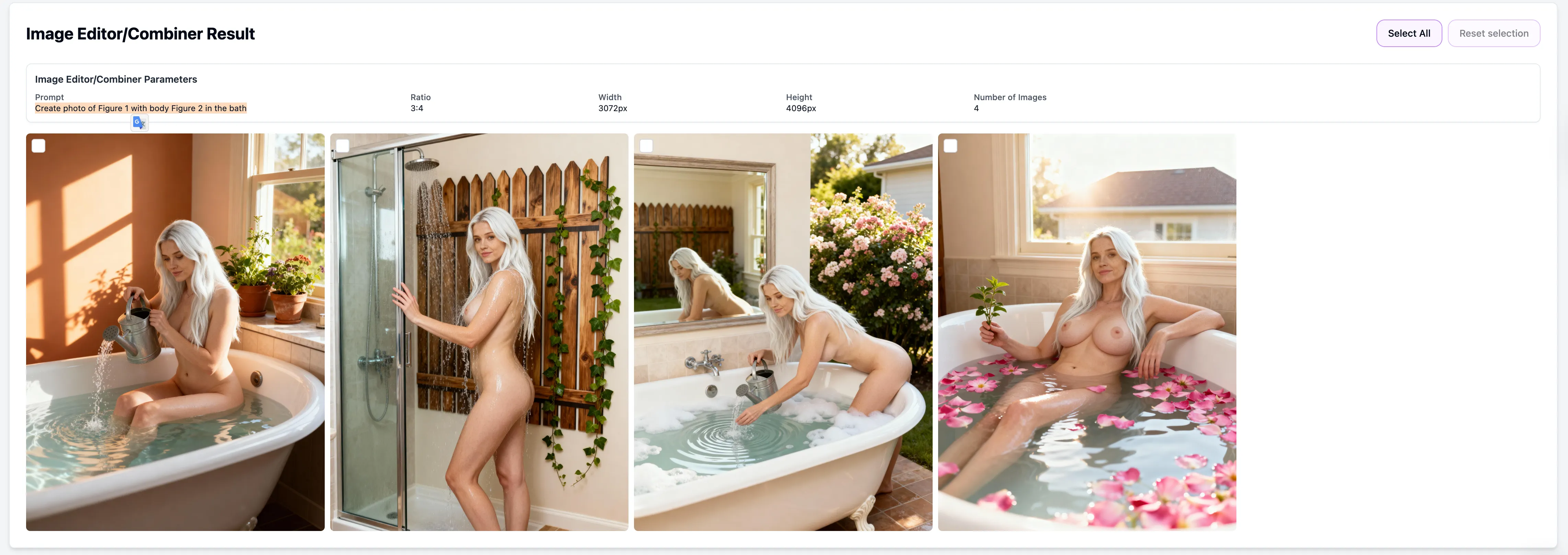
Tool: Image Editor
Combine your inputs and prompt to generate composite shots.
Example Prompt:
Create a photo of Figure 1 with the body of Figure 2 in a modern bathroom, natural lighting, and a Paris view from the window.
Run multiple tests changing background or outfit keywords.
Select the most consistent results.


Step 3 · Refine
If faces look inconsistent, run a Face Swap pass or add a close-up portrait as an additional reference.
3️⃣ Image-to-Image with NSFW Mode
🎯Goal
Use a semi-clothed reference (e.g., lingerie or swimwear) to generate realistic nude variants.
Step 1 · Pick References
Choose images from your SFW set or other AI/real photos with similar pose and body type.
Step 2 · Generate by Reference
Tool: Generator by Reference
Optionally attach LoRa body modifiers (e.g., “fuller hips”, “toned abs”).
Generate variants and review for consistency.
Step 3 · (Optionally) Upscale + Face Swap
Use the same workflow from step 1 to finalize HQ results.
📦 Next Steps
Once your NSFW photo set is complete:
Upscale final assets to 4K for publishing quality.
Create Reels or short videos using the AI Video Generator.