How to Create SFW Content for an Existing AI or Real Model
Already have a model with an established look? This guide shows how to create new SFW content for that existing identity — using Photo-Shoot Generation, Text-to-Image, Image Editor, Carousel Maker, and Generation by Reference.
Written By Leonid
Last updated About 1 month ago
🎯 Goal
You already have a consistent model — her face, figure, and personality are defined.
Now you want to expand her photo set with new outfits, locations, and moods while preserving the same identity.
🧭 Available Workflows
Photo-Shoot Generator (Recommended)
Image Editor (Style / Pose / Environment)
Carousel Maker (Angle Variations)
Generation by Reference (Image-to-Image)
1️⃣ Photo-Shoot Generator (Recommended)
Goal
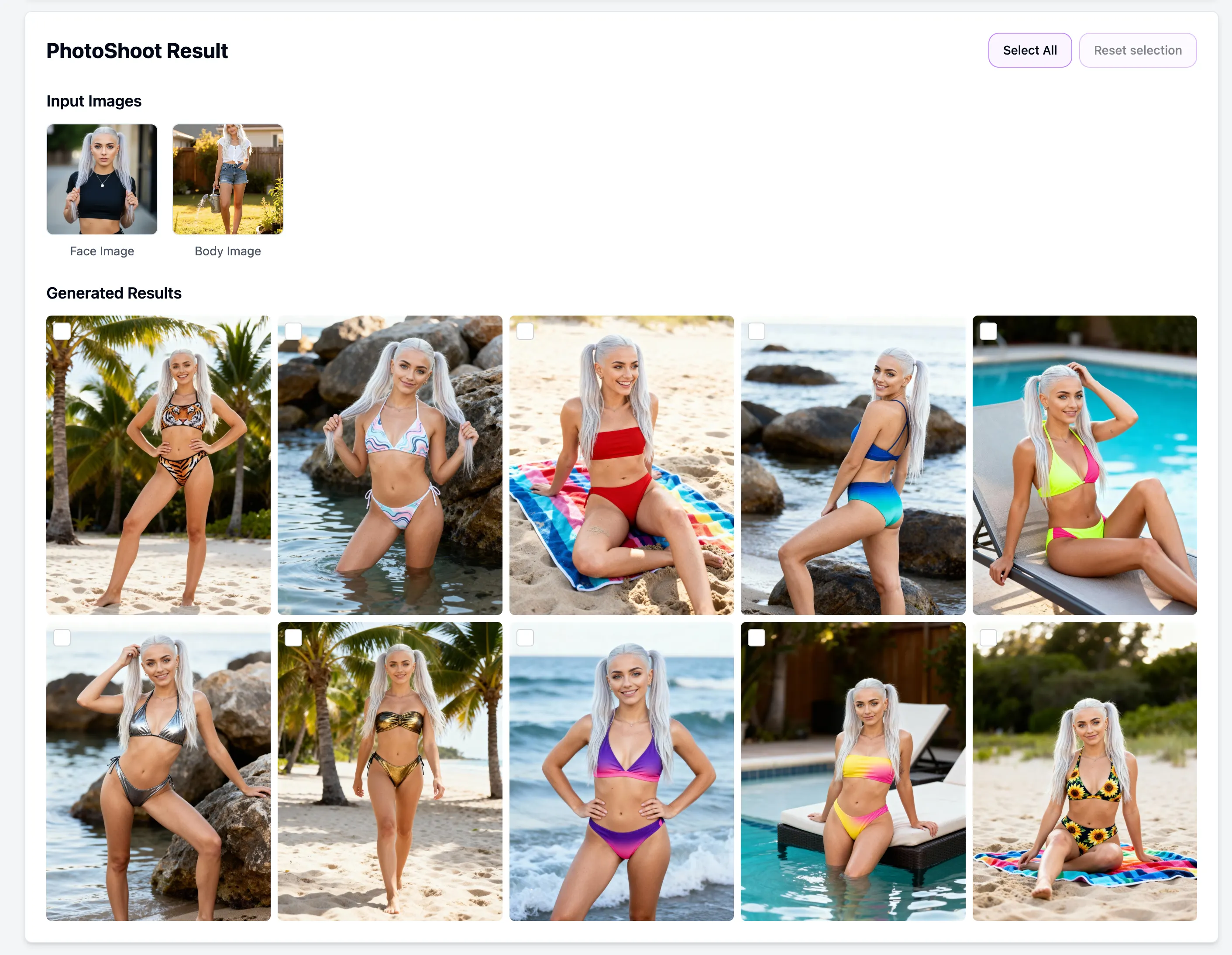
Generate complete photo-shoot sets automatically — same model, new themes, perfect consistency.
Step 1 · Upload Face and Body
Tool: AI Photo-Shoot Generator
Upload your model’s face photo (front-facing, well-lit) and optionally her full-body reference to preserve proportions.
Step 2 · Choose Shoot Specs
Pick:
Aspect ratio (1:1, 3:4, 9:16, etc.)
Gender flag
Themes (e.g., Cozy, Studio, Beach, Glamour, Work, Holiday, Fitness)
Image count per theme
Each run can include up to 10 themes and hundreds of photos.
Step 3 · Generate and Review
Zencreator renders all themes in parallel.
Reject weak results — they’ll auto-regenerate until your quota is met.
🎯 Pro Tip
Use the grid view to quickly compare lighting and outfit variety before exporting.
Step 4 · Export or Pipeline
Send selected photos to:
Video Generator to animate the shoot
Carousel Maker to have more photos
2️⃣ Text-to-Image → Upscale → Face Swap
Goal
Generate fresh SFW photos for your existing model using prompts while preserving her face.
Step 1 · Write Your Prompt
Tool: Generator by Prompt
Use the same model description from her initial SFW shoot (hair, age, body type).
Add a new context — e.g., “at the café”, “on vacation”, “working on a laptop”.
📸 Example Prompt
realistic photo of a 25-year-old woman with brown hair, sitting in a coffee shop, laptop on table, morning light, DSLR photography
Step 2 · Select and Upscale
Use AI Upscaler with Face-Safe mode for clean details.
Step 3 · Apply Face Swap
Tool: AI Face Swap
Upload your model’s face as the source and swap it onto new photos to preserve identity.
Result: new SFW photos perfectly matching your model’s persona.
3️⃣ Image Editor (Style / Pose / Environment)
Goal
Modify existing photos by changing outfits, locations, or lighting while keeping the same body and face.
Step 1 · Pick Source Photo
Select one of your existing models’ images.
Step 2 · Add References (Optional)
Provide additional visuals for:
Clothing style
New background
Pose inspiration
Step 3 · Run Image Editor
Tool: Image Editor
Prompt example:
Recreate this model in the same pose, wearing a red dress, sitting on a balcony during sunset.
Review results and export the best variations.
4️⃣ Carousel Maker (Angle Variations)
Goal
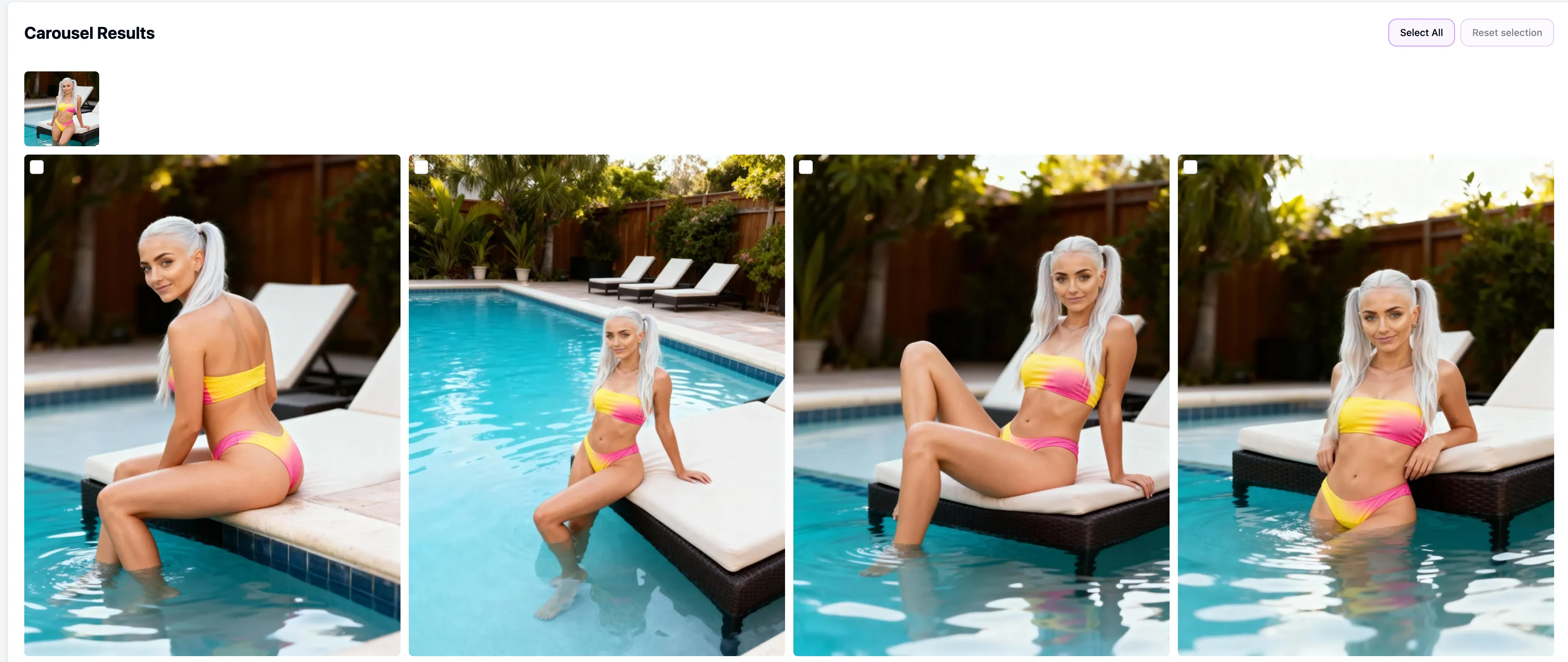
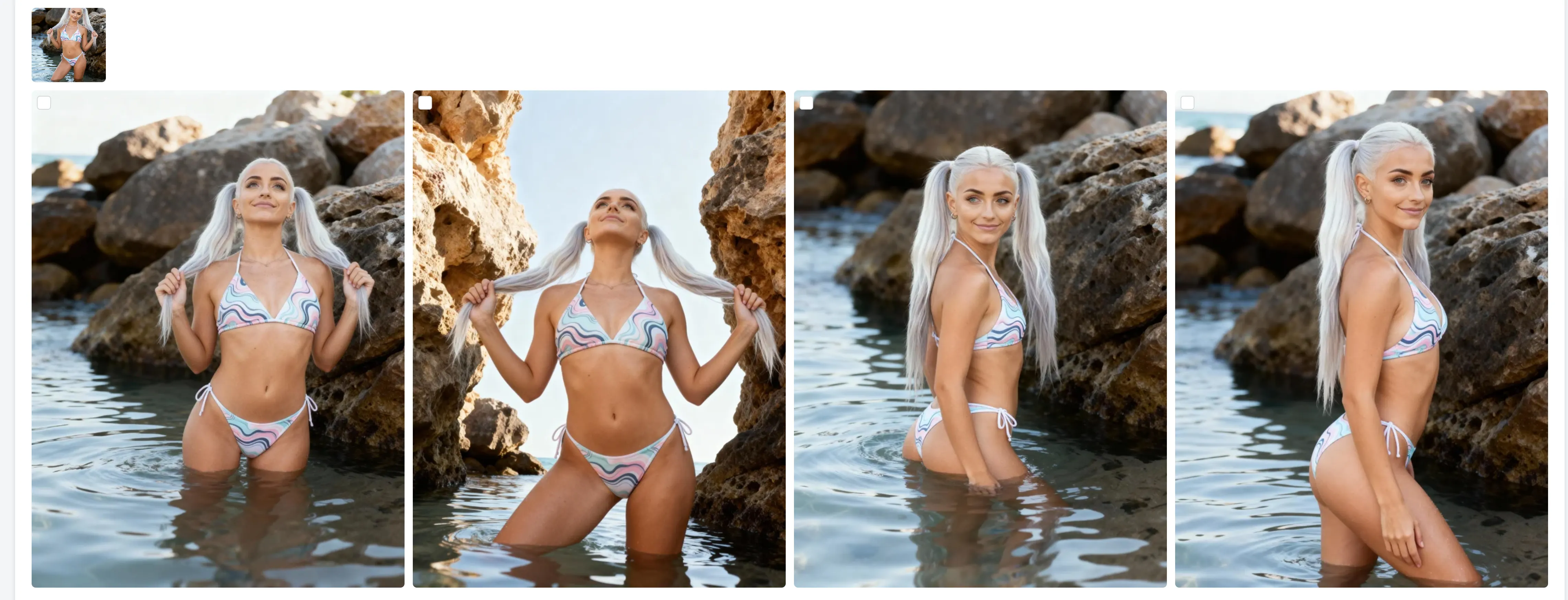
Produce new perspectives and 360° variations of existing photos for carousels or galleries.
Step 1 · Upload Existing Photos
Tool: AI Carousel Generator
Upload one or multiple photos of your model.
Step 2 · Choose Variations
Set number of views (1–10).
Step 3 · Generate
Preview angles — front, side, back, three-quarter, etc.
Star the best and route them to Video Generation or Publishing.
5️⃣ Generation by Reference (Image-to-Image)
Goal
Use a single reference photo to create brand-new, on-theme versions while preserving model identity.
Step 1 · Upload Reference
Tool: Generator by Reference
Upload your existing photo as the base reference.
Step 2 · Choose Engine
SDXL for lifelike photography
Step 3 · Generate Variants
Adjust the creativity slider — lower values = closer match, higher = more artistic variation.
Review and select consistent results.
📦 Next Steps
Once your new SFW set is ready:
Upscale everything to 4K quality.
Schedule content in Publishing.